
Fact-checked by the VisualEnews editorial team
Quick Answer
Older adults are navigating the digital world on their own terms by starting with beginner-friendly devices, using accessibility features built into smartphones and tablets, and accessing free community training programs. As of July 2025, over 75% of adults aged 65+ now use the internet regularly. The process takes most beginners 4–8 weeks to build confident, independent digital skills.
The digital world older adults are stepping into today looks very different from the intimidating landscape of even five years ago. In July 2025, Pew Research Center data shows that more than three-quarters of Americans aged 65 and older now go online regularly — a figure that has nearly doubled over the past decade. Seniors are not just passively browsing; they are video calling family, managing prescriptions, banking online, and using health-tracking apps with growing confidence.
This shift matters now because the pandemic accelerated digital adoption across every age group, and tech companies have responded with larger screens, voice controls, and simplified interfaces specifically designed for older users. At the same time, scam activity targeting seniors online has risen sharply, making guided, step-by-step education more urgent than ever.
This guide is written for older adults who are just beginning their digital journey, as well as caregivers and family members helping them get started. By following these steps, readers will be able to choose the right device, set up essential safety features, connect confidently, and use the internet independently and securely.
Key Takeaways
- Over 75% of U.S. adults aged 65+ use the internet regularly as of 2025, according to Pew Research Center.
- Tablets are the top recommended starter device for older adults, with larger touchscreens reducing physical barriers, per AARP’s technology research.
- The FCC’s Affordable Connectivity Program successor and similar programs have helped more than 23 million households access subsidized broadband, as tracked by the Federal Communications Commission.
- Online scams targeting adults over 60 cost Americans $3.4 billion in losses in 2023, according to the FBI’s Internet Crime Complaint Center (IC3).
- Seniors who complete structured digital literacy training report a 60% increase in confidence using online services, based on findings from Older Adults Technology Services (OATS).
- Built-in accessibility features like Apple’s VoiceOver and Android’s TalkBack are free and reduce the learning curve significantly for adults with vision or motor challenges, per Apple Accessibility support.
In This Guide
- Step 1: What Is the Best Device for an Older Adult Just Starting Out?
- Step 2: How Do I Set Up Accessibility Features on a Smartphone or Tablet?
- Step 3: How Do Older Adults Get Affordable Internet Access at Home?
- Step 4: How Can Seniors Stay Safe From Scams and Fraud Online?
- Step 5: Where Can Older Adults Learn Digital Skills for Free?
- Step 6: Which Apps Should Seniors Learn to Use First?
- Frequently Asked Questions
Step 1: What Is the Best Device for an Older Adult Just Starting Out?
The best starter device for most older adults is a tablet — specifically the Apple iPad (9th generation or later) or the Amazon Fire HD 10. Tablets combine a large, easy-to-read screen with an intuitive touchscreen interface that eliminates the need to learn a keyboard or mouse right away.
How to Choose the Right Device
Screen size is the single most important factor. Devices with screens 10 inches or larger are consistently recommended for older adults because text, icons, and buttons are easier to see and tap. According to AARP’s personal technology research hub, the iPad and Amazon Fire tablets dominate beginner recommendations due to their straightforward setup processes and large app libraries.
For those who already own a smartphone, a large-screen Android phone such as the Samsung Galaxy A series or the iPhone with display zoom enabled can serve as both a phone and a digital access point. If budget is a concern, refurbished iPads from Apple’s certified program start as low as $279.
What to Watch Out For
Avoid purchasing cheap, off-brand tablets under $50. These devices frequently lack software updates, which creates serious security vulnerabilities. Also avoid rushing toward a laptop as a first device — the combination of keyboard, trackpad, and multiple windows tends to overwhelm new users and slows confidence-building.
Ask the retailer to turn on “Guided Access” (Apple) or “Screen Pinning” (Android) before leaving the store. This locks the screen to one app at a time, preventing accidental navigation to confusing menus while you are still learning.
Step 2: How Do I Set Up Accessibility Features on a Smartphone or Tablet?
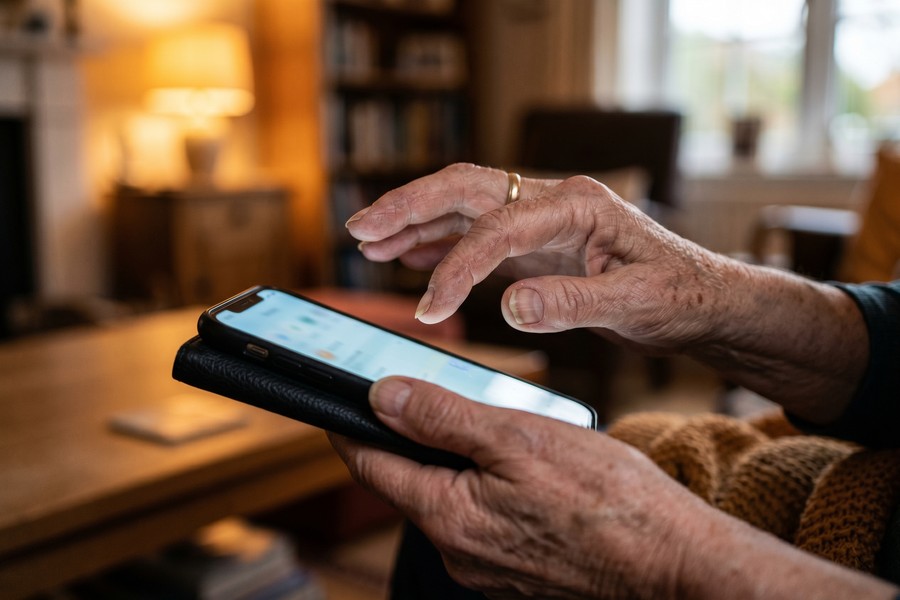
Every major smartphone and tablet includes built-in accessibility features that cost nothing and can dramatically reduce physical and sensory barriers. Turning on larger text, high-contrast display, and voice controls takes less than five minutes and makes a measurable difference for first-time users.
How to Do This
On an Apple iPhone or iPad, go to Settings, then Accessibility. Key features to enable include:
- Display and Text Size: Increase text size using the slider; enable “Bold Text.”
- VoiceOver: Reads aloud everything on the screen — ideal for users with low vision.
- Magnifier: Turns the camera into a magnifying glass with a triple-click of the side button.
- Speak Screen: Swipes down from the top of any screen to have the device read aloud.
On Android devices, go to Settings, then Accessibility. Enable TalkBack for screen reading, increase the Display Size and Font Size, and activate “Select to Speak” for reading individual items you tap. According to Google’s Android Accessibility support page, these features are available on all Android devices running version 9 or higher.
What to Watch Out For
Do not enable VoiceOver or TalkBack without first watching a short tutorial — the gesture controls change when these features are active, which can confuse users who accidentally turn them on. Apple’s free Accessibility support page includes short video guides for each feature.
Apple’s VoiceOver screen reader has been available on iPhones since 2009, making it one of the most mature and tested accessibility tools in consumer technology. It supports over 35 languages and works with Braille displays.
Step 3: How Do Older Adults Get Affordable Internet Access at Home?
Older adults on fixed incomes can access reliable home internet for $0 to $30 per month through federal assistance programs and low-income offers from major internet service providers. Cost is the most frequently cited barrier to internet adoption among seniors, but multiple verified solutions exist right now.
How to Do This
The FCC’s broadband access programs and the continuing Lifeline Program provide monthly discounts of up to $9.25 per month on broadband service for qualifying low-income households. Apply directly through the FCC Lifeline Support program. Eligibility is based on income or participation in federal assistance programs like Medicaid or SNAP.
Major internet service providers also run parallel programs. Comcast Xfinity’s Internet Essentials offers broadband for $9.95 per month to households with students or seniors over 62. AT&T Access and Spectrum Internet Assist offer similar rates. These programs do not require a contract and include free installation in most cases.
What to Watch Out For
Be cautious of promotional “introductory” plans that revert to full price after 12 months. Always ask the provider what the price will be after the promotional period ends before signing up. Also confirm that the plan includes enough data for video calling — a minimum of 25 Mbps download speed is recommended by the FCC for a single-user household using streaming and video calls.
The FCC reports that broadband adoption among adults aged 65+ in rural areas sits at just 58%, compared to 79% in urban areas — a gap that federal programs are actively working to close.
Understanding how connectivity relates to devices is important. If you are deciding between home Wi-Fi and mobile data, our comparison of 5G vs Wi-Fi 7 wireless technologies explains the practical differences for everyday home users.
| Program | Monthly Cost | Speed | Who Qualifies |
|---|---|---|---|
| FCC Lifeline | Up to $9.25 discount on existing plan | Varies by carrier | Income at or below 135% federal poverty level or Medicaid/SNAP |
| Comcast Internet Essentials | $9.95/month | 50 Mbps download | Households with students K–12 or adults 62+ |
| AT&T Access | $10/month | 10–25 Mbps download | SNAP or SSI recipients |
| Spectrum Internet Assist | $14.99/month | 30 Mbps download | SNAP, SSI, or National School Lunch Program |
| T-Mobile Home Internet (55+ plan) | $50/month for two lines | Typical 72–245 Mbps | Adults 55+ with two lines on account |
Step 4: How Can Seniors Stay Safe From Scams and Fraud Online?
Seniors can dramatically reduce their fraud risk by learning to recognize the three most common online scam types: phishing emails, tech support scams, and romance scams. The FBI’s 2023 Internet Crime Report found that adults over 60 lost $3.4 billion to online fraud — more than any other age group — making this the most critical step in this guide.
How to Do This
Follow these core safety rules consistently:
- Never click links in unsolicited emails or text messages — go directly to the website by typing the address yourself.
- Legitimate companies like Microsoft, Apple, Amazon, and the IRS will never call you unsolicited and demand immediate payment via gift card or wire transfer.
- Use a unique, strong password for every account. A password manager like Bitwarden (free) or 1Password ($2.99/month) stores them all securely.
- Enable two-factor authentication (2FA) on email, banking, and social media accounts. This adds a one-time code sent to your phone as a second layer of protection.
- Report suspected scams to the FTC at reportfraud.ftc.gov and to your state’s attorney general office.
Understanding your digital identity and how to protect it is foundational to safe internet use. Once you understand what data you leave behind online, it becomes much easier to make safer decisions.
What to Watch Out For
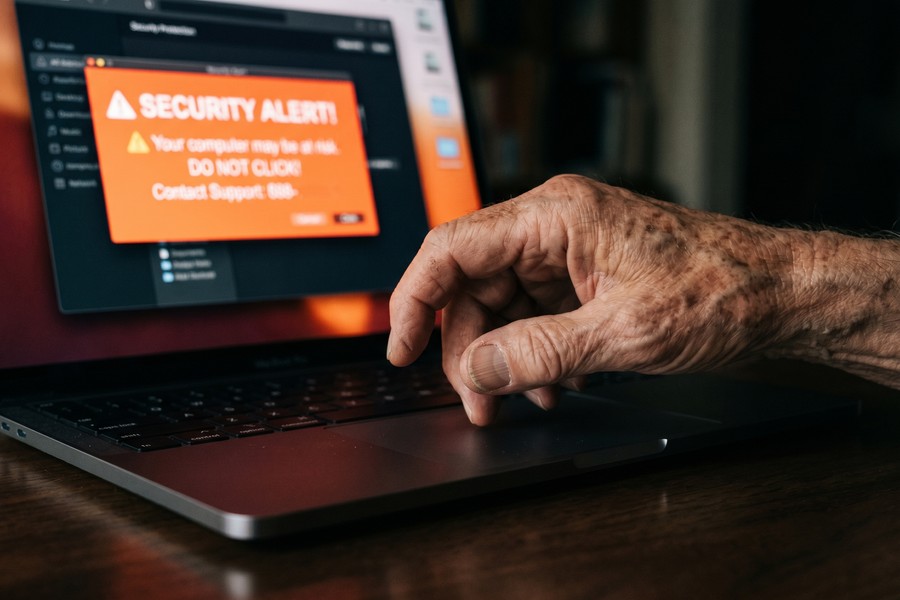
Pop-up messages claiming your computer has a virus and urging you to call a phone number are almost always scams. Never call the number. Close the browser window or restart the device, and do not provide any personal information.
“Older adults are targeted not because they are less intelligent, but because scammers know they tend to be more trusting, more likely to have savings, and less likely to report fraud out of embarrassment. Education is the single most powerful defense.”
Romance scams are the fastest-growing fraud category targeting seniors. If someone you met online — who you have never met in person — asks for money for any reason, stop all contact and report it to the FBI’s Internet Crime Complaint Center at ic3.gov immediately.
Step 5: Where Can Older Adults Learn Digital Skills for Free?
Free, structured digital literacy training is available through public libraries, nonprofit organizations, and online platforms specifically designed for older learners. Completing a structured course rather than learning by trial and error reduces frustration and builds lasting confidence significantly faster.
How to Do This
These are the most accessible and proven free resources available in 2025:
- OATS (Older Adults Technology Services) / Senior Planet: Offers free online and in-person technology classes for adults 60+ across the U.S. Visit SeniorPlanet.org to find classes near you or join live virtual sessions.
- AARP TEK Workshops: Free technology workshops offered in partnership with retailers. Find schedules at AARP’s website.
- Public Library Programs: Most U.S. public libraries offer one-on-one technology help sessions at no cost. Bring your device and a list of questions.
- Google’s Be Internet Awesome / Primer: Free, short digital literacy modules available on any device.
- Coursera’s “Digital Skills: Digital Marketing”: Free to audit, structured modules from Meta that cover internet basics in beginner-friendly language.
Research from OATS shows that seniors who complete at least four structured training sessions report a 60% increase in confidence using online services independently, compared to those who learn without guidance.
What to Watch Out For
Avoid paid “senior tech support” services advertised on TV or social media until you have exhausted free options. Many of these services charge $29–$99 per month for support that your public library, device manufacturer, or ISP will provide for free.
Most Apple retail stores offer free “Today at Apple” sessions covering iPhone and iPad basics. Book a session at Apple.com and bring your device. These sessions are specifically designed for all skill levels and are available in many languages.
Step 6: Which Apps Should Seniors Learn to Use First?
Older adults entering the digital world should start with five core app categories: video calling, messaging, health management, banking, and news. Mastering these five areas addresses the most common daily needs and delivers immediate, meaningful value that reinforces the motivation to keep learning.
How to Do This
Start with these specific, beginner-friendly applications:
- FaceTime (Apple) or Google Meet (Android): For video calling family. Both are free and require only a Wi-Fi connection.
- WhatsApp: Free international messaging and calling — ideal for staying connected with family members abroad.
- MyChart: Connects directly to most U.S. hospital systems. Allows seniors to view test results, request prescription refills, and message their doctor without a phone call.
- Your bank’s official app: Check balances, deposit checks by photo, and transfer funds. Always download it directly from the bank’s official website to avoid fake apps.
- Apple News or Google News: Aggregates headlines from trusted publications in a clean, readable format.
Many of the most useful health and wellness apps are entirely free, though it pays to understand what you give up when you do not pay. Our breakdown of free vs paid apps explains exactly what data or features you trade away with no-cost versions. Also, for older adults interested in monitoring blood pressure, steps, or heart rate, our guide to how wearable technology is transforming personal health tracking explains which devices work best alongside smartphone apps.
What to Watch Out For
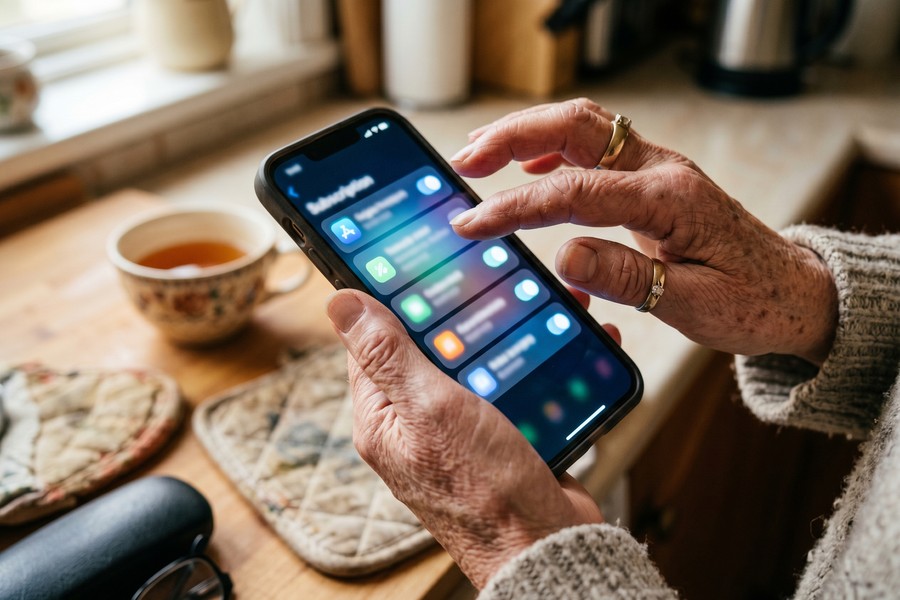
Be alert to subscription charges that begin after a free trial ends. Many app stores now offer a subscription management dashboard — on iPhone, go to Settings, then your name, then Subscriptions to see every active charge. Regularly auditing these charges matters more than most people realize. Our guide to auditing your digital subscriptions walks through the exact process for finding and canceling charges you do not recognize.
“The apps that provide the greatest return on investment for older adults are the ones that solve a real, daily problem — whether that is seeing a grandchild’s face, refilling a prescription, or checking a bank balance without driving to a branch. Start with utility, and confidence follows.”
The MyChart app is used by more than 200 million patients in the United States and connects to over 2,500 healthcare organizations. For older adults who visit the doctor frequently, it is consistently rated the single most impactful health app to learn first.
Frequently Asked Questions
How do I help my elderly parent learn to use a smartphone without frustrating both of us?
Teach one specific task per session and practice it until it feels automatic before moving on. Research consistently shows that older adults learn digital skills best through repetition of single tasks rather than broad overviews of all features at once. Keep each learning session to 20–30 minutes, end on a success, and write down the steps in large print as a reference card. AARP’s free TEK workshops use this exact method.
What is the easiest tablet for seniors who have never used a touchscreen before?
The Apple iPad (9th generation) is the most widely recommended first tablet for seniors due to its large icon layout, consistent interface, and access to free “Today at Apple” in-store training. The Amazon Fire HD 10 is a strong second choice at a lower price point ($139) for seniors primarily interested in video calling, reading, and basic browsing. Both devices have screens of 10 inches or larger, which is the minimum size most accessibility experts recommend.
Are there government programs that give seniors free internet access?
Yes. The FCC’s Lifeline Program provides up to $9.25 per month in broadband discounts for qualifying low-income adults, including most seniors on Medicaid or SSI. Additionally, many local governments and nonprofits have distributed free or low-cost hotspot devices through programs funded by the American Rescue Plan Act. Check with your local Area Agency on Aging for programs specific to your county.
How do I make the text bigger on my iPhone so it is easier to read?
Go to Settings, then Display and Brightness, then Text Size and drag the slider to the right to increase text size across all apps. For even larger text, go to Settings, Accessibility, Display and Text Size, and enable “Larger Accessibility Sizes,” which adds extra-large options beyond the standard range. Both changes take effect immediately and can be adjusted at any time without affecting your data or apps.
What should I do if I think I have been scammed online?
Stop all contact with the suspected scammer immediately and do not send any additional money or personal information. Report the incident to the FTC at reportfraud.ftc.gov and the FBI’s Internet Crime Complaint Center at ic3.gov. If money was transferred, contact your bank or credit card company immediately — many institutions can reverse transactions if reported within 24–72 hours. AARP’s Fraud Watch Network helpline (1-877-908-3360) offers free guidance to victims.
Is it safe for seniors to do online banking?
Online banking is safe for seniors when done correctly — specifically, by using the bank’s official app downloaded from the App Store or Google Play, accessing accounts only on a private, password-protected home Wi-Fi network, and enabling two-factor authentication. Never log into a bank account from a public Wi-Fi network such as a coffee shop or library without a VPN. According to the FDIC, FDIC-insured bank accounts are protected up to $250,000 regardless of how you access them.
Can older adults use voice assistants like Alexa or Siri to navigate the internet without typing?
Yes. Voice assistants like Amazon Alexa, Apple Siri, and Google Assistant allow users to search the internet, send messages, set reminders, and make calls entirely by speaking aloud — no typing required. For older adults with arthritis or limited fine motor control, voice-first interaction is often the most natural entry point into the digital world. Amazon Echo devices start at $29.99 and are widely used in senior living communities precisely because of their hands-free accessibility.
How do older adults avoid accidentally downloading fake or harmful apps?
Only download apps from the official Apple App Store or Google Play Store — never from links in emails, text messages, or pop-up ads. Before downloading any app, check its developer name, read the reviews, and verify that the rating is 4 stars or higher with at least several hundred reviews. For banking and health apps specifically, go to the institution’s official website first and follow their link to the app, rather than searching by name in the app store.
How long does it realistically take for a senior to become comfortable using the internet independently?
Most older adults with no prior digital experience report feeling comfortable with basic internet tasks — video calling, email, news browsing, and online shopping — after 4 to 8 weeks of regular, guided practice. The pace varies significantly based on prior comfort with technology, frequency of practice, and access to a patient instructor. Daily practice of even 15–20 minutes accelerates skill retention more than longer, infrequent sessions.
Sources
- Pew Research Center — Internet and Broadband Fact Sheet
- AARP — Personal Technology Research and Resources
- Federal Communications Commission — Lifeline Support for Affordable Communications
- FBI Internet Crime Complaint Center — 2023 Internet Crime Report
- Older Adults Technology Services (OATS) — Technology Adoption Research
- Apple — Accessibility Features Support Page
- Google — Android Accessibility Overview
- Senior Planet by OATS — Free Technology Classes for Adults 60+
- Federal Communications Commission — Getting Broadband Q&A
- Federal Trade Commission — Report Fraud






