Fact-checked by the VisualEnews editorial team
Quick Answer
To build a smarter digital file system as a freelancer, you need to establish a consistent folder hierarchy, adopt a universal file naming convention, choose the right cloud storage platform, and automate routine organization tasks. Most freelancers can set up a fully functional system in under 3 hours and reclaim an average of 8+ hours per month previously lost to file hunting. As of July 2025, tools like Notion, Google Drive, and Hazel make this easier than ever.
Building a reliable digital file system for freelancers means creating a structured, searchable, and scalable environment where every client document, invoice, contract, and asset lives exactly where you expect it — every single time. As of July 2025, freelancers who implement a formal file organization strategy report saving an average of 1.8 hours per day previously lost to searching for information, according to research from McKinsey Global Institute.
The urgency is real. The global freelance workforce has grown to over 1.57 billion workers worldwide, and the volume of digital assets each independent professional manages has ballooned alongside it. Remote-first work, multi-client juggling, and cloud-first collaboration tools mean that a disorganized file structure is no longer just an inconvenience — it’s a direct tax on your earning potential. Freelancers who fail to systematize their files often lose billable hours to administrative chaos rather than productive client work.
This guide is designed for independent contractors, consultants, designers, writers, developers, and any solo professional managing multiple clients and projects simultaneously. By the end, you will have a complete blueprint for a digital file system that saves time, prevents data loss, and scales as your workload grows.
Key Takeaways
- Freelancers waste an average of 4.3 hours per week searching for files and documents, according to iManage’s information management research — time that directly reduces billable output.
- A consistent file naming convention can reduce search time by up to 40%, as reported by NIST file management best practices.
- Cloud storage adoption among freelancers has reached 83%, with Google Drive, Dropbox, and OneDrive holding the top three positions, per Statista’s 2024 cloud storage report.
- Freelancers who use automation tools like Hazel or Zapier for file routing report saving an average of 2.5 hours per week on manual organization, based on Zapier’s 2024 State of Business Automation report.
- Regular file audits — performed quarterly — reduce digital clutter by an average of 37% and lower cloud storage costs, according to Backblaze’s storage cost analysis.
- Freelancers with a documented backup strategy are 3x less likely to experience permanent file loss, per Backblaze’s data loss research.
In This Guide
- Step 1: How Do I Set Up a Folder Structure That Works for Multiple Clients?
- Step 2: What Is the Best File Naming Convention for Freelancers?
- Step 3: Which Cloud Storage Platform Should Freelancers Use?
- Step 4: How Do I Automate My File Organization to Save Time Every Week?
- Step 5: How Should Freelancers Back Up and Secure Their Digital Files?
- Step 6: How Often Should I Audit My Digital File System as a Freelancer?
- Frequently Asked Questions
Step 1: How Do I Set Up a Folder Structure That Works for Multiple Clients?
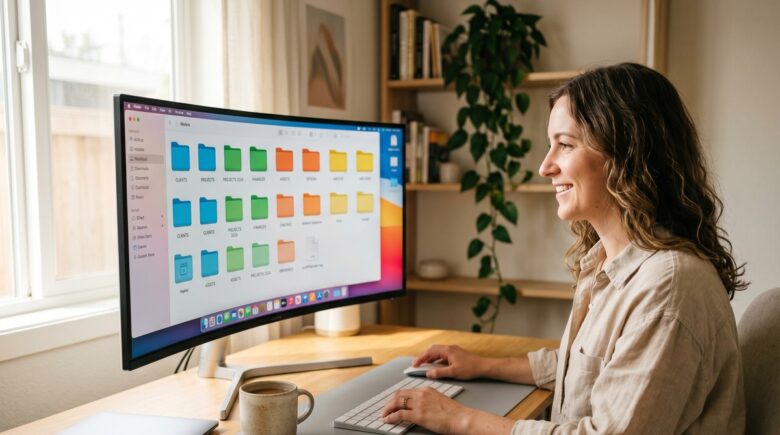
The most effective folder structure for freelancers uses a three-tier hierarchy: a top-level category, a client or project folder, and sub-folders organized by file type or project phase. This approach ensures every file has a predictable home, regardless of how many clients you manage simultaneously.
How to Do This
Start at the root level of your storage drive or cloud service with three to five top-level folders. Most freelancers thrive with a structure like: Clients, Admin, Templates, Archives, and Resources. Inside each client folder, create consistent sub-folders such as Contracts, Invoices, Deliverables, Assets, and Correspondence.
Tools like Notion (notion.so) and Airtable can mirror your folder structure in a database format, giving you a searchable index on top of your file system. For local drives, choosing between an SSD and HDD matters too — SSDs dramatically speed up file access when navigating deep folder trees.
The key principle is replicability: every client folder should look identical in structure. When you onboard a new client, duplicate your template folder and rename it. This single habit eliminates the need to think about where to save anything ever again.
What to Watch Out For
Avoid creating folder structures that are too deep — more than four levels of nesting makes navigation painful and slows down search indexing. Also resist the urge to create a new top-level category for every minor file type. Consolidate aggressively at the top and let sub-folders handle specificity.
Create a “00_TEMPLATE” client folder with all your standard sub-folders pre-built. Every time you win a new client, duplicate this folder and rename it. Setup time drops to under 60 seconds per new client.
Step 2: What Is the Best File Naming Convention for Freelancers?
The best file naming convention for freelancers follows a date-first, descriptive format: YYYY-MM-DD_ClientName_ProjectName_Version. This format sorts files chronologically by default, makes every file instantly identifiable, and works across Windows, macOS, and cloud platforms without compatibility issues.
How to Do This
Use the ISO 8601 date format (YYYY-MM-DD) at the start of every filename. Follow it with the client name abbreviated to 3–5 characters, the project or deliverable type, and a version number. For example: 2025-07-15_AcmeCo_BlogPost_v02.docx. This single format makes files sortable, searchable, and unambiguous.
Replace all spaces with underscores or hyphens — spaces break file paths in many automation tools and command-line environments. Avoid special characters like / : * ? " < > | which cause errors on certain operating systems. According to NIST file management guidelines, consistent naming conventions reduce retrieval time by up to 40%.
Version control is critical for a solid digital file system for freelancers. Never overwrite a file — always increment the version number (v01, v02, v03) and archive superseded versions in a Previous Versions sub-folder. This practice protects you if a client requests rollbacks and prevents costly revision disputes.
What to Watch Out For
Avoid vague names like “final,” “final2,” or “revised” — these become meaningless within days. Never use client-facing file names internally; keep your system’s naming convention separate from what you deliver. If a client requires a specific file name format, rename the file only in the outgoing copy.
File names with spaces or special characters often break automation workflows in tools like Zapier, Hazel, and Python scripts. Establish your naming rules before automating — retrofitting conventions later requires batch renaming hundreds of files.
Step 3: Which Cloud Storage Platform Should Freelancers Use?
The best cloud storage platform for most freelancers is Google Drive for its deep integration with Google Workspace, generous free tier, and real-time collaboration features — but the right choice depends on your storage volume, collaboration needs, and budget. Dropbox and OneDrive are strong alternatives depending on your existing tool stack.
How to Do This
Evaluate platforms across four dimensions: storage capacity, collaboration features, offline access reliability, and integration with your existing apps. Google Drive offers 15 GB free and integrates natively with Gmail, Google Docs, and Google Calendar. Dropbox Business starts at $15/user/month and provides superior file sync reliability, especially on large files. Microsoft OneDrive is the natural choice if you work primarily in Microsoft Office environments.
If you’re managing a high volume of large media files — video, audio, or high-resolution images — consider Backblaze B2 or pCloud for cost-effective storage. Freelancers working with sensitive client data should also evaluate platforms with zero-knowledge encryption, such as Tresorit, which stores files in a way that even the provider cannot access them.
Whichever platform you choose, enable selective sync to avoid downloading every file to your local machine. This is especially important if you’re working from a laptop — see our guide on the best laptops for remote workers in 2026 for storage capacity recommendations that pair well with cloud-first workflows.
What to Watch Out For
Never rely on a single cloud platform as your only storage location. Cloud services experience outages and, in rare cases, account suspension. Always maintain at least one additional backup — either a local external drive or a secondary cloud service.
| Platform | Free Storage | Paid Plan (Starting) | Best For | Offline Access |
|---|---|---|---|---|
| Google Drive | 15 GB | $2.99/month (100 GB) | Google Workspace users, collaboration | Yes |
| Dropbox | 2 GB | $11.99/month (2 TB) | File sync reliability, team sharing | Yes |
| OneDrive | 5 GB | $1.99/month (100 GB) | Microsoft Office users | Yes |
| Backblaze B2 | 0 GB | $0.006/GB/month | Large media file storage, cost control | No (API-based) |
| Tresorit | 5 GB | $10.42/month (200 GB) | Sensitive client data, legal/finance | Yes |
Cloud storage adoption among freelancers has reached 83% as of 2024, with Google Drive holding a 41% market share among independent professionals, according to Statista’s cloud storage adoption data.
Step 4: How Do I Automate My File Organization to Save Time Every Week?
You can automate your digital file system as a freelancer by using rule-based tools that move, rename, and sort files based on triggers like file type, name pattern, or creation date — without any manual effort after the initial setup. The two most powerful tools for this are Hazel (macOS) and Zapier (cross-platform, cloud-based).
How to Do This
Hazel by Noodlesoft monitors designated folders and applies rules you define — for example, automatically moving any PDF containing the word “Invoice” to your Clients/[ClientName]/Invoices folder. A single afternoon of rule-building in Hazel can eliminate hours of weekly manual sorting. Hazel costs a one-time fee of $42 and runs silently in the background.
For cross-platform and cloud automation, Zapier connects over 6,000 apps. A common freelancer workflow: when a new email attachment arrives in Gmail from a specific client domain, Zapier automatically saves it to the correct Google Drive folder and adds a row to your project tracking spreadsheet. According to Zapier’s 2024 State of Business Automation report, freelancers using workflow automation save an average of 2.5 hours per week on manual file tasks.
Windows users can replicate much of Hazel’s functionality with File Juggler or with built-in PowerShell scripts. For freelancers comfortable with light coding, a simple Python script using the watchdog library can monitor folders and auto-sort files in real time at zero cost.
“The freelancers I work with who have invested even a single day in building automation rules for their file systems consistently report that it’s one of the highest-ROI decisions they’ve ever made. The system pays for itself in the first week.”
What to Watch Out For
Automation rules can misfire if your file naming conventions are inconsistent. A Hazel rule looking for files named with “Invoice” will miss files named “INV” or “Bill.” Establish your naming conventions in Step 2 before building any automation rules. Test each rule manually on five to ten sample files before activating it on your live file system.
Create an “Inbox” folder on your desktop as the single drop zone for all incoming files. Build your automation rules to process everything from that one folder — this prevents files from scattering across your system before they can be sorted.
Step 5: How Should Freelancers Back Up and Secure Their Digital Files?
Freelancers should follow the 3-2-1 backup rule: maintain three total copies of your data, stored on two different media types, with one copy kept offsite. This strategy protects against hardware failure, ransomware, accidental deletion, and cloud service outages — all of which are documented risks for independent workers.
How to Do This
Your three copies should be: (1) your primary working files on your local machine, (2) a real-time cloud sync via Google Drive, Dropbox, or OneDrive, and (3) an automated offsite backup via a service like Backblaze Personal Backup, which backs up your entire computer continuously for $99/year. Backblaze is widely regarded as the most cost-effective full-computer backup solution available.
For security, enable two-factor authentication (2FA) on every cloud storage account. Use a password manager like 1Password or Bitwarden to generate and store unique passwords for each service. For highly sensitive client documents — contracts, NDAs, financial data — encrypt files before uploading using VeraCrypt (free, open-source) or store them exclusively on a zero-knowledge platform like Tresorit.
Understanding your digital identity and how to protect it is directly tied to how you secure your file systems. A compromised account can expose every client file you’ve ever stored in the cloud — make security a non-negotiable part of your file system setup, not an afterthought.
What to Watch Out For
Cloud sync is NOT a backup. If you accidentally delete a file and it syncs that deletion across all your devices, you lose it everywhere. Services like Backblaze and Time Machine maintain version history and protect against this scenario. Always verify that your backup service retains deleted files for at least 30 days.
According to Backblaze’s data loss research, freelancers with a documented backup strategy are 3x less likely to experience permanent file loss. The average cost of data recovery from a failed hard drive ranges from $300 to $1,500 — far exceeding the annual cost of a proper backup solution.
Step 6: How Often Should I Audit My Digital File System as a Freelancer?
Freelancers should conduct a quarterly file audit — every three months — to archive completed projects, delete redundant files, update folder structures for new service offerings, and verify that backups are functioning correctly. A quarterly cadence prevents digital clutter from accumulating to unmanageable levels.
How to Do This
Schedule a recurring two-hour block every quarter specifically for file system maintenance. During each audit, complete four tasks in order: (1) Move all completed project folders to your Archives directory. (2) Delete duplicate files using a tool like dupeGuru (free, cross-platform) or Gemini 2 for macOS. (3) Verify that your Backblaze or Time Machine backup completed successfully within the last 24 hours. (4) Review your top-level folder structure and retire any categories that no longer reflect your service offerings.
Many freelancers also benefit from doing a monthly micro-audit — a 20-minute pass through the Inbox folder and Downloads folder to ensure nothing has accumulated outside the formal file structure. These regular, low-effort touchpoints prevent the quarterly audit from becoming an overwhelming multi-day project.
While you’re auditing your files, it’s worth doing a parallel review of your software subscriptions. Tools you set up months ago may no longer serve your system — our guide to auditing your digital subscriptions walks through exactly how to identify and cut unused services that are quietly draining your budget.
What to Watch Out For
Do not archive files while a project is still in an active revision cycle, even if the deadline has passed. Create a Pending Client Approval sub-folder for deliverables awaiting sign-off. Only move a project to Archives after the client has formally confirmed acceptance and final payment is received.
“Most freelancers treat file organization as a one-time setup task. The ones who build sustainable systems treat it as an ongoing practice — like bookkeeping. The quarterly audit isn’t busywork. It’s infrastructure maintenance for your business.”
Pair your quarterly file audit with your quarterly financial review. Both tasks require the same focused, analytical mindset and covering them in the same session means you only disrupt your creative workflow once per quarter instead of twice. Many freelancers also find it helpful to review whether their paid apps are still earning their keep during this session.
Related reading: aio quick authority: independent filmmakers.
Frequently Asked Questions
What is the best free tool to organize files for freelancers just starting out?
Google Drive is the best free tool for freelancers building their first digital file system, offering 15 GB of free storage, real-time collaboration, and deep integration with Google Docs, Sheets, and Gmail. For local file management on macOS, the built-in Finder with color-coded labels and Smart Folders provides powerful organization at no cost. Windows users can use the built-in File Explorer with custom folder shortcuts and Quick Access pins to replicate similar functionality.
How do I organize client files when I have more than 10 active clients at once?
With more than 10 active clients, use a project management tool like Notion or Airtable as a master index that maps every active project to its corresponding file system folder. Inside your storage drive, prefix each client folder with a two-digit number (01_AcmeCo, 02_BetaCorp) to force alphabetical order to reflect your priority ranking. This combination of visual database and structured folders lets you navigate dozens of clients without losing track of a single deliverable.
Should I use a separate hard drive or just cloud storage for my freelance files?
You should use both — not one or the other. Cloud storage alone is not a backup, and a local hard drive alone is vulnerable to theft, fire, or hardware failure. The 3-2-1 backup rule — three copies, two media types, one offsite — is the professional standard. A fast SSD for your working files combined with a cloud sync service and an automated offsite backup like Backblaze gives you the redundancy that protects your business-critical data. For a deeper breakdown of storage hardware, see our comparison of SSDs vs HDDs and which is right for your workflow.
How do I handle file sharing with clients without losing control of my folder structure?
Share individual sub-folders or specific files with clients using a unique shared link — never grant clients access to your entire folder structure. In Google Drive and Dropbox, you can share a single “Client Deliverables” sub-folder with view-only or comment-only permissions while keeping your internal working folders, invoices, and contracts completely private. This approach gives clients exactly what they need without exposing your business infrastructure.
What file naming convention do professional freelancers actually use?
The most widely adopted naming convention among professional freelancers is the date-first format: YYYY-MM-DD_ClientName_Description_vXX. This format sorts files chronologically by default in every operating system, makes the file instantly identifiable without opening it, and supports version tracking. Using underscores instead of spaces ensures compatibility with automation tools, command-line utilities, and file transfer protocols that break on space-containing paths.
How do I stop my Downloads folder from becoming a black hole for important files?
Set a rule — either a personal habit or an automated one — that the Downloads folder is processed daily and emptied weekly. On macOS, a Hazel rule can automatically move any file that has sat in Downloads for more than 48 hours to either a designated processing folder or the Trash. On Windows, File Juggler provides similar functionality. The key discipline is treating Downloads as a temporary transit zone, not a storage location — nothing lives there permanently.
Can I use AI tools to help organize and tag my freelance files automatically?
Yes — AI-powered file management tools are an emerging and increasingly practical option for freelancers. Mem.ai and Notion AI can automatically tag and surface related documents based on content. For email attachments specifically, tools like SaneBox use AI to filter and route incoming files before they ever reach your inbox. While fully autonomous AI file organization is still maturing, the category is advancing rapidly — pairing AI tagging tools with a solid manual folder structure produces the best results today. You can read more about how AI is changing the way we find and retrieve information to understand where this technology is headed.
How do I migrate my existing chaotic file system to a new organized structure without losing anything?
Migrate in stages rather than all at once. First, build your new folder structure completely in a separate location — do not touch your existing files yet. Second, copy (do not move) your most recent active project files into the new structure. Third, work exclusively in the new structure going forward. Finally, over the next 30 days, migrate historical files project by project during your scheduled audit time. This staged approach means you are always working from an organized system immediately while the migration happens gradually in the background without disrupting active client work.
What should I do with old client files after a project is finished?
Move completed project folders to a dedicated Archives directory at the root of your storage system after receiving final client approval and payment. Within Archives, organize by year (Archives/2025/ClientName_ProjectName) and compress large folders into ZIP format to reduce storage consumption. Retain client files for a minimum of three to seven years depending on your jurisdiction’s requirements for business record-keeping — consult your accountant for the specific retention period applicable to your situation and file type.
Sources
- McKinsey Global Institute — The Social Economy: Unlocking Value Through Social Technologies
- Statista — Cloud Storage Adoption Rate Among Professionals (2024)
- Zapier — State of Business Automation Report 2024
- Backblaze — The Cost of Not Backing Up Your Data
- NIST — Special Publication 1500-6: File Management Best Practices
- iManage — The Cost of Poor Information Management
- Dropbox — Business Plans and Pricing Comparison
- Google Workspace — Storage and Pricing Plans
- Backblaze — Personal Computer Backup Plans and Pricing
- Noodlesoft — Hazel Automated File Organization for macOS






