Fact-checked by the VisualEnews editorial team
Quick Answer
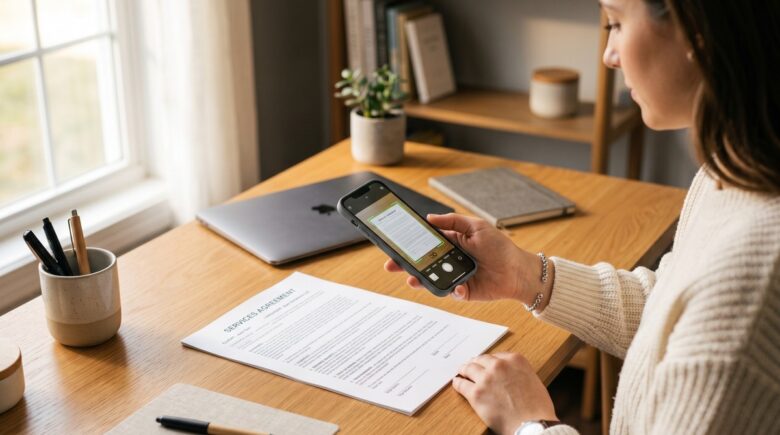
You can use your phone as a document scanner by opening a built-in app — Apple Notes or iOS Files on iPhone, or Google Drive on Android — and tapping the scan function. As of July 2025, modern phone cameras produce scans at 200–300 DPI, sufficient for most legal and business documents. The entire process takes under 30 seconds per page.
A phone document scanner uses your smartphone’s camera, combined with edge-detection software, to capture, crop, and enhance flat documents into clean digital files. According to Statista’s global smartphone data, over 6.9 billion people now carry a smartphone — meaning the majority of the world already owns a capable document scanner in their pocket.
Dedicated flatbed scanners are no longer necessary for everyday document digitization. This guide covers the best built-in and third-party apps, the correct scanning technique, how to export and store files, and how to maintain scan quality — so you can replace paper workflows entirely.
Key Takeaways
- Modern smartphones can scan documents at 200–300 DPI, meeting the standard required by most courts and financial institutions (U.S. National Archives digitization guidelines).
- Apple’s built-in scanner in the Notes app has been available since iOS 11 (2017) and requires zero additional downloads (Apple Support documentation).
- Google Drive’s scan feature, available on all Android devices, automatically applies perspective correction and contrast enhancement using on-device machine learning (Google Drive Help Center).
- Adobe Scan, one of the most widely used third-party apps, has been downloaded more than 100 million times on Google Play alone (Google Play Store listing).
- Proper lighting reduces OCR (Optical Character Recognition) error rates by up to 40%, according to imaging research published by IEEE in their document image quality analysis.
In This Guide
- What Exactly Makes a Phone a Document Scanner?
- Which Apps Turn Your Phone Into a Document Scanner?
- How Do You Scan a Document on an iPhone?
- How Do You Scan a Document on Android?
- How Do You Improve Phone Scan Quality?
- How Do You Save and Share Scanned Documents?
- Is a Phone Document Scanner Good Enough to Replace a Flatbed?
What Exactly Makes a Phone a Document Scanner?
A phone becomes a document scanner through a combination of camera hardware and computational image processing. The camera captures a raw image, while the app applies edge detection, perspective correction, and contrast enhancement to produce a clean, readable file.
Most modern smartphones ship with cameras capable of capturing images at 12–200 megapixels. Even a 12MP sensor generates more raw resolution than a standard office scanner set to 300 DPI. The real differentiator is the software layer that processes those pixels into a usable document.
How Edge Detection Works
Edge detection algorithms identify the four corners of a document against any background. Once detected, the app performs a perspective warp — digitally flattening a photo taken at an angle into a straight, top-down view.
This is the core technology behind every phone document scanner app on the market. Companies like Adobe, Microsoft, and Google have refined these algorithms significantly since 2017, making automatic detection reliable even on patterned surfaces.
Smartphone scanning apps use the same class of image segmentation algorithms originally developed for autonomous vehicle lane detection. Apple’s Vision framework, used in iOS scanning features, processes document edge detection entirely on-device without sending image data to external servers.
Which Apps Turn Your Phone Into a Document Scanner?
The best phone document scanner apps fall into two categories: built-in system tools that require no download, and third-party apps with advanced features like OCR and cloud integration. The right choice depends on your workflow and the output format you need.
| App | Platform | OCR | Output Format | Cost |
|---|---|---|---|---|
| Apple Notes Scanner | iOS 11+ | Yes (iOS 15+) | PDF, JPEG | Free |
| Google Drive Scanner | Android | Yes | Free | |
| Adobe Scan | iOS & Android | Yes (automatic) | PDF, JPEG | Free / $9.99/mo premium |
| Microsoft Lens | iOS & Android | Yes | PDF, Word, JPEG, OneNote | Free |
| SwiftScan | iOS & Android | Yes | PDF, JPEG | Free / $4.99/mo premium |
Third-Party App Standouts
Microsoft Lens is the strongest choice for users embedded in the Microsoft 365 ecosystem. It exports directly to Word, PowerPoint, and OneNote, making it valuable for professionals who need editable output rather than static PDFs.
Adobe Scan integrates natively with Adobe Acrobat, which is important if you frequently sign, annotate, or redact documents. As noted in the Key Takeaways, it has surpassed 100 million downloads on Android alone. If you’re evaluating whether a free app is truly worth using for professional tasks, our analysis of what you actually give up with free apps is worth reading before committing to a premium tier.
How Do You Scan a Document on an iPhone?
To scan a document on an iPhone, open the Notes app, create or open a note, tap the camera icon, and select “Scan Documents.” The scanner launches immediately and uses automatic shutter detection to capture the page when it detects a stable frame.
Apple introduced this feature in iOS 11 in 2017 and has updated it continuously. Starting with iOS 15, Live Text allows you to select and copy text directly from any scan stored in Notes or Files.
Using the Files App for Direct PDF Scanning
A lesser-known method: open the Files app, tap the three-dot menu in the top right, and select “Scan Documents.” This saves the output directly as a PDF to any folder — iCloud Drive, On My iPhone, or a third-party cloud provider.
This approach skips Notes entirely and is better for users who want immediate, organized PDF storage without creating a note. According to Apple’s support documentation, both methods use identical scanning engine technology.
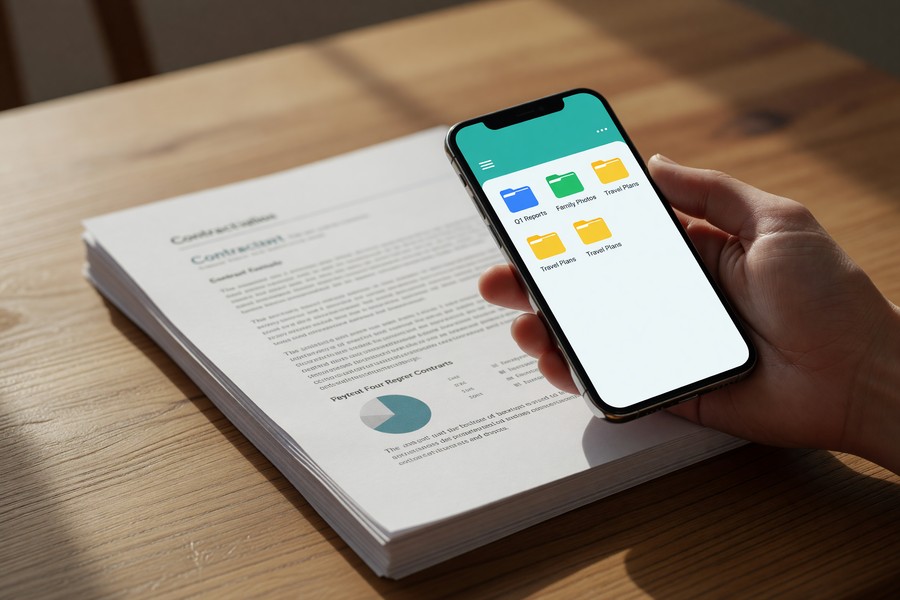
Enable Auto mode in the iPhone scanner — the shutter fires automatically when the camera detects all four document corners are in frame and the image is stable. This produces sharper results than manually tapping the shutter button, especially for multi-page documents scanned quickly.
How Do You Scan a Document on Android?
On Android, the fastest built-in phone document scanner is inside Google Drive. Open the app, tap the plus button in the lower right, and select “Scan.” The camera opens with automatic edge detection, and the scan saves directly to your Drive as a searchable PDF.
Google’s on-device machine learning automatically adjusts for skew, shadow, and low contrast. The resulting file is indexed by Google’s search, meaning you can retrieve it later by searching for words that appear in the document text.
Samsung and Pixel Built-In Options
Samsung Galaxy devices running One UI 4 and later include a document scanner directly in the native Camera app — accessed by selecting “Documents” mode in the camera’s mode selector. Google Pixel devices running Android 12 and later offer a scan shortcut in the Google Assistant suggested actions bar.
For users who store large files locally, understanding the difference between SSD and HDD storage options becomes relevant when archiving high-volume document scans on a computer.
Google Drive is used by more than 3 billion people across consumer and business accounts globally, according to Google Workspace product data. Its built-in phone document scanner is therefore the most widely accessible scanning tool on the planet.
How Do You Improve Phone Scan Quality?
Scan quality depends primarily on lighting, surface contrast, and camera stability. Fixing these three variables will eliminate the most common problems: blurry text, dark shadows, and distorted edges.
Research published by IEEE on document image quality found that diffuse, even lighting — as opposed to direct point-source light — reduces OCR character error rates by up to 40%. This means scanning near a window on an overcast day often outperforms scanning under overhead fluorescent lighting.
Five Practical Techniques
- Place the document on a dark, solid-colored surface to maximize edge contrast for automatic detection.
- Hold the phone directly overhead — perpendicular to the document — rather than at an angle. Most apps can correct mild angles, but severe ones reduce sharpness.
- Turn off the camera flash for glossy documents. Flash creates hot spots that obscure text. Use ambient window light instead.
- Flatten curled or folded documents before scanning. Creases create shadow lines that OCR engines misread as characters.
- Use manual capture mode for documents with reflective surfaces, like laminated IDs, where the auto-shutter may fire on a reflection.
Resolution and DPI Settings
Most scanning apps default to 150–300 DPI output. For standard business correspondence and forms, 200 DPI is sufficient. For documents containing small legal footnotes or fine print, set output to 300 DPI minimum.
The U.S. National Archives transfer guidance recommends 300 DPI as the baseline for archival-quality document scans. Exceeding this threshold for everyday paperwork produces larger files without a perceptible quality gain for most use cases.
How Do You Save and Share Scanned Documents?
After scanning, save the file as a PDF whenever possible. PDF preserves formatting, is universally readable, and is the required format for most legal, tax, and financial document submissions. JPEG is acceptable for single-page visual references but is not suitable for multi-page documents.
Cloud storage is the most practical destination. iCloud Drive, Google Drive, Dropbox, and Microsoft OneDrive all support automatic upload from their respective scanning tools, giving you immediate access from any device.
Naming and Organizing Scanned Files
Adopt a consistent file naming convention immediately. A format like YYYY-MM-DD_DocumentType_Issuer (for example, 2025-07-15_Invoice_AcmeCorp.pdf) makes retrieval fast and eliminates duplicate confusion.
If you scan tax documents, insurance forms, or financial records, consider a dedicated folder structure with subfolders by year. This is especially important if you’re using phone scans to manage paperwork tied to services that charge recurring fees — auditing what you actually need stored is a discipline discussed in our guide to auditing your digital subscriptions.
Sending Scans by Email or Fax
Most scanning apps include a direct share function. Tap the share icon to send via email, messaging, or any app registered on your phone. For fax — still required by many healthcare and legal institutions — apps like eFax and FaxBurner accept PDF uploads directly from your phone’s share sheet.
“The bottleneck in mobile document scanning is no longer the camera — it’s the user’s filing discipline. A scan that isn’t named and stored consistently is functionally lost within weeks.”
Is a Phone Document Scanner Good Enough to Replace a Flatbed?
For the majority of everyday document scanning needs, yes — a phone document scanner is a direct replacement for a consumer-grade flatbed scanner. The exception is high-volume production scanning, archival photograph digitization, and scanning bound books, where a flatbed’s physical glass platen offers advantages a phone camera cannot replicate.
A mid-range flatbed scanner like the Epson Workforce ES-50 scans at a maximum of 600 DPI optical resolution. A flagship smartphone camera produces sufficient resolution to match or exceed this for standard document formats (A4/Letter). The difference becomes meaningful only at very high DPI settings used for photo archiving.
When to Stick With a Flatbed
- Scanning photographic prints or negatives for archival purposes (requires 1200+ DPI optical).
- Processing 50+ pages per day consistently — phone scanning that volume is ergonomically impractical.
- Scanning bound books or magazines where the spine prevents the pages from lying flat.
- Compliance environments requiring hardware-certified scanning chains, such as certain healthcare or legal records management workflows under HIPAA or state court rules.
For remote workers who rely on their phone for document management while away from an office, pairing good scanning habits with capable hardware matters. Our roundup of the best laptops for remote workers covers complementary tools for a complete mobile office setup.
HIPAA (the Health Insurance Portability and Accountability Act) does not prohibit scanning medical documents with a smartphone, but it does require that any cloud storage used for health records meets specific security and encryption standards. Always confirm compliance requirements with your organization’s privacy officer before using a consumer app for sensitive health documents.
“Mobile scanning has crossed the threshold of adequacy for professional use. The limiting factor now is workflow integration — how well the scan connects to downstream processes like e-signature, archiving, and records management systems.”
Frequently Asked Questions
Can I use my phone as a document scanner without downloading any app?
Yes. iPhone users can scan directly through the Notes or Files app on iOS 11 and later. Android users with Google Drive pre-installed — which covers the vast majority of Android devices — can scan without any additional download. Both are fully functional phone document scanner tools at no cost.
What file format should I save scanned documents in?
Save as PDF for any document you may need to submit, share, or archive. PDF preserves layout, is accepted by virtually every institution, and supports multi-page files. Use JPEG only for quick visual reference images where file size matters more than formatting precision.
Is a phone scan legally valid for official documents?
In most cases, yes. Courts, the IRS, and financial institutions generally accept digitized documents as long as they are legible and unaltered. The IRS explicitly states that digital scans of financial records satisfy recordkeeping requirements. Always verify the specific requirements of the institution requesting the document.
How do I make scanned text searchable on my phone?
OCR (Optical Character Recognition) makes scanned text searchable. Adobe Scan applies OCR automatically on every scan. Apple’s Live Text feature (iOS 15+) makes text in scans selectable and searchable within the Photos and Notes apps. Google Drive PDFs are indexed and searchable by default.
Can I scan multiple pages into one PDF with my phone?
Yes. All major scanning apps support multi-page PDFs. In Apple Notes, continue tapping the shutter button to add pages before saving. In Google Drive, tap the plus icon after each page to add more before exporting. Adobe Scan and Microsoft Lens both batch scans into a single PDF automatically.
What is the best phone document scanner app for business use?
Adobe Scan and Microsoft Lens are the strongest options for business users. Adobe Scan integrates with Acrobat for e-signatures and redaction. Microsoft Lens exports to Word and SharePoint, making it ideal for Microsoft 365 environments. Both are free at the core tier.
Does scanning documents on my phone use a lot of storage?
A single-page PDF scan typically occupies 100–400 KB of storage. A 50-page document scanned at standard quality rarely exceeds 10 MB. Storage impact is minimal compared to photos or videos. Saving to cloud storage rather than local device memory keeps your phone’s internal storage unaffected. If you are curious how smartphone data management intersects with emerging connectivity, our overview of 5G versus Wi-Fi 7 explains how faster wireless speeds change cloud syncing workflows.
Sources
- Statista — Number of Smartphone Users Worldwide
- Apple Support — Scan Documents with iPhone
- Google Drive Help Center — Scan and Upload Documents
- U.S. National Archives — Digitization Guidance and Transfer Tables
- IEEE Xplore — Document Image Quality Analysis Research
- Google Play Store — Adobe Scan App Listing
- IRS.gov — What Kind of Records Should I Keep?
- Google Workspace — Product Features and User Data






