
Fact-checked by the VisualEnews editorial team
Quick Answer
To free up phone storage in July 2025, delete cached app data, offload unused apps, move photos to cloud services like Google Photos or iCloud, and remove offline media. Most users can recover 3–15 GB within 10 minutes using built-in storage management tools on both Android and iOS without deleting anything irreplaceable.
Learning how to free up phone storage is one of the most practical smartphone skills you can have — and it matters more than ever. According to Statista’s 2024 app market data, the average smartphone user has 80+ apps installed, many of which accumulate gigabytes of cached data silently in the background.
A full storage drive slows your phone, prevents system updates, and degrades camera performance. This guide covers every proven method to reclaim storage space on Android and iOS devices — ranked by impact, with specific steps for each approach.
Key Takeaways
- The average smartphone user stores over 1,000 photos on their device, making photo management the single highest-impact storage action (according to Pew Research Center data on mobile media habits).
- App cache files can consume 1–5 GB per app on heavily used applications like YouTube, Spotify, and Google Maps (per Google’s official storage guidance).
- iOS devices running iOS 11 or later include a built-in “Offload Unused Apps” feature that removes the app binary while preserving its data (Apple Support documentation).
- Streaming services like Netflix and Spotify store offline downloads that average 500 MB to 2 GB per album or episode season, making them a hidden storage drain (Spotify Help Center).
- Google Photos’ free storage tier was eliminated in June 2021, meaning users uploading after that date consume Google One storage — free plans cap at 15 GB shared across all Google services (Google One plan details).
In This Guide
- What Is Actually Taking Up Your Phone Storage?
- How Do You Clear Cache on Android and iOS?
- How Should You Handle Photos and Videos to Free Up Phone Storage?
- How Do You Offload or Delete Apps Effectively?
- How Do You Remove Streaming and Offline Download Files?
- How Do Built-In Storage Tools and Cloud Services Help?
- How Do Android and iOS Compare for Storage Management?
What Is Actually Taking Up Your Phone Storage?
The biggest culprits stealing your storage are photos and videos, app cache data, offline media downloads, and system files — in that order. Understanding what consumes space is the first step before you attempt to free up phone storage.
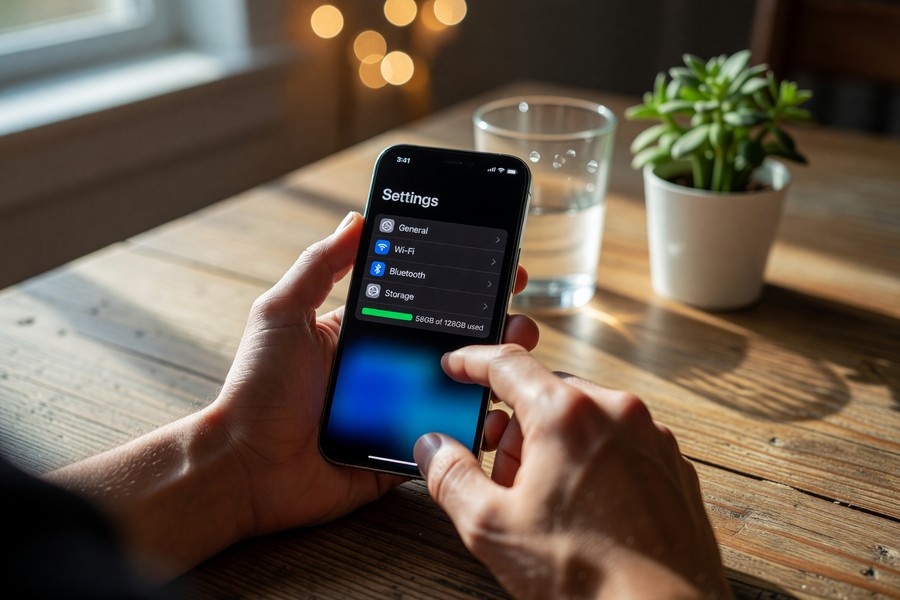
Both Android and iOS break storage into categories. On an iPhone, go to Settings > General > iPhone Storage. On Android, navigate to Settings > Storage. Both views show exactly what categories consume the most space.
The Six Main Storage Categories
- Photos and Videos: Typically the largest category, often consuming 10–30 GB on a well-used device.
- Apps: The app binary plus its locally stored data and cache.
- Offline Media: Downloaded music, podcasts, and video from Spotify, Netflix, Apple Music, and YouTube Premium.
- Messages: Attachments in SMS and messaging apps like WhatsApp accumulate over time.
- System Files: iOS and Android reserve space for the operating system, usually 5–10 GB.
- Other/Miscellaneous: Temporary files, log files, and browser caches.
WhatsApp alone can accumulate several gigabytes of media attachments within a single year if users are in active group chats. Clearing WhatsApp’s media folder is one of the fastest wins available when you need to free up phone storage quickly.
How Do You Clear Cache on Android and iOS?
Clearing app cache on Android can be done per-app or in bulk using built-in tools, while iOS handles cache differently — it clears automatically, but you can force a full clear by offloading apps. This is one of the fastest methods to free up phone storage without losing any personal data.
Cache files are temporary data that apps store to load faster. They are safe to delete. Your accounts, settings, and personal files remain intact after clearing cache.
Clearing Cache on Android
On Android devices from manufacturers like Samsung, Google (Pixel), and OnePlus, the steps are similar. Go to Settings > Apps, select an app, tap Storage, then tap Clear Cache. Repeat for your most-used apps: Chrome, YouTube, Instagram, and Google Maps typically hold the most cache data.
Android also offers a “Free Up Space” tool inside the Files app by Google, which automatically identifies junk files, duplicate photos, and large files. According to Google’s Files app documentation, the tool can identify files safe for deletion within seconds.
Clearing Cache on iPhone (iOS)
Apple’s iOS does not offer a single “clear all cache” button. However, offloading an app removes its cached data while keeping the app’s documents and settings. Go to Settings > General > iPhone Storage, tap any app, and select Offload App. Reinstalling restores the app fresh, without cached bloat.
Safari’s cache can be cleared separately at Settings > Safari > Clear History and Website Data. If you use Safari heavily, this alone can recover hundreds of megabytes.
How Should You Handle Photos and Videos to Free Up Phone Storage?
Moving photos and videos to cloud storage is the single most effective way to free up phone storage — it can recover 10–30 GB instantly on a well-used device. Services like Google Photos, iCloud Photos, and Amazon Photos back up your entire library and allow you to delete local copies.
Photos shot in 4K video or with modern 48MP and 108MP camera sensors consume enormous space. A single 4K video clip can exceed 400 MB per minute of footage.
Google Photos for Android and iPhone
Google Photos is available on both Android and iOS. After enabling backup, tap your profile icon, go to Free Up Space, and the app will delete all photos already safely backed up to the cloud. This is a non-destructive action — your photos remain accessible from any device via the Google Photos app or web browser.
Google One plans start at $2.99 per month for 100 GB, according to Google One’s current pricing page. This is shared across Gmail, Google Drive, and Google Photos.
iCloud Photos for iPhone Users
iPhone users on iOS can enable iCloud Photos at Settings > [Your Name] > iCloud > Photos. Turning on “Optimize iPhone Storage” keeps low-resolution thumbnails on-device while storing full-resolution originals in iCloud. Apple’s free iCloud plan provides 5 GB, with paid plans starting at $0.99/month for 50 GB, as detailed in Apple’s iCloud storage plan documentation.
Photos and videos account for an average of 26% of total smartphone storage usage, making media management the highest-ROI action for users looking to free up phone storage fast.
How Do You Offload or Delete Apps Effectively?
Deleting apps you no longer use is a direct and permanent way to reclaim storage — and many users are surprised by how many inactive apps are quietly occupying gigabytes. On both Android and iOS, sorting your app list by storage size reveals the most impactful targets.
Apps are not just their installation size. Over time, apps accumulate local databases, cached media, and user-generated files that dwarf the original install size. A game installed at 200 MB can balloon to 3–4 GB after months of play.
Using iOS “Offload” to Preserve App Data
iOS’s Offload feature, introduced with iOS 11 according to Apple Support, removes the app executable but keeps its documents and data on-device. This is ideal for apps you use infrequently but don’t want to fully delete — such as banking apps or travel apps. You can enable automatic offloading at Settings > App Store > Offload Unused Apps.
Removing Android Apps with Large Footprints
On Android, go to Settings > Apps and sort by size. Games, social media apps like TikTok and Instagram, and navigation apps like Google Maps are frequent offenders. Uninstall apps you haven’t opened in 90 days. For apps you want to keep, clearing their data (not just cache) resets them to a fresh install state — useful for bloated apps with accumulated local databases.
Also consider whether you actually need dedicated apps at all. As we covered in our guide to free vs paid apps and what you give up, many services offer full-featured mobile websites that require zero storage.
“Storage management is a habit, not a one-time fix. Users who audit their app libraries quarterly and enable cloud backup for photos consistently maintain faster, more reliable devices without ever needing a factory reset.”
How Do You Remove Streaming and Offline Download Files?
Offline downloads from streaming apps like Netflix, Spotify, Apple Music, YouTube Premium, and Audible are a hidden but massive storage drain. Removing them can recover 2–10 GB instantly without affecting your streaming access.
These downloads are designed for convenience, but they pile up invisibly. Most users forget they downloaded an entire season of a show or a 50-album library months ago.
How to Delete Downloads from Each Major App
- Netflix: Go to Downloads > tap the pencil icon > Delete All Downloads.
- Spotify: Go to Settings > Storage > Delete Cache. To remove downloaded albums or playlists, open them and toggle off the download icon. Per Spotify’s Help Center, downloaded songs are stored only on the device used to download them.
- Apple Music: Go to Settings > Music > Downloaded Music > Edit to delete individual artists or albums.
- YouTube Premium: Open the YouTube app > Library > Downloads, then delete individual videos or clear all.
- Audible: In the Audible app, press and hold a title and select Remove from Device.
Set a monthly calendar reminder to clear offline downloads from all streaming apps. This single habit prevents gigabytes of stale media from accumulating and is the fastest recurring method to free up phone storage without reviewing your entire file system.
How Do Built-In Storage Tools and Cloud Services Help?
Both Android and iOS include native storage analysis tools that recommend specific actions — these are the fastest starting point for anyone trying to free up phone storage without manually auditing files. Third-party apps and cloud services extend these capabilities further.
Using these tools takes less than five minutes and often uncovers junk files the user never knew existed — duplicate photos, large video clips, and stale downloads.
iOS Recommendations Panel
The iPhone Storage screen (Settings > General > iPhone Storage) displays a personalized “Recommendations” panel. Apple’s system suggests actions tailored to your device, including enabling iCloud Photos, reviewing large attachments in Messages, and offloading specific unused apps. Each recommendation shows the exact space it will recover before you commit.
If your digital life involves managing many subscriptions and services that quietly consume both money and storage, it’s worth reading our breakdown of how to audit your digital subscriptions — the same apps draining your wallet often drain your storage too.
Google Files App and Files by Google
The Files by Google app, available on Android and compatible with most OEM file managers, scans for junk files, large files, and duplicates. It categorizes them by type and lets you delete in bulk. It also enables device-to-device file transfer via Wi-Fi Direct, useful for moving media to a computer before deleting it from your phone.
For users who frequently transfer large files between devices, understanding storage technologies is helpful — our comparison of SSD vs HDD storage for computers provides useful context on how device storage differs from external backup options.
How Do Android and iOS Compare for Storage Management?
Android offers more granular, manual control over storage — including per-app cache clearing and expandable microSD storage on some devices — while iOS provides a more automated, guided experience through its Recommendations system. Both platforms are effective, but they require different approaches.
The right strategy depends on your device. iPhone users benefit most from iCloud integration and the Offload feature. Android users benefit from the Files by Google app and direct cache management tools.
| Feature | Android | iOS (iPhone) |
|---|---|---|
| Clear All App Cache | Yes — per-app or via Files app | No — must offload apps individually |
| Expandable Storage (microSD) | Yes — select models (Samsung, Motorola) | No — fixed internal storage only |
| Built-In Offload Feature | Manual uninstall only | Yes — since iOS 11 (2017) |
| Cloud Auto-Backup Default | Google Photos (15 GB free) | iCloud (5 GB free) |
| Storage Recommendations Tool | Files by Google app | Built into Settings (iPhone Storage) |
| Minimum Cloud Storage (Free) | 15 GB (Google One) | 5 GB (iCloud) |
| Paid Cloud Upgrade Cost | $2.99/month for 100 GB | $0.99/month for 50 GB |
Android’s advantage is flexibility — especially on devices with microSD card slots. iOS’s advantage is automation — the system proactively tells you what to delete and handles optimization in the background. Both approaches can help you reclaim substantial storage with minimal effort.
Samsung Galaxy devices include a built-in Device Care feature under Settings that can identify and remove junk files in a single tap — often recovering 500 MB to 2 GB of temporary data that the standard storage view does not surface as a discrete category.
Frequently Asked Questions
How do I free up phone storage without deleting anything?
Enable cloud photo backup via Google Photos or iCloud and use the “Optimize Storage” setting, then clear app cache data. These two actions can recover 5–15 GB on most devices without permanently removing any files — your photos and app data remain accessible through the cloud.
What is taking up the most storage on my phone?
Photos and videos are typically the largest storage consumers, followed by app data and cache. Check Settings > Storage (Android) or Settings > General > iPhone Storage (iOS) to see an itemized breakdown ranked by size for your specific device.
Does clearing cache delete important data?
No. Cache files are temporary data that apps use to load faster — clearing them does not delete your accounts, settings, or personal files. Apps simply rebuild their cache the next time you use them, which may cause a brief slowdown on first launch.
How often should I clean up my phone storage?
A monthly review is the most effective cadence for most users. Clear streaming downloads, review the camera roll for duplicates or videos you no longer need, and run the built-in storage tool once per month. This prevents gradual accumulation that eventually forces a crisis cleanup.
Can apps on my phone be transferred to an SD card?
On select Android devices, certain apps can be moved to a microSD card via Settings > Apps > [App Name] > Storage > Change. Not all apps support this, and not all Android phones include an SD card slot. iPhones do not support external SD card storage.
Why does my phone say storage is full when I have space available?
Some apps and the operating system reserve space for temporary files, system functions, and future updates — this reserved space appears “used” even without visible files. Running the built-in storage cleanup tool and clearing app cache typically resolves this discrepancy.
Is it safe to use third-party cleaner apps to free up phone storage?
Built-in tools from Google and Apple are safer and more effective than third-party cleaner apps. Many third-party storage cleaners on the Google Play Store and App Store deliver marginal results while requesting broad device permissions. Google’s own Android security guidance recommends using official system tools first.
Sources
- Statista — Number of Apps Available in Leading App Stores
- Apple Support — Offload Unused Apps on iPhone
- Apple Support — iCloud Storage Plans and Pricing
- Google One — Storage Plans and Pricing
- Google — Files by Google: Find and Delete Junk Files
- Spotify Help Center — Download Storage Location
- Google — Manage Google Account Storage
- Google — Android Security and Safety Guidance
- Pew Research Center — Photos and Videos as Social Currency Online
- Google Photos Help — Free Up Space on Your Device






