
Fact-checked by the VisualEnews editorial team
Quick Answer
The best photo editing apps for iPhone that professionals actually use include Adobe Lightroom Mobile, Darkroom, Snapseed, and VSCO. As of July 2025, Lightroom Mobile leads with over 1 billion downloads across platforms and offers RAW file support, AI-powered masking, and non-destructive editing — the core features working photographers demand.
The best photo editing apps iPhone photographers rely on share a common trait: they treat the iPhone camera as a professional tool, not a casual device. According to Statista’s App Store data, photography apps consistently rank among the top-grossing categories on iOS, with mobile editing software generating hundreds of millions in annual revenue. This reflects how serious photographers have become about phone-based workflows.
With Apple’s iPhone 15 Pro and 16 Pro cameras capturing 48-megapixel ProRAW files, the editing software you choose now determines the quality ceiling of your final image. This guide breaks down the apps professionals actually open, the features that separate them, and how to pick the right one for your workflow.
Key Takeaways
- Adobe Lightroom Mobile supports RAW and ProRAW editing on iPhone and has over 1 billion cumulative downloads across iOS and Android, making it the most widely adopted professional editing tool (Adobe, 2024).
- The global mobile photo editing app market was valued at $693 million in 2023 and is projected to grow at a compound annual rate of 8.2% through 2030 (Grand View Research).
- Snapseed, developed by Google, is free on iOS and offers 29 editing tools and filters, including selective adjustments and a non-destructive “Stacks” editing history (Apple App Store).
- Darkroom processes edits using the iPhone’s Neural Engine, enabling batch editing of up to 3,000 photos at speeds professionals describe as near-instant (Darkroom.co).
- iPhone now holds roughly 57% of the U.S. smartphone market as of Q1 2025, meaning more working photographers carry an Apple device than any competing platform (Statista, 2025).
In This Guide
- What Makes a Photo Editing App Professional-Grade?
- Which Photo Editing Apps iPhone Professionals Rank Highest Overall?
- Are Free Photo Editing Apps Worth It, or Should You Pay?
- Which Apps Handle iPhone RAW and ProRAW Files Best?
- How Do the Top Apps Compare Side by Side?
- How Do Professionals Build an iPhone Editing Workflow?
- Frequently Asked Questions
What Makes a Photo Editing App Professional-Grade?
A professional photo editing app for iPhone must support non-destructive editing, RAW file processing, and precise tonal control. These three capabilities separate tools that produce print-ready or client-ready work from apps designed for casual social media use.
Non-destructive editing means the app never overwrites your original file. Every adjustment is stored as a set of instructions that can be reversed at any time. Adobe Lightroom Mobile, Darkroom, and Darkroom all operate this way.
Core Features Professionals Look For
Working photographers prioritize four specific capabilities when evaluating any editing app. These are RAW support, color grading tools, masking and selective adjustments, and export control.
- RAW and ProRAW file import and editing
- HSL (Hue, Saturation, Luminance) color controls
- Selective and masking tools for targeted edits
- Curve adjustments with individual RGB channel control
- Batch export with format and resolution options
- Cloud sync or desktop companion support
Apps that lack curve control or RAW support are typically consumer tools. Professionals may use them for quick social posts, but not for client deliverables or print work.
Apple’s ProRAW format, introduced with the iPhone 12 Pro, combines the computational photography pipeline with RAW flexibility — giving editors both Apple’s noise reduction and full manual color control in a single DNG file.
Which Photo Editing Apps iPhone Professionals Rank Highest Overall?
The top-ranked photo editing apps iPhone professionals use most are Adobe Lightroom Mobile, Darkroom, Snapseed, VSCO, and Halide paired with a desktop workflow. Each serves a distinct professional use case.
Adobe Lightroom Mobile
Adobe Lightroom Mobile is the gold standard for professional iPhone photo editing. It offers full RAW and ProRAW support, AI-powered masking (including subject, sky, and object selection), and two-way sync with Lightroom Classic on desktop through Adobe’s Creative Cloud.
The free tier includes basic editing tools. The full Adobe Creative Cloud Photography plan costs $9.99 per month and unlocks RAW editing, preset syncing, and the AI Denoise feature, which Adobe claims can recover up to 4 stops of shadow detail using machine learning.
Darkroom
Darkroom is an Apple-exclusive app built specifically for the iPhone and iPad Neural Engine. It processes batch edits at speeds significantly faster than cross-platform competitors. Professionals who shoot high volumes — event photographers, content creators — favor it for its speed and deep integration with Apple Photos.
Darkroom’s curve tool rivals desktop software in precision. Its subscription costs $49.99 per year, with a one-time purchase option also available.
Snapseed
Snapseed, owned by Google, is entirely free and includes professional-caliber tools that many paid apps charge for. Its Selective tool allows point-specific brightness, contrast, and saturation edits. The “Stacks” feature lets users revisit and modify any previous adjustment non-destructively.
For photographers who want a no-cost entry into serious editing, Snapseed is the most capable free option on iOS. It does not support RAW editing, which is its primary limitation for professional workflows.
VSCO
VSCO targets photographers who prioritize color aesthetics and film-emulation presets. Its preset library emulates specific film stocks — Kodak Portra, Fujifilm Velvia, and Ilford HP5 among them — with accuracy that resonates with photographers trained on analog systems.
VSCO’s membership costs $29.99 per year for full access. Its editing tools are less granular than Lightroom, but its film presets remain a professional standard for portrait, editorial, and lifestyle photography.
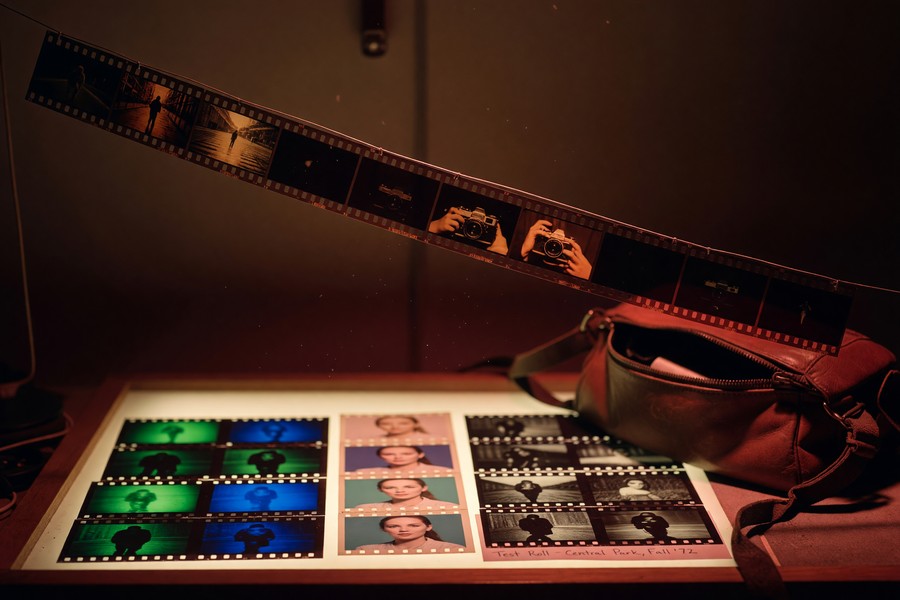
“The gap between what you can do on an iPhone and what you can do on a desktop has essentially closed for most commercial photography applications. Lightroom Mobile’s AI masking is indistinguishable from its desktop counterpart in nearly every test I’ve run.”
Are Free Photo Editing Apps Worth It, or Should You Pay?
Free photo editing apps are worth using for specific tasks, but paid apps deliver superior RAW processing, AI tools, and export options that professionals require for client-quality output. The decision depends on your file format and output destination.
If you shoot JPEG and post to Instagram or similar platforms, Snapseed or the free tier of Lightroom Mobile are genuinely sufficient. If you shoot ProRAW or deliver files to clients, a paid subscription is necessary. As we cover in our guide to free vs paid apps and what you actually give up, free apps typically monetize through data collection or feature limitations that affect professional output.
What Paid Apps Actually Unlock
Paid tiers are not simply about removing ads. They unlock computational features that require significant processing and cloud infrastructure. Adobe’s AI Denoise, for example, runs a machine-learning model on your image file — a feature that could not be offered sustainably on a free tier.
Professionals should also consider subscription fatigue. If you are already auditing your tech costs — a discipline covered in our analysis of digital subscriptions quietly draining your budget — bundling your editing app into an existing creative plan (like Adobe Creative Cloud) may reduce total cost.
Before subscribing to a standalone editing app, check whether your existing Adobe Creative Cloud plan already includes Lightroom Mobile. Many photographers pay for a duplicate tool without realizing it.
Which Apps Handle iPhone RAW and ProRAW Files Best?
Adobe Lightroom Mobile and Darkroom are the two best photo editing apps iPhone photographers should use for RAW and ProRAW processing. Both support Apple’s ProRAW DNG format and apply non-destructive edits with full tonal range preservation.
Apple’s ProRAW format is supported in iPhone 12 Pro and later models. It captures a DNG file that retains the full dynamic range of the sensor while also embedding Apple’s computational photography data. According to Apple’s ProRAW documentation, these files are significantly larger than standard JPEG or HEIF captures — typically 25 MB per image versus 3–5 MB for HEIF.
RAW Workflow on iPhone: The Halide Approach
Halide Mark II is the leading dedicated RAW capture app for iPhone. It does not edit photos — it captures them. Professionals use Halide to shoot in ProRAW with manual exposure control, then import directly into Lightroom Mobile or Darkroom for editing.
This two-app workflow (Halide for capture, Lightroom or Darkroom for editing) mirrors the professional camera workflow of RAW capture followed by dedicated post-processing. Halide is available for $2.99 per month or $11.99 per year on the Apple App Store.
iPhone ProRAW files average 25 MB each — roughly 5–8x larger than standard HEIF captures. Editing these files requires an app with dedicated RAW rendering, not a standard JPEG-based filter tool.
How Do the Top Apps Compare Side by Side?
The table below compares the five leading photo editing apps iPhone professionals use across the criteria that matter most for serious work. Pricing reflects individual plan costs as of July 2025.
| App | RAW / ProRAW Support | Price (Annual) | AI Tools | Batch Editing | Desktop Sync |
|---|---|---|---|---|---|
| Adobe Lightroom Mobile | Yes (full) | $119.88/yr ($9.99/mo) | AI Denoise, Masking, Sky Select | Yes (presets) | Yes (Creative Cloud) |
| Darkroom | Yes (full) | $49.99/yr | Limited | Yes (up to 3,000) | Yes (iPad, Mac) |
| Snapseed | No | Free | Portrait mode retouching | No | No |
| VSCO | Partial (DNG import) | $29.99/yr | Limited | No | No |
| Halide Mark II | Capture only | $11.99/yr | Neural capture processing | N/A | No |
For professionals delivering client files, Lightroom Mobile is the only option that checks every box. For high-volume Apple-only workflows, Darkroom offers the best price-to-capability ratio.
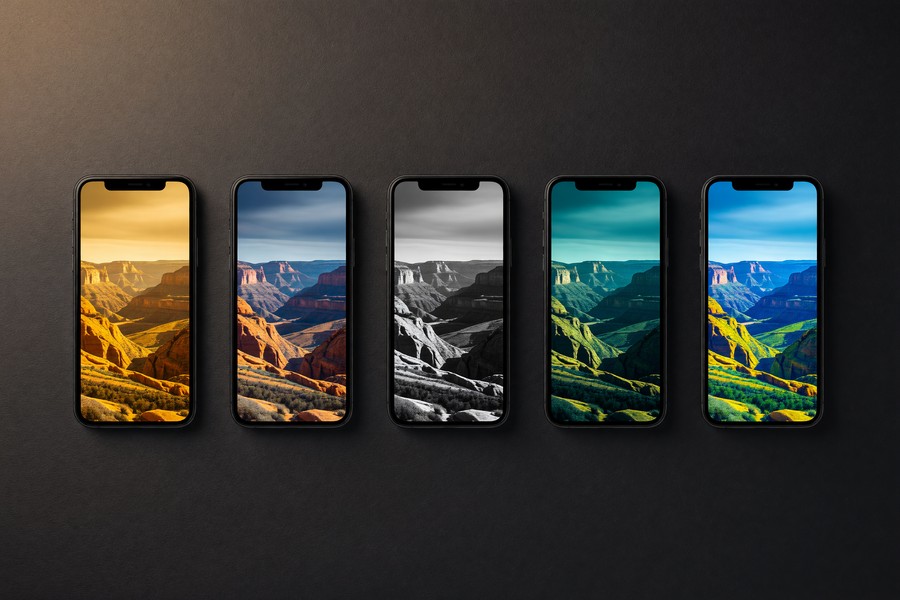
“Darkroom changed how I handle event work. I can apply a look to 500 images in the time it used to take me to edit 30 in a competing app. The Neural Engine integration is the reason.”
How Do Professionals Build an iPhone Editing Workflow?
Professionals build iPhone editing workflows around a consistent capture-to-export pipeline: shoot in ProRAW, edit non-destructively in a RAW-capable app, and export in the correct format for each delivery destination. Consistency in this pipeline eliminates rework.
The rise of AI tools in editing apps has also changed how professionals approach retouching. Adobe’s Generative Remove tool (available in Lightroom Mobile on iOS) can eliminate distractions from a background in seconds — a task that previously required desktop Photoshop. As AI reshapes the tools we use across every category, photo editing is one of the clearest examples of AI delivering real professional utility.
Recommended iPhone Editing Workflow for Professionals
- Capture in ProRAW using the native Camera app or Halide Mark II
- Import into Adobe Lightroom Mobile or Darkroom
- Apply a base preset or custom profile for consistent color grading
- Use AI masking or selective tools for targeted adjustments
- Batch apply edits to similar frames using sync or paste settings
- Export as TIFF for print, JPEG for web, or maintain DNG for archival
Cloud integration is equally important. Adobe Creative Cloud allows any edit made on iPhone to appear on a desktop Lightroom Classic catalog within minutes. This is the key reason photographers who own both platforms continue to pay for the Adobe subscription rather than switching to lower-cost alternatives.
The quality of your output is also shaped by your hardware. Professionals editing on older iPhone models may experience slower rendering on AI-heavy tools. Our guide to the best laptops for remote workers covers how to build a full mobile creative setup if you need a desktop companion for your iPhone workflow.
According to Adobe’s official blog, Lightroom Mobile crossed 1 billion downloads in October 2023 — making it one of the most downloaded creative apps in App Store history and the dominant professional editing tool on mobile.
Frequently Asked Questions
What is the best free photo editing app for iPhone?
Snapseed is the best free photo editing app for iPhone. It offers 29 tools including selective adjustments, non-destructive Stacks editing, and portrait retouching — all without a subscription. Its main limitation is the lack of RAW file support.
Does Adobe Lightroom Mobile work on iPhone without a subscription?
Yes, Lightroom Mobile offers a free tier with basic editing tools on iPhone. However, RAW file editing, AI Denoise, preset syncing with desktop, and advanced masking tools require the Adobe Creative Cloud Photography plan at $9.99 per month. Most professionals need the paid tier for full functionality.
Can iPhone photo editing apps handle ProRAW files?
Adobe Lightroom Mobile and Darkroom both handle iPhone ProRAW DNG files natively. They preserve the full tonal range of the sensor and allow non-destructive editing. Snapseed and VSCO do not fully support ProRAW, making them unsuitable for professional RAW workflows.
Is Darkroom better than Lightroom for iPhone?
Darkroom is faster and better integrated with the Apple ecosystem, making it preferable for high-volume workflows on iPhone and iPad. Lightroom Mobile offers superior AI tools, desktop sync, and broader industry compatibility. Most professionals choose based on whether they work cross-platform or Apple-only.
What photo editing apps do professional photographers use on iPhone?
Professional photographers most commonly use Adobe Lightroom Mobile, Darkroom, and Halide Mark II (for capture) as their primary iPhone tools. VSCO remains popular for preset-driven editorial and portrait work. Snapseed is used for quick, free edits when a full workflow is unnecessary.
Is VSCO worth paying for in 2025?
VSCO is worth the $29.99 annual subscription specifically for photographers who prioritize film-emulation aesthetics and consistent preset-based color grading. For photographers who need RAW editing, AI tools, or desktop sync, Lightroom Mobile delivers significantly more value at a higher price point.
Do photo editing apps affect iPhone storage significantly?
The apps themselves are relatively small, but edited ProRAW files — averaging 25 MB each — will fill iPhone storage quickly. Professionals using ProRAW workflows should enable iCloud Photos or regularly export to an external SSD to manage storage. Apps like Darkroom and Lightroom also offer cloud backup for original files.
Sources
- Adobe — Lightroom Mobile Product Page
- Adobe Blog — Lightroom Celebrates 1 Billion Downloads
- Statista — Number of Downloads from the Apple App Store
- Statista — U.S. Smartphone Platform Market Share 2025
- Grand View Research — Photo Editing Software Market Analysis
- Apple Support — ProRAW on iPhone
- Apple App Store — Snapseed by Google
- Apple App Store — Halide Mark II Pro Camera
- Darkroom — Official Website and Feature Overview
- VSCO — Membership Plans and Pricing






