
Fact-checked by the VisualEnews editorial team
Quick Answer
The best photo restoration apps in July 2025 include Remini, Picasa (via Google Photos), MyHeritage Photo Enhancer, and Adobe Lightroom. These tools use AI-powered upscaling to repair blurry, faded, or damaged images. Top AI restoration models can increase image resolution by up to 800% while recovering facial details in under 10 seconds per photo.
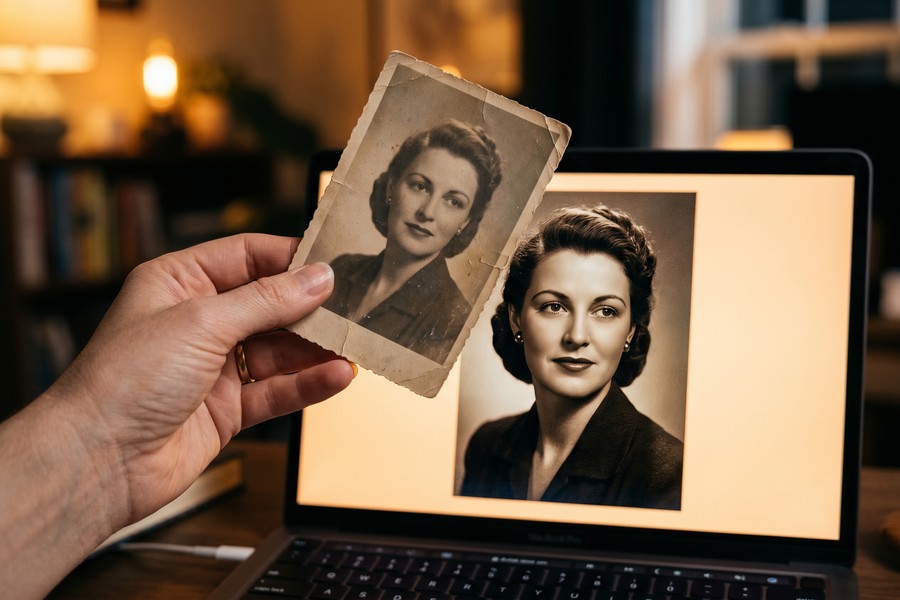
A photo restoration app uses artificial intelligence — specifically deep learning models trained on millions of image pairs — to reverse blur, fix color fading, and reconstruct missing detail in old or damaged photographs. According to Statista’s AI imaging market research, the global AI image enhancement sector is projected to exceed $900 million by 2026, reflecting surging consumer demand for digital memory preservation.
Whether you are scanning a century-old family portrait or rescuing a blurry smartphone snapshot, the right tool makes all the difference. This guide compares the leading photo restoration apps of 2025, explains how the underlying technology works, and gives you a clear framework for choosing the best option for your needs.
Key Takeaways
- Remini processes over 1 billion photos per month globally, making it the most widely used AI photo enhancement tool available (Business of Apps, 2024).
- AI upscaling models like those in Topaz Photo AI can enlarge images by up to 6x without visible pixelation, outperforming traditional bicubic interpolation by a measurable margin (Topaz Labs product documentation).
- MyHeritage Photo Enhancer restored and colorized over 50 million photos in its first two years, driven largely by genealogy enthusiasts (MyHeritage official blog, 2021).
- Adobe Photoshop’s Neural Filters, introduced in 2020, now include dedicated restoration tools used by over 29 million Creative Cloud subscribers worldwide (Adobe Fast Facts).
- Free photo restoration tools typically cap output resolution at 1 megapixel, while paid tiers unlock full-resolution exports — a critical distinction examined in this guide.
In This Guide
- How Does AI Photo Restoration Actually Work?
- Which Are the Best Photo Restoration Apps in 2025?
- Is a Free or Paid Photo Restoration App Worth It?
- How Do You Get the Best Results from a Photo Restoration App?
- How Do the Top Apps Compare Feature by Feature?
- What Are the Limitations of AI Photo Restoration?
- Frequently Asked Questions
How Does AI Photo Restoration Actually Work?
AI photo restoration works by feeding a degraded image through a convolutional neural network (CNN) or a Generative Adversarial Network (GAN) trained to predict what a high-quality version of that image should look like. The model fills in missing pixels based on learned patterns — not guesswork. This is fundamentally different from older sharpening filters, which simply amplified existing edge contrast.
The core innovation is blind image restoration, a technique where the model corrects degradation without needing to know the exact type or severity of damage. Research from Tencent’s Real-ESRGAN paper on arXiv demonstrated that GAN-based super-resolution could recover realistic facial textures even when the input was compressed to less than 10% of its original quality.
The Role of GANs in Image Sharpening
A GAN consists of two competing networks: a generator that creates enhanced images and a discriminator that judges whether they look real. This adversarial dynamic pushes the generator to produce sharper, more convincing results than earlier upscaling algorithms. Apps like Remini, Topaz Photo AI, and DeepAI all rely on GAN-derived architectures.
Colorization is a related process handled by separate models. Tools like MyHeritage’s DeepNostalgia use colorization networks trained on millions of labeled black-and-white and color image pairs to assign historically plausible hues to grayscale photographs.
The Real-ESRGAN model, which powers several commercial photo restoration apps, was trained on a synthetic dataset of over 2,650 degradation combinations to simulate real-world photo damage including blur, noise, compression artifacts, and scratches.
Which Are the Best Photo Restoration Apps in 2025?
The strongest photo restoration app options in 2025 fall into three categories: mobile-first AI tools, desktop professional software, and web-based services. Each serves a different use case and budget. Below are the most capable and widely trusted options available right now.
Remini
Remini (developed by Bending Spoons) is the most downloaded photo enhancement app globally, with over 100 million installs on Android and iOS combined as of 2024. It specializes in facial restoration and is exceptionally fast, processing a single photo in under 10 seconds. The free tier limits you to a set number of daily enhancements; the Pro plan costs $9.99/month.
Topaz Photo AI
Topaz Photo AI by Topaz Labs combines three previously separate tools — DeNoise AI, Sharpen AI, and Gigapixel AI — into one desktop application. It is the preferred choice among professional photographers who need batch processing and maximum output resolution. A one-time license costs $199, with free updates for one year.
MyHeritage Photo Enhancer
MyHeritage Photo Enhancer is optimized for historical and genealogical photography. It offers automatic enhancement, colorization, and the DeepNostalgia animation feature. Basic enhancement is free; a full MyHeritage subscription runs from $7 to $29/month depending on the plan.
Adobe Photoshop Neural Filters
Adobe Photoshop includes a dedicated Photo Restoration Neural Filter that handles scratch removal, colorization, and JPEG artifact correction within a familiar professional workflow. It requires a Creative Cloud subscription starting at $20.99/month for the Photography plan. This option suits users already embedded in the Adobe ecosystem.
Picwish and VanceAI
Picwish and VanceAI are web-based platforms that offer photo restoration without requiring software installation. Both support batch uploads, background removal, and upscaling. VanceAI’s restoration tool is powered by a model it calls VanceAI Image Restorer, which is particularly effective on heavily scratched or torn scans.
Is a Free or Paid Photo Restoration App Worth It?
Free photo restoration tools are adequate for casual use, but paid options deliver meaningfully better resolution, batch processing, and output control. The key limitation of free tiers is almost always resolution — most cap exports at 1 megapixel or 1,024px on the longest edge, which is insufficient for printing or archiving. Our guide on free vs. paid apps and what you actually give up breaks down this trade-off in detail across many app categories.
For users restoring a small collection of family photos once, a free tool like Google Photos’ built-in editing or Picwish’s free tier is entirely reasonable. For photographers, archivists, or genealogists handling hundreds of images, the productivity and quality gains from a paid tool like Topaz Photo AI justify the cost quickly.
Before paying for any photo restoration app, scan your original at the highest possible DPI — ideally 600 DPI or higher for prints and 1200 DPI for negatives. A higher-quality input scan gives the AI more raw data to work with and produces dramatically better output, regardless of which app you use.
How Do You Get the Best Results from a Photo Restoration App?
The single most important factor in photo restoration quality is the quality of the input scan. A higher-resolution, cleaner scan gives the AI model more pixel data to analyze, resulting in sharper, more accurate output. Follow these steps for best results.
Step-by-Step Best Practices
- Scan the original photo at a minimum of 600 DPI using a flatbed scanner. For negatives or slides, use 1200–2400 DPI.
- Save the scan as a TIFF or PNG file, not JPEG, to avoid compression artifacts before processing.
- Use a dust-removal brush or compressed air to clean the original before scanning — physical debris creates dark spots the AI may interpret as damage.
- Apply restoration in stages: denoise first, then sharpen, then upscale. Running all processes simultaneously can amplify errors.
- For portraits, enable any dedicated face enhancement mode, which applies a separate, face-specific model on top of the general restoration pass.
This workflow is consistent with guidance from the Library of Congress digital preservation guidelines for photographs, which recommend 600 DPI as the minimum for archival-quality digitization.
According to the Library of Congress, scanning a 4×6 inch print at 600 DPI produces a file of approximately 24 megapixels — giving AI restoration models significantly more source data compared to a standard 72 DPI web-quality scan of only 0.17 megapixels.
How Do the Top Apps Compare Feature by Feature?
The table below compares the leading photo restoration apps across the features that matter most: platform, pricing, maximum output resolution, and standout capability.
| App | Platform | Price | Max Output Resolution | Best For |
|---|---|---|---|---|
| Remini | iOS, Android | Free / $9.99/month Pro | Up to 4 MP (Pro) | Fast facial restoration on mobile |
| Topaz Photo AI | Windows, macOS | $199 one-time | Up to 600 MP (6x upscale) | Professional batch processing |
| MyHeritage Photo Enhancer | Web, iOS, Android | Free / $7–$29/month | Up to 8 MP | Historical photos, colorization |
| Adobe Photoshop Neural Filters | Windows, macOS | $20.99/month (Photography plan) | Unlimited (native resolution) | Professional workflow integration |
| VanceAI | Web | Free (3 credits) / From $4.95/month | Up to 8x upscale | Web-based, no install required |
| Picwish | Web, iOS, Android | Free / From $2.99/month | Up to 4x upscale | Quick web-based restoration |
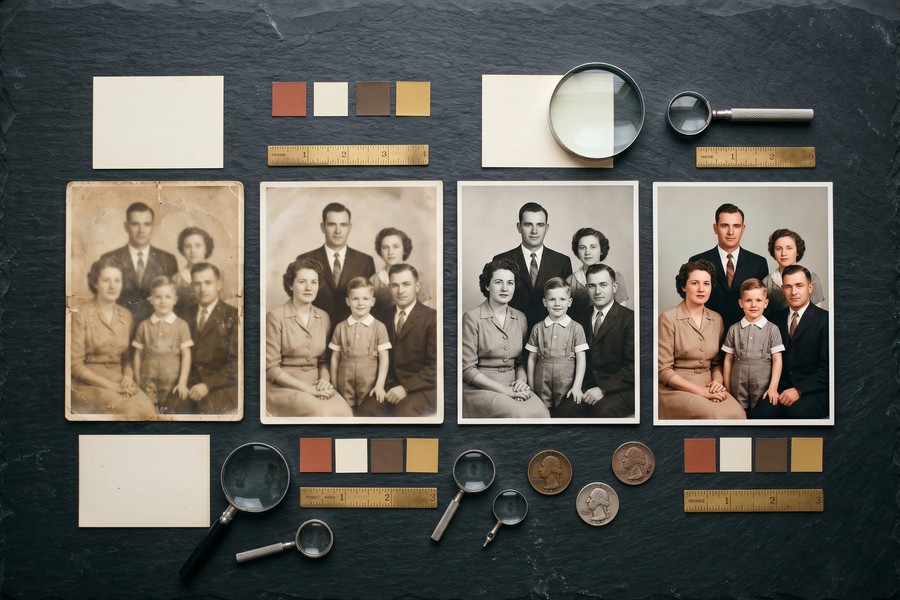
“The jump from classical interpolation to deep learning-based super-resolution is not incremental — it is a categorical change. Models trained on facial structure can now infer detail that was never in the original file.”
What Are the Limitations of AI Photo Restoration?
AI photo restoration is powerful but not infallible — it generates plausible detail, not necessarily accurate detail. This is the most important limitation users must understand before relying on these tools for archival or identification purposes.
Hallucination and Detail Fabrication
When a GAN model reconstructs a highly degraded face, it draws on statistical patterns from its training data. The reconstructed eyes, teeth, or skin texture may look realistic but not reflect the actual person. AI systems that generate visual content face the same fundamental challenge of producing plausible rather than provably accurate outputs.
This is a documented concern in forensic and archival contexts. The Digital Photography Best Practices and Workflow (DPBPW) project recommends always archiving the original unmodified scan separately from any AI-enhanced version.
Non-Face Content Performs Differently
Most AI restoration models are heavily optimized for human faces because face datasets are abundant. Landscapes, architecture, animals, and text in old photographs often receive less convincing enhancement. If your photo contains detailed fabric patterns, printed text, or complex backgrounds, results will vary more than with portrait-focused images.
Additionally, severely torn or water-damaged photos — where large continuous areas of information are missing — exceed what current models can reliably reconstruct. In those cases, manual retouching in Adobe Photoshop or GIMP remains necessary for professional-quality results.
The AI models used in photo restoration apps are regularly updated. Topaz Labs released 4 major model updates to its Gigapixel AI engine in 2023 alone, each improving performance on specific degradation types such as motion blur and heavy JPEG compression.
Understanding these constraints helps set realistic expectations. A good photo restoration app will dramatically improve most images, but it works best as a starting point rather than a one-click final solution for severely damaged originals. Just as wearable health technology provides guidance rather than medical certainty, AI restoration provides enhancement rather than perfect historical accuracy.
For users building a long-term digital archive, consider pairing a photo restoration app with a reliable solid-state drive for storage — SSDs offer faster read speeds and greater durability for large image libraries than traditional hard drives.
Frequently Asked Questions
What is the best free photo restoration app?
The best free photo restoration app for most users is Remini’s free tier or Google Photos’ built-in editing tools for quick enhancements. Remini provides genuine AI-powered facial restoration at no cost, with a daily usage limit. For web-based restoration without an account, Picwish offers three free credits per day.
Can a photo restoration app fix severely damaged photos?
A photo restoration app can significantly improve moderately damaged photos — reducing blur, noise, fading, and minor scratches — but it cannot reliably reconstruct large missing areas. For photos with major physical damage such as water stains covering faces or large tears, professional manual retouching in Adobe Photoshop or GIMP is still required alongside AI tools.
Is Remini safe to use for private family photos?
Remini’s privacy policy states that uploaded photos are processed on its servers and may be used to improve its AI models unless users opt out. For sensitive or private family photos, desktop tools like Topaz Photo AI process images locally on your device, meaning no data is uploaded to external servers. Always review an app’s privacy policy before uploading personal images.
How does AI colorization work in photo restoration apps?
AI colorization works by applying a neural network trained on millions of labeled color photographs to predict which hues belong in a grayscale image. The model assigns color based on context — sky regions receive blue, skin regions receive flesh tones, and foliage receives green. MyHeritage and Adobe Photoshop’s Neural Filters both offer colorization as part of their restoration toolset.
What DPI should I scan old photos for best AI restoration results?
Scan old prints at a minimum of 600 DPI for standard restoration and up to 1200 DPI for small or heavily detailed originals. The Library of Congress digital preservation standards recommend 600 DPI as the archival minimum for reflective (print) photographs. A higher-resolution scan gives the AI more raw data to work with, directly improving output quality.
Can these apps restore old photos on iPhone or Android?
Yes. Remini, MyHeritage Photo Enhancer, and Picwish all offer dedicated iOS and Android apps. Mobile apps are convenient for quick enhancement of photos you have already digitized but are generally limited to lower output resolutions than desktop software. For archival-quality results from a smartphone scan, use a flatbed scanner instead of the phone camera first.
Does Adobe Photoshop have a photo restoration feature?
Adobe Photoshop includes a dedicated Photo Restoration Neural Filter, available under Filter > Neural Filters > Restoration. It handles scratch removal, colorization, JPEG artifact reduction, and noise removal in a single, non-destructive workflow. It requires an active Adobe Creative Cloud subscription and an internet connection for the AI processing step. This tool also integrates with the broader question of whether paid app subscriptions deliver enough value for occasional users.
Sources
- Statista — AI Image Enhancement Market Revenue Forecast
- Business of Apps — Remini App Statistics and Revenue Data
- arXiv — Real-ESRGAN: Training Real-World Blind Super-Resolution with Pure Synthetic Data
- Topaz Labs — Topaz Photo AI Product Documentation
- MyHeritage Blog — In Color: 50 Million Photos Colorized
- Adobe — Company Fast Facts and Subscriber Data
- Library of Congress — Digitization Guidelines for Photographs (PDF)
- Library of Congress — Digital Preservation Standards Overview
- Digital Photography Best Practices and Workflow — DPBPW Project






