Fact-checked by the VisualEnews editorial team
Quick Answer
The most impactful phone privacy settings include disabling ad tracking, revoking unnecessary app permissions, turning off location sharing, and enabling encrypted messaging. As of July 2025, over 72% of apps request at least one permission they do not functionally need. Adjusting 5–10 key settings on iOS or Android can significantly reduce your data exposure within minutes.
Your phone privacy settings are the single most direct line of defense between your personal data and the apps, advertisers, and data brokers that want it. According to Pew Research Center’s 2023 privacy survey, 81% of Americans feel they have very little control over the data companies collect about them — despite the fact that most smartphones already include powerful privacy controls buried in their settings menus.
This guide covers the specific, often-overlooked phone privacy settings on both Android and iOS that most users never touch. You will learn exactly which toggles to flip, which permissions to revoke, and why each change matters for your digital safety in 2025.
Key Takeaways
- 81% of Americans feel they have little control over their personal data, according to Pew Research Center — yet most smartphones ship with privacy tools already built in.
- Apple’s App Tracking Transparency (ATT) framework, introduced in iOS 14.5, reduced advertiser tracking opt-in rates to just 25% among iOS users, per Flurry Analytics data.
- Google’s Privacy Sandbox initiative on Android is designed to limit cross-app tracking, but users must manually disable the “Ads” personalization setting to benefit fully, as noted by Google Play’s support documentation.
- Over 1,000 data broker companies operate in the U.S., many sourcing data directly from mobile app permissions, according to the International Association of Privacy Professionals (IAPP).
- Enabling end-to-end encrypted messaging apps like Signal protects message content from interception — Signal’s protocol is now used by over 40 million people worldwide, per Signal’s official blog.
In This Guide
- Why Do Phone Privacy Settings Matter More Than Ever?
- Which Location Tracking Settings Should You Turn Off First?
- How Do You Audit and Revoke Dangerous App Permissions?
- How Can You Stop Ad Tracking on iOS and Android?
- What Communication Settings Protect Your Messages and Calls?
- Which Lock Screen and Biometric Settings Are Most Secure?
- How Do Network and Cloud Settings Affect Your Privacy?
Why Do Phone Privacy Settings Matter More Than Ever?
Phone privacy settings matter because your smartphone collects and transmits more personal data than any other device you own. The average smartphone user has over 80 apps installed, and many of those apps collect data continuously — even when not in active use.
Data collected without your awareness includes precise location history, contact lists, microphone activity, browsing behavior, and purchase patterns. This data is routinely sold to data brokers, who aggregate and resell it to insurers, employers, and advertisers.
The Scale of Mobile Data Collection
A 2022 study by the Federal Trade Commission (FTC) found that mobile platforms facilitate data collection at a scale that most consumers significantly underestimate. Third-party Software Development Kits (SDKs) embedded in apps are a primary vector — a single app may contain dozens of trackers from different companies.
Understanding your phone privacy settings is also connected to broader digital safety. As explored in our guide on what digital identity is and why you should protect it, your mobile behavior is a core component of your online identity — and one of the easiest to expose.
The average app contains 6 third-party trackers, according to research by the Exodus Privacy project. These trackers often operate silently in the background, sending behavioral data to advertising networks without any visible indication to the user.
Which Location Tracking Settings Should You Turn Off First?
Location tracking is the highest-priority phone privacy setting to address. Your GPS data reveals where you live, work, worship, and receive medical care — information that carries serious personal risk if misused.
Both iOS and Android allow you to set location access to “Never,” “While Using,” or “Always.” The default for many apps is “Always” — meaning they track you 24 hours a day. Switching most apps to “While Using” or “Never” is the single fastest privacy win available.
Disabling Precise Location on iOS
Apple’s iOS offers a Precise Location toggle within each app’s location settings. Disabling precise location still allows an app to know your general city but prevents it from pinpointing your exact address. Navigate to Settings → Privacy and Security → Location Services, then review each app individually.
Additionally, disable Significant Locations under Settings → Privacy and Security → Location Services → System Services. This hidden feature logs every significant place your iPhone detects you visiting — and it is enabled by default.
Limiting Location on Android
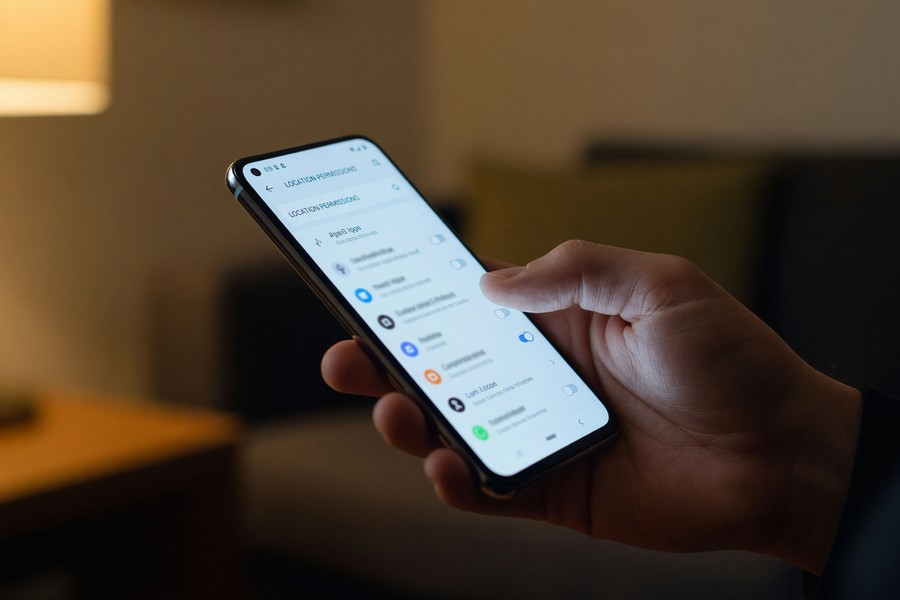
On Android, go to Settings → Location → App Permissions and set most apps to “Only while using.” Android 12 and later also includes a Location History deletion option tied to your Google account. Separately, disable Google Location Sharing in Google Maps settings unless you explicitly need it.
How Do You Audit and Revoke Dangerous App Permissions?
An app permissions audit is the process of reviewing which apps have access to sensitive phone features — and revoking access that is not necessary. This is one of the most effective phone privacy settings actions you can take.
The permissions that carry the highest risk are: Microphone, Camera, Contacts, Calendar, and Health data. Many apps request these permissions at install and retain them indefinitely, even if the feature requiring them was used only once.
How to Audit Permissions on iOS
On iPhone, go to Settings → Privacy and Security, then review each category — Camera, Microphone, Contacts, etc. — to see a full list of apps with access. Revoke any app that does not have an obvious, current reason to need that permission.
iOS 15 and later includes the App Privacy Report, found under Settings → Privacy and Security → App Privacy Report. This report shows exactly how often each app accessed your camera, microphone, location, and contacts over the past seven days — providing data-driven evidence for what to revoke.
How to Audit Permissions on Android
On Android, navigate to Settings → Privacy → Permission Manager for a category-by-category view. Android’s Permission Usage Dashboard, introduced in Android 12, shows a timeline of which apps accessed sensitive permissions and when.
It is also worth reviewing permissions for pre-installed system apps, which are frequently overlooked. Many manufacturer-installed apps retain broad permissions that can be restricted without affecting core phone functionality.
“Most users are surprised to discover that apps they installed years ago still have microphone and location access. A quarterly permissions audit takes five minutes and closes off one of the most common vectors for passive data collection.”
If you use free apps regularly, it is worth understanding the trade-offs involved. Our breakdown of what you actually give up when you pay nothing for an app explains how permission-based data harvesting funds free software.
How Can You Stop Ad Tracking on iOS and Android?
Ad tracking is controlled by dedicated phone privacy settings on both major platforms. Disabling it does not eliminate ads — but it prevents advertisers from building a detailed behavioral profile linked to your device identity.
On iOS, Apple’s App Tracking Transparency (ATT) requires every app to ask permission before tracking you across other apps and websites. If you have not explicitly approved tracking for an app, go to Settings → Privacy and Security → Tracking and ensure “Allow Apps to Request to Track” is managed — and deny all requests you have previously approved.
Resetting Your Advertising ID
Both iOS and Android assign your device an Advertising ID (IDFA on iOS, GAID on Android) — a unique identifier advertisers use to link your behavior across apps. Resetting this ID severs the historical data trail attached to your device.
On iOS: Settings → Privacy and Security → Apple Advertising → turn off Personalized Ads. On Android: Settings → Google → Ads → Delete Advertising ID. The Android option, introduced in Android 12, permanently removes the ID rather than just resetting it — a stronger protection.
Only 25% of iOS users opt in to app tracking when prompted under Apple’s ATT framework, according to Flurry Analytics. This means 75% of iPhone users have already rejected the most aggressive form of cross-app tracking — but the settings must still be actively managed.
| Privacy Setting | iOS (iPhone) | Android |
|---|---|---|
| Ad Tracking | Settings → Privacy → Apple Advertising → Off | Settings → Google → Ads → Delete Ad ID |
| Location Precision | Per-app Precise Location toggle (iOS 14+) | Per-app location accuracy (Android 12+) |
| Microphone Access | Settings → Privacy → Microphone | Settings → Privacy → Permission Manager → Microphone |
| App Tracking Consent | ATT prompt required for all apps (iOS 14.5+) | Privacy Sandbox opt-out in Google Play settings |
| Permission Usage Report | App Privacy Report — 7-day history | Privacy Dashboard — 24-hour timeline |
| Clipboard Access | Notification shown when app reads clipboard (iOS 14+) | Toast notification shown (Android 12+) |
What Communication Settings Protect Your Messages and Calls?
Encrypted messaging is a critical phone privacy setting that most default messaging apps do not enable by default. Standard SMS text messages are not encrypted and can be intercepted, subpoenaed, or accessed by your carrier.
End-to-end encryption (E2EE) ensures that only the sender and recipient can read a message — not the app company, the network carrier, or any third party. Apps that use E2EE by default include Signal, WhatsApp (for direct messages), and Apple’s iMessage (when messaging between Apple devices).
Enabling iMessage and Checking RCS Encryption
On iPhone, iMessage is enabled by default under Settings → Messages. However, messages sent to non-iPhone users default to SMS unless RCS (Rich Communication Services) is active. As of iOS 18, Apple supports RCS, but encryption between Apple and Android via RCS remains limited.
Google Messages on Android supports end-to-end encrypted RCS chats between two users who both have Google Messages with RCS enabled — but this must be verified in individual conversation settings.
Enabling Disappearing Messages
Signal and WhatsApp both offer disappearing messages — a setting that automatically deletes messages after a defined time period. In Signal, set this globally under Settings → Privacy → Default Timer. This prevents your full message history from remaining accessible if your device is ever compromised.
The rise of always-on connectivity through technologies like 5G also expands the surface area for communication interception. For context on how mobile network architecture affects privacy, see our comparison of 5G vs. Wi-Fi 7 and which wireless technology is right for you.
Which Lock Screen and Biometric Settings Are Most Secure?
Your lock screen is the first line of defense for physical device security, and the phone privacy settings governing it are frequently misconfigured. A weak passcode or excessive lock screen notifications expose sensitive data without any hacking required.
A 6-digit PIN is the minimum recommended by the Cybersecurity and Infrastructure Security Agency (CISA). An alphanumeric passphrase is significantly stronger. Biometric authentication (Face ID, fingerprint) is convenient but should always be backed by a strong PIN.
Restricting Lock Screen Notifications
By default, both iOS and Android display full message previews on the lock screen. This means anyone who picks up your phone can read incoming texts, emails, and app alerts without unlocking it.
On iOS: Settings → Notifications → Show Previews → set to “When Unlocked.” On Android: Settings → Notifications → Sensitive Notifications → Off. This single change prevents significant unintended information exposure in public settings.
Disabling USB Accessories and Lockdown Mode
iOS includes a USB Accessories toggle under Settings → Face ID and Passcode that prevents USB devices from connecting to your iPhone when it has been locked for more than one hour. This defends against hardware-based data extraction tools.
Apple’s Lockdown Mode, introduced in iOS 16, provides extreme protection for users facing targeted surveillance. It disables most wired data connections, limits web features, and blocks unknown FaceTime callers. It is not recommended for general use but is available to any user who needs it.
Set your phone to auto-lock after 30 seconds or 1 minute of inactivity, not the default 2–5 minutes. The shorter the lock window, the smaller the exposure if your phone is left unattended. On iOS: Settings → Display and Brightness → Auto-Lock. On Android: Settings → Display → Screen Timeout.
How Do Network and Cloud Settings Affect Your Privacy?
Network and cloud phone privacy settings control how your device shares data when connected to the internet. These settings are among the most overlooked — and among the most impactful for ongoing data exposure.
Wi-Fi auto-join and Bluetooth scanning both enable passive location tracking even when GPS is off. Retailers and venues use Bluetooth beacons and Wi-Fi probe requests to track foot traffic and individual devices without app permissions.
Disabling Auto-Join and Bluetooth Scanning
On iOS, go to Settings → Wi-Fi → and disable “Auto-Join Hotspot” for carrier networks. Use the Private Wi-Fi Address feature (enabled per network) to randomize your device’s MAC address, preventing persistent network-based tracking.
On Android, go to Settings → Location → Wi-Fi and Bluetooth Scanning and disable both toggles. This prevents your phone from broadcasting signals to nearby networks and beacons when you are not actively connected.
Cloud Backup Privacy Settings
Cloud backups — via iCloud, Google One, or Samsung Cloud — store copies of your messages, photos, contacts, and app data. These backups may not be end-to-end encrypted by default, meaning the cloud provider can technically access them.
Apple’s Advanced Data Protection for iCloud, available in iOS 16.2 and later, enables end-to-end encryption for nearly all iCloud data categories. Enable it under Settings → [Your Name] → iCloud → Advanced Data Protection. Google’s encrypted backups are enabled under Settings → System → Backup — verify that encryption is active on your account.
If you use wearables that sync health data to your phone, the privacy implications extend further. See how wearable technology is transforming personal health tracking — and what data it generates — to understand the full scope of mobile-connected health data.
Many apps store your data in the cloud and share it with third parties under broad terms of service. Reviewing the apps connected to your cloud accounts is as important as reviewing phone permissions. The Google Account Permissions page and Apple’s Apple ID management portal both allow you to revoke third-party app access in minutes.
Data exposure often begins with app subscriptions you forgot about. If you have apps running in the background with cloud access you no longer use, consider pairing this privacy audit with a full digital subscription audit to identify apps silently draining your data and budget.
Frequently Asked Questions
What are the most important phone privacy settings to change immediately?
The highest-priority changes are: disable ad tracking, revoke unnecessary microphone and location permissions, enable end-to-end encrypted messaging, turn off lock screen notification previews, and disable Wi-Fi and Bluetooth scanning. These five adjustments address the most common passive data collection vectors and take under 15 minutes to complete.
Does turning off location services completely protect my privacy?
Turning off GPS location services reduces tracking significantly but does not eliminate it entirely. Apps can still estimate your location using Wi-Fi network data, Bluetooth signals, and IP address geolocation. To maximize protection, also disable Wi-Fi scanning and Bluetooth scanning in your location settings.
Are iPhones or Android phones more private by default?
iPhones generally offer stronger privacy defaults out of the box, largely due to Apple’s App Tracking Transparency framework and tighter App Store review policies. Android provides more granular controls but requires more active configuration to achieve equivalent protection. Both platforms can be made highly private with the correct settings applied.
Can apps hear my microphone without my knowledge?
Apps can only access your microphone if you have granted them permission. However, many apps request microphone access and retain it indefinitely after a single use. Review your microphone permissions in your phone’s Privacy settings and revoke access for any app that does not have a clear, ongoing need for it.
What is Apple’s Advanced Data Protection and should I enable it?
Advanced Data Protection is an opt-in feature in iOS 16.2 and later that extends end-to-end encryption to most iCloud data categories, including iCloud Backup, Photos, and Notes. It means Apple cannot access your data even under a legal request. Most users benefit from enabling it — the main trade-off is that Apple cannot help recover your data if you lose your account access.
Does using a VPN improve my phone’s privacy?
A VPN (Virtual Private Network) encrypts your internet traffic and masks your IP address from websites and your carrier. It is a useful privacy layer, particularly on public Wi-Fi, but it does not protect against app-level permissions abuse or ad tracking. A VPN complements phone privacy settings — it does not replace them.
How often should I review my phone privacy settings?
A full privacy audit every three months is recommended. Apps update frequently and can request new permissions after updates. OS updates also introduce new privacy features — such as Apple’s App Privacy Report or Android’s Privacy Dashboard — that are worth reviewing whenever you update your phone’s software.
Sources
- Pew Research Center — How Americans View Data Privacy (2023)
- Federal Trade Commission — Mobile Security Updates Report
- Cybersecurity and Infrastructure Security Agency (CISA) — Cybersecurity Best Practices
- Google Play — Manage Your Privacy Settings
- Flurry Analytics — iOS ATT Opt-In Rate Data
- International Association of Privacy Professionals (IAPP) — What You Should Know About Data Brokers
- Signal — Official Blog and Usage Data
- Exodus Privacy — App Tracker Analysis Project
- Google — Third-Party App Permissions Management
- Apple — Apple ID and Privacy Management Portal






