Fact-checked by the VisualEnews editorial team
Quick Answer
To create split-screen videos for social media on mobile, choose a dedicated split screen video app like CapCut, InShot, or KineMaster, import your clips, select a multi-frame layout, sync your audio, then export in your platform’s preferred resolution. As of July 2025, most top apps are free to download and can produce a publish-ready split-screen video in under 10 minutes.
Finding the right split screen video app for mobile can feel overwhelming — but it does not have to be. In July 2025, apps like CapCut, InShot, and KineMaster make it possible to produce professional split-screen content directly from your smartphone, no desktop software required. According to Statista’s 2024 social media report, more than 5.17 billion people actively use social media globally, and short-form video content drives the majority of engagement across every major platform.
Split-screen videos have surged in popularity because they let creators compare products, react to footage, show before-and-after transformations, and collaborate remotely — all in a single, scroll-stopping frame. HubSpot’s 2024 marketing research found that video content generates 1,200% more shares than text and image posts combined, making it one of the highest-return formats for any social creator or brand.
This guide is for content creators, social media managers, and everyday smartphone users who want to produce eye-catching split-screen videos without a steep learning curve. By the end, you will know exactly which app to use for your needs, how to set up and export your split-screen video, and how to avoid the most common mistakes that waste time and storage.
Key Takeaways
- CapCut is the most downloaded free video editor on mobile in 2024, with over 500 million installs worldwide, making it the top starting point for most creators, according to Business of Apps.
- A quality split screen video app should support at least 1080p export resolution to meet the minimum quality standards for Instagram Reels, TikTok, and YouTube Shorts.
- Short-form vertical videos (9:16 aspect ratio) account for over 60% of all social video consumption in 2024, per Sprout Social’s video statistics.
- Free split-screen apps typically cap exports at 1080p and add watermarks unless you upgrade, so weigh the cost of a paid plan — often $7–$15 per month — against your publishing frequency.
- KineMaster and LumaFusion offer the most advanced multi-layer editing for professional creators, with up to 6 video layers on a single timeline, according to their official app listings.
- Exporting at the wrong frame rate or resolution is the number-one reason split-screen videos look blurry or choppy on social platforms — always match your export settings to your target platform’s specifications before rendering.
In This Guide
- Which Split Screen Video App Is Best for Social Media on Mobile?
- How Do I Make a Split-Screen Video on My Phone Step by Step?
- Should I Use a Free or Paid Split Screen Video App?
- Which Split-Screen Layouts Work Best for TikTok, Instagram, and YouTube?
- How Do I Sync Audio Properly in a Split-Screen Video?
- What Export Settings Should I Use for Social Media Split-Screen Videos?
- Frequently Asked Questions
Step 1: Which Split Screen Video App Is Best for Social Media on Mobile?
The best split screen video app for most mobile users is CapCut — it is free, beginner-friendly, and supports all major social media aspect ratios out of the box. For creators who need professional-grade multi-layer editing, KineMaster (Android and iOS) and LumaFusion (iOS only) are the strongest paid alternatives.
Top Split Screen Video Apps at a Glance
Here are the most reliable apps available in July 2025, each suited to a different type of creator:
- CapCut — Best overall free option; built-in split-screen templates, 1080p export, available on iOS and Android.
- InShot — Best for quick edits; simple picture-in-picture and side-by-side layouts.
- KineMaster — Best for advanced creators; supports up to 6 video layers, chroma key, and 4K export.
- LumaFusion — Best for iOS professionals; desktop-level timeline editing on iPhone and iPad.
- iMovie — Best free option for Apple users; limited split-screen but zero cost and no watermark.
- Splice — Best for music-driven content; strong audio tools alongside split-screen layouts.
- Adobe Premiere Rush — Best for creators already in the Adobe ecosystem; syncs across mobile and desktop.
What to Watch Out For
Many apps labeled “split screen” in app store listings only support basic picture-in-picture, not true side-by-side multi-clip layouts. Always check user reviews specifically mentioning split-screen functionality before downloading. Watermarks on free plans can be difficult to remove after export and may violate some brand partnership agreements.
CapCut reached 500 million lifetime downloads as of 2024, making it the fastest-growing video editing app in history, according to Business of Apps.
Step 2: How Do I Make a Split-Screen Video on My Phone Step by Step?
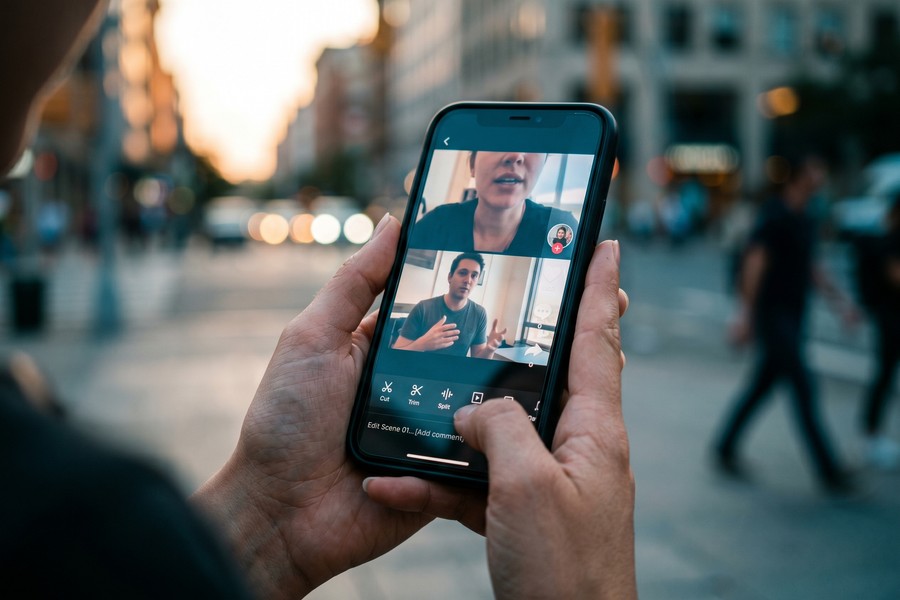
To make a split-screen video on your phone, open your chosen app, create a new project, import your clips, apply a split-screen or multi-frame layout, trim your footage, and export. The full process takes under 10 minutes for a basic two-clip layout in CapCut or InShot.
How to Do This in CapCut (Step by Step)
CapCut is the most widely used free option and the clearest example of how the process works across most apps:
- Open CapCut and tap New Project.
- Import your first video clip from your camera roll.
- Tap the overlay option (the small plus icon on the timeline).
- Import your second video clip — it will appear as an overlay layer.
- Tap the overlay clip, then select Split Screen from the bottom menu to activate side-by-side framing.
- Drag each clip to position it within the frame and trim both clips to the same length.
- Add text, music, or transitions using the bottom toolbar.
- Tap the export arrow in the top-right corner and choose your resolution (1080p is recommended for all platforms).
How to Do This in InShot
Open InShot, tap Video, then select the Collage option from the main menu. Choose a two-panel or multi-panel layout, import your clips into each panel, and use the pinch-to-zoom gesture to adjust the size of each clip within its frame.
What to Watch Out For
Clip alignment is the most common mistake at this stage. If your two clips are different lengths, the shorter one will loop or freeze on the last frame — always trim both clips to identical lengths before exporting. Also ensure your project’s aspect ratio is set before importing clips, not after, to avoid unwanted cropping.
In CapCut, use the Reframe tool before creating your split-screen layout to automatically crop your raw vertical or horizontal footage to the exact dimensions your target social platform requires — this saves significant manual repositioning time.

Step 3: Should I Use a Free or Paid Split Screen Video App?
Use a free split screen video app if you are just starting out, post casually, or are comfortable removing watermarks manually — free options like CapCut and iMovie cover the vast majority of social media use cases. Upgrade to a paid app only when you consistently need 4K export, multi-layer editing beyond two clips, or advanced color grading.
How to Decide
The decision comes down to three factors: export quality, watermarks, and editing complexity. As explored in our breakdown of what you actually give up with free apps, free tiers often restrict resolution and add branding that can undermine professional credibility.
Paid plans for the top split-screen apps typically cost between $7 and $15 per month. KineMaster’s premium plan costs $9.99/month and removes all watermarks while unlocking 4K export. LumaFusion is a one-time purchase of $29.99 on the App Store — the best long-term value for serious iOS creators.
What to Watch Out For
Be cautious of apps that advertise “free” but require in-app purchases for every individual template or transition. These micro-purchase models can cost more than a straightforward subscription within a single month of active use. Always read the full pricing breakdown in the app store before installing.
| App | Price | Max Export Quality | Watermark (Free) | Platforms | Best For |
|---|---|---|---|---|---|
| CapCut | Free / $9.99/mo Pro | 1080p (free), 4K (Pro) | No watermark | iOS, Android | Beginners, TikTok creators |
| InShot | Free / $3.99/mo Pro | 1080p (free), 4K (Pro) | Yes, watermark | iOS, Android | Quick edits, collages |
| KineMaster | Free / $9.99/mo Premium | 1080p (free), 4K (Premium) | Yes, watermark | iOS, Android | Advanced multi-layer editing |
| LumaFusion | $29.99 one-time | 4K HDR | No watermark | iOS only | Professional iOS creators |
| iMovie | Free | 1080p | No watermark | iOS only | Casual Apple users |
| Adobe Premiere Rush | Free / $9.99/mo | 1080p (free), 4K (paid) | Yes, export limit | iOS, Android | Adobe ecosystem users |
| Splice | Free / $9.99/mo | 1080p (free), 4K (paid) | No watermark | iOS, Android | Music-driven content |
Apple’s iMovie has been available for free on iOS devices since 2013 and supports basic split-screen via its picture-in-picture feature — making it a solid zero-cost option for iPhone users who do not need advanced layouts.
Step 4: Which Split-Screen Layouts Work Best for TikTok, Instagram, and YouTube?
The best split-screen layout depends entirely on your target platform. Use a vertical 9:16 side-by-side layout for TikTok and Instagram Reels, a horizontal 16:9 top-and-bottom layout for YouTube videos, and a square 1:1 collage for Instagram feed posts.
Platform-Specific Layout Recommendations
TikTok and Instagram Reels both favor full-screen vertical video at 1080 x 1920 pixels. For split-screen, a side-by-side vertical layout — with each clip occupying half the height — performs best because it keeps faces and action centered at eye level on mobile screens.
YouTube Shorts also uses 9:16, but standard YouTube videos perform better with a 16:9 widescreen layout. For reaction videos and tutorials, a top-and-bottom split (each clip at 1920 x 540 pixels) keeps the format familiar for desktop viewers.
Instagram Feed Posts in a 1:1 square format work well for product comparisons and before-and-after content, since the square crop is the most predictable in the Instagram grid view.
What to Watch Out For
Never apply a split-screen layout without first checking where the platform’s UI elements will overlap your content. TikTok’s caption bar, like button, and profile icon all sit on the right side and bottom of the screen — avoid placing critical text or action in those zones, or it will be obscured for viewers.
“Split-screen content performs exceptionally well in the first three seconds because the human eye is drawn to contrast and motion across multiple frames simultaneously. Creators who use dynamic layouts consistently outperform static single-frame videos in watch-time metrics.”
Step 5: How Do I Sync Audio Properly in a Split-Screen Video?
To sync audio in a split-screen video, mute one or both original audio tracks, add a single background music track to the project timeline, and use your app’s audio waveform display to align visual action with beats or cues. Proper audio sync is the single most important factor in a split-screen video feeling professional rather than amateur.
How to Do This
In CapCut, tap a video clip on the timeline, scroll the bottom menu to Volume, and set it to zero if you want only background music. Then tap Audio in the main toolbar and select a track from CapCut’s built-in royalty-free library or import your own. Drag the audio track’s start point until the first beat visually aligns with the first action in your split-screen panel.
In KineMaster, use the Audio Browser to add music, then switch to the audio layer on the timeline and use the Pan and Volume envelope to fade audio in and out at precise frame-level points. This level of control is one reason KineMaster is preferred for creators posting content that is increasingly discovered through AI-powered social search, where watch-time and audio retention signals matter more than ever.
What to Watch Out For
Using copyrighted music without the correct license can result in your video being muted, removed, or demonetized on TikTok, Instagram, and YouTube. Always use royalty-free tracks from libraries like Epidemic Sound, Artlist, or the built-in music libraries within CapCut and Splice, which provide pre-cleared licenses for social media use.
Uploading split-screen videos with unlicensed commercial music can trigger automatic Content ID claims on YouTube or instant removal on TikTok. Always verify the licensing terms of any track before it appears in a published video — this applies even to tracks labeled “free” on third-party websites.
Step 6: What Export Settings Should I Use for Social Media Split-Screen Videos?
Export your split-screen video at 1080p resolution, 30fps, H.264 codec for universal compatibility across TikTok, Instagram, YouTube Shorts, and Facebook Reels. If your app supports it and your target platform accepts it, 60fps adds noticeable smoothness to action-heavy content.
How to Do This
Before tapping export in any split screen video app, check these four settings:
- Resolution: 1080 x 1920 pixels for vertical (9:16); 1920 x 1080 for horizontal (16:9).
- Frame rate: 30fps is the universal safe setting; use 60fps for sports, gaming, or fast-action content.
- Bitrate: Set to at least 8 Mbps for clean 1080p; higher bitrates result in larger file sizes but fewer compression artifacts.
- Format: MP4 (H.264) is accepted by every major social platform without additional conversion.
According to Instagram’s official video specifications, Reels should be uploaded at a maximum file size of 1 GB with an aspect ratio of 9:16 and minimum resolution of 500 x 888 pixels — though 1080p is strongly recommended for feed quality.
What to Watch Out For
Re-encoding a video multiple times — such as editing an already-exported clip and exporting again — compounds compression loss with each pass, reducing visible quality. Always work from original source footage, not previously exported versions, to maintain the sharpest final output.
If you are posting the same split-screen video across multiple platforms, export one high-resolution master file at the highest quality your app allows, then use a free tool like Handbrake on desktop to create platform-specific compressed versions — this avoids re-editing the same project multiple times and preserves maximum quality for each channel.

Managing your content tools efficiently matters beyond just video editing. Just as it pays to review your digital subscriptions regularly to avoid silent budget drain, periodically auditing your suite of video editing apps ensures you are not paying for overlapping features across multiple platforms. Similarly, understanding what you trade away with free tools — as covered in our guide to free vs. paid apps — helps you make smarter decisions about which upgrade is actually worth the cost.
“The creators who grow fastest on short-form platforms are not necessarily the ones with the best cameras — they are the ones who understand their export pipeline. A video shot on a flagship smartphone but exported incorrectly will always underperform a well-optimized clip shot on an older device.”
Related reading: AIO Versus: AI.
Frequently Asked Questions
What is the best free split screen video app with no watermark?
CapCut is the best free split screen video app that does not add a watermark to exported videos. It supports 1080p export, includes built-in split-screen templates, and is available on both iOS and Android at no cost. iMovie is also watermark-free but is limited to Apple devices and has fewer layout options.
Can I make a split-screen video on an Android phone without installing extra apps?
Most Android phones do not have a built-in video editor capable of creating true split-screen videos. You will need to install a third-party app — CapCut or InShot are the most straightforward options for Android users and are both free to download from the Google Play Store.
How do I create a reaction video with split screen on TikTok directly in the app?
TikTok has a built-in Duet feature that automatically places your recording side-by-side with another creator’s video. Open TikTok, find the video you want to react to, tap Share, and then select Duet. This creates a native split-screen layout without requiring any external split screen video app.
Why does my split-screen video look blurry after I export it?
Blurry split-screen exports are almost always caused by exporting at a resolution that is too low, or by the platform re-compressing your video upon upload. Export at 1080p minimum, and if the platform allows, upload at the highest bitrate the app supports. Avoid uploading over cellular data — use Wi-Fi to prevent the platform from applying extra compression during upload.
Can I add music to a split-screen video without getting a copyright strike?
Yes, but only if you use royalty-free or pre-licensed tracks. Use the built-in music libraries in CapCut, Splice, or InShot, which provide tracks already cleared for social media use. Alternatively, subscribe to Epidemic Sound or Artlist for a larger catalog of licensed music with explicit social media rights.
Is there a split screen video app that works on both iPhone and Android?
Yes — CapCut, InShot, KineMaster, Splice, and Adobe Premiere Rush are all available on both iOS and Android. If you switch between an iPhone and Android device, CapCut offers the most consistent cross-platform experience, including cloud project syncing so you can continue editing on either device.
How many videos can I combine in a single split-screen layout?
Most split screen video apps support 2 to 4 video clips in a single frame. KineMaster supports up to 6 video layers, making it the top choice if you need more than a two-panel layout. Apps like CapCut and InShot are optimized for two-panel splits but allow three-panel grid layouts through their collage templates.
What aspect ratio should I use for a split-screen video on Instagram Reels?
Use a 9:16 vertical aspect ratio (1080 x 1920 pixels) for Instagram Reels split-screen videos. This fills the full mobile screen and avoids the black bars that appear when horizontal footage is uploaded to a vertical format. Set your project aspect ratio before importing clips to ensure your layout fits perfectly without manual cropping.
Can I use a split screen video app to make before-and-after videos for a business account?
Yes — before-and-after split-screen videos are one of the highest-performing content formats for business accounts in industries like fitness, beauty, home improvement, and technology. Use CapCut’s side-by-side layout with a clear center divider line and consistent lighting across both clips. Add bold text labels (“Before” / “After”) using the app’s text tool for maximum clarity.
Does using a split screen video app on mobile reduce video quality compared to desktop editing?
Modern mobile split screen video apps can produce output at up to 4K resolution, which is comparable to most desktop editing workflows for social media purposes. The primary limitation is processing speed — rendering a 4K split-screen video on a mid-range smartphone takes significantly longer than on a desktop workstation. For social media, 1080p mobile exports are indistinguishable from desktop-rendered equivalents to the average viewer.
Sources
- Statista — Global Social Media Users 2024
- HubSpot — Marketing Statistics: Video Engagement Data
- Business of Apps — CapCut Download and Revenue Statistics
- Sprout Social — Social Media Video Statistics
- Instagram Help Center — Reels Video Specifications
- TikTok Support — How to Create a Duet
- YouTube Help — Recommended Upload Encoding Settings
- Adobe — Premiere Rush Official Product Page
- LumaFusion — Official Features and Pricing
- Epidemic Sound — Music Licensing for Social Media






