Fact-checked by the VisualEnews editorial team
Quick Answer
Choosing between a built-in phone screen recorder app and a dedicated capture app comes down to your use case. Built-in tools work for casual clips in under 2 minutes, while dedicated apps like AZ Screen Recorder or DU Recorder offer frame rates up to 60fps, internal audio capture, and editing tools. As of July 2025, most power users will get better results from a dedicated app.
Deciding which phone screen recorder app to use is no longer as simple as tapping the built-in control center option. In July 2025, mobile content creation has exploded — Statista reports that over 3.5 billion people consume mobile video weekly, and a growing share of that content originates as raw screen recordings. Whether you are capturing gameplay, walkthrough tutorials, or app demos, the tool you use directly shapes the quality of your output.
The gap between native screen recorders and dedicated capture apps has widened significantly in the past two years. Manufacturers like Apple and Google have improved their built-in tools, but third-party developers have pushed even harder — adding features like noise suppression, multi-track audio, and real-time annotations that native tools simply do not offer. Understanding this divide helps you stop wasting time on the wrong tool for your workflow.
This guide is written for smartphone users, content creators, educators, and developers who want an honest, side-by-side breakdown of both options. After reading, you will know exactly which setup to use, how to configure it, and what pitfalls to avoid.
Key Takeaways
- Built-in screen recorders on iOS and Android cap recording resolution at 1080p in most cases, while dedicated apps like AZ Screen Recorder support up to 2K (1440p) output on compatible devices.
- Dedicated phone screen recorder apps offer frame rates up to 60fps, compared to the native iOS recorder’s fixed 30fps ceiling, which matters significantly for gaming and motion-heavy content.
- Internal audio capture — recording the sound coming from your apps, not just your microphone — is unavailable on stock iOS and restricted on Android below version 10, according to Android developer documentation.
- Free dedicated apps often collect significant data; a Federal Trade Commission privacy report found that 79% of free mobile apps share user data with third-party advertisers.
- Storage impact is real — a 10-minute screen recording at 1080p/60fps can occupy 1.5–2 GB of device storage, making file management a critical part of any recording workflow.
- For our breakdown of when paid app features are genuinely worth paying for versus overhyped, see our guide on free vs paid apps and what you actually give up.
In This Guide
- What Is the Difference Between a Built-In Screen Recorder and a Dedicated Phone Screen Recorder App?
- When Should I Just Use My Phone’s Built-In Screen Recorder?
- Which Dedicated Phone Screen Recorder App Should I Actually Use?
- How Do I Record Internal Audio on My Phone Screen Recording?
- What Settings Should I Use to Get the Best Quality Screen Recording on My Phone?
- How Do I Manage File Size and Edit My Phone Screen Recordings?
- Frequently Asked Questions
Step 1: What Is the Difference Between a Built-In Screen Recorder and a Dedicated Phone Screen Recorder App?
The core difference is depth of control. Built-in screen recorders are designed for convenience — one tap and you are recording. Dedicated apps are designed for output quality, giving you granular control over bitrate, resolution, frame rate, and audio sources.
How to Think About This
Apple’s native Screen Recording tool (available since iOS 11) and Google’s built-in recorder (Android 10 and above) handle the basics well. They launch instantly, require no permissions setup, and save directly to your camera roll or gallery. These tools are reliable for quick clips, bug reports, or sharing a how-to with a friend.
Dedicated apps like AZ Screen Recorder, DU Recorder, Mobizen, and Scrcpy (for desktop-controlled Android recording) layer additional capabilities on top of the OS. They expose settings that manufacturers lock away — things like custom bitrates, face-cam overlays, countdown timers, and internal audio mixing. According to Android Authority’s 2025 app roundup, dedicated apps produce measurably better results for any recording longer than five minutes.
What to Watch Out For
Dedicated apps require more system permissions — microphone, storage, display overlay, and sometimes accessibility access. Granting these indiscriminately carries privacy risks. Always check the app’s privacy policy before installing, especially if you are recording sensitive content on a work device.
Apple introduced native screen recording in iOS 11 back in 2017, but it still does not capture internal audio from most third-party apps due to DRM restrictions — a limitation that dedicated apps work around using system-level audio APIs on supported Android devices.
Step 2: When Should I Just Use My Phone’s Built-In Screen Recorder?
Use your phone’s built-in screen recorder when speed and simplicity matter more than quality. If you need to capture a bug, demonstrate a feature to a colleague, or save a short clip for personal reference, the native tool is the right choice — no download required, no configuration needed.
How to Do This
On iPhone, swipe down from the top-right corner to open Control Center, then tap the Screen Recording button (a circle within a circle icon). On Android 10 and above, pull down the notification shade twice and look for “Screen Recorder” in the Quick Settings tiles. Recording starts within three seconds on both platforms. The resulting file is automatically saved to Photos (iOS) or Movies/Screen Recordings (Android).
These tools are also the right call when you are recording content that involves sensitive information. Because native tools operate entirely within the OS with no third-party involvement, there is zero risk of your recording data being uploaded to an external server — a real concern with some free dedicated apps.
What to Watch Out For
The native iOS recorder cannot capture internal audio from apps like Spotify, Netflix, or most games due to Apple’s DRM enforcement. You will only hear your microphone. Android’s built-in recorder can capture internal audio, but only in specific conditions — the app being recorded must not have flagged its audio stream as protected.
On iOS, long-press the Screen Recording button in Control Center to choose whether to record with your microphone on or off before you start. This saves you from re-recording a clip that captured unwanted background noise.
Step 3: Which Dedicated Phone Screen Recorder App Should I Actually Use?
For most Android users, AZ Screen Recorder is the strongest all-around choice. For iOS users needing more than the native tool, Record it! Screen Recorder is the top-rated third-party option on the App Store. Your final pick should depend on platform, intended use, and whether you need internal audio.
How to Do This
Start by identifying your primary use case. Gaming content creators need 60fps and high bitrate support. Educators need annotation tools and webcam overlay. Developers need lossless or near-lossless output for bug documentation. Each use case maps to a different tool. The comparison table below breaks this down with specific specs.
AZ Screen Recorder is free on Google Play with an optional pro upgrade for $2.99/month. It supports up to 1440p, 60fps, and 60 Mbps bitrate. Mobizen Screen Recorder, developed by RSUPPORT Co., Ltd., offers a clean UI with a watermark-free option at a slightly lower quality ceiling. For iOS, Record it! by Reliable Software Inc. layers reaction video recording and automatic trim tools on top of screen capture.
“For any creator producing tutorial or gameplay content on mobile, the native screen recorder is a starting point — not a destination. The moment you care about audio sync, frame consistency, or post-production flexibility, you need a dedicated solution.”
What to Watch Out For
Free tiers of dedicated apps almost always add a watermark to your recordings. This is not disclosed prominently during install. Check the watermark policy before recording a long session — removing a watermark in post-production is time-consuming and may degrade video quality.
| App | Platform | Max Resolution | Max Frame Rate | Internal Audio | Free Tier Watermark | Price (Pro) |
|---|---|---|---|---|---|---|
| AZ Screen Recorder | Android | 1440p (2K) | 60fps | Yes (Android 10+) | No | $2.99/month |
| Mobizen | Android | 1080p | 60fps | Yes (Android 10+) | Yes | $1.99/month |
| DU Recorder | Android / iOS | 1080p | 30fps | Partial | No | Free (ad-supported) |
| Record it! | iOS | 1080p | 60fps | No (iOS limit) | No | $4.99/month |
| iOS Native | iOS | 1080p | 30fps | No | No | Free |
| Android Native | Android 10+ | 1080p | 30fps | Yes (limited) | No | Free |
The table above shows that no single app wins across all categories. AZ Screen Recorder leads on Android for quality and pricing. iOS users are more constrained by Apple’s platform rules, making the native tool competitive even against paid alternatives.
AZ Screen Recorder has surpassed 500 million downloads on Google Play as of 2025, making it the most-installed dedicated phone screen recorder app in the world — ahead of Mobizen’s 200 million installs.
Step 4: How Do I Record Internal Audio on My Phone Screen Recording?
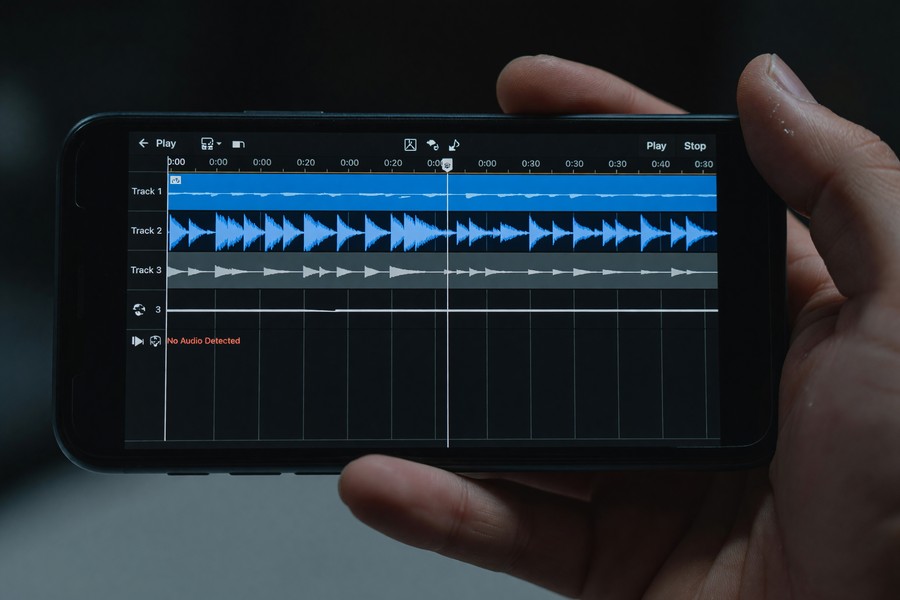
Recording internal audio — the sounds your apps produce, not your voice — requires Android 10 or above for the best results, and it is not natively possible on iPhone due to Apple’s audio sandbox restrictions. On Android, use a dedicated app like AZ Screen Recorder with the “Internal Sound” option enabled in its audio settings.
How to Do This
On Android 10+, open AZ Screen Recorder, go to Settings, and under Audio Source select “Internal Audio.” This uses Android’s AudioPlaybackCapture API, introduced by Google in Android 10, which allows apps to legally intercept audio output from other apps — as long as those apps have not explicitly blocked it. Most games and utility apps allow this. Streaming services like Netflix and Spotify block it by design.
On iPhone, the workaround involves recording your screen while playing audio through an external speaker and capturing it via microphone — a lossy approach that picks up room noise. A better iOS workaround is using a Mac with QuickTime Player to mirror and record your iPhone screen with system audio intact over a USB connection, as detailed in Apple’s official QuickTime support documentation.
What to Watch Out For
Some Android apps flag their audio stream as ALLOW_CAPTURE_BY_NONE, which prevents any third-party tool from capturing it. If you see silent recordings despite enabling internal audio, the source app is blocking capture — this is a platform-level restriction, not a bug in your recorder. Check the app’s terms of service before attempting workarounds.
Recording copyrighted audio — including music from Spotify or Apple Music — even for personal use may violate the platform’s Terms of Service and, in some jurisdictions, the Digital Millennium Copyright Act (DMCA). Always check the content rights before sharing any recording that includes third-party audio.
Step 5: What Settings Should I Use to Get the Best Quality Screen Recording on My Phone?
For the best quality screen recording on your phone, set your resolution to match your device’s native display, your frame rate to 60fps for motion content (30fps for static tutorials), and your bitrate to at least 8 Mbps for 1080p or 20 Mbps for 1440p. These three settings have the largest impact on output quality.
How to Do This
In AZ Screen Recorder, navigate to Settings and adjust the following: set Resolution to “Device Native” or 1080p, Frame Rate to 60fps if your device is a mid-range or flagship model from 2022 or later, and Video Quality (Bitrate) to 12 Mbps for 1080p content. For 1440p recordings, use 20–30 Mbps. Lower bitrates produce smaller files but introduce compression artifacts — especially visible during fast motion in games.
Audio settings matter too. Set your audio sample rate to 44.1 kHz (CD quality) and audio bitrate to 128 kbps for voice-only content. For recordings that include music or game audio, bump audio bitrate to 192 kbps to preserve fidelity. These recommendations align with Google’s video encoding guidelines for mobile.
What to Watch Out For
High bitrate settings generate large files quickly. A 10-minute recording at 1080p/30 Mbps can exceed 2.2 GB. If your phone has less than 4 GB of free storage before recording, you risk a mid-session crash that corrupts the file entirely. Always check available storage and, if possible, record directly to an SD card or stream to cloud storage using apps that support it.
“Resolution gets all the attention, but bitrate is what actually determines whether your recording looks professional or amateurish. A 1080p file at 4 Mbps looks worse than a 720p file at 10 Mbps in most real-world use cases.”
Step 6: How Do I Manage File Size and Edit My Phone Screen Recordings?
Managing file size starts before you record — choose the right settings for your output destination, not the maximum your device supports. After recording, use a mobile editor like CapCut, InShot, or the built-in trim tool on iOS and Android to remove dead time and reduce file size before exporting.
How to Do This
If your final output is Instagram Reels or TikTok, record at 1080p/30fps with a bitrate of 8 Mbps — this matches what those platforms re-encode to anyway, so recording at higher settings just wastes storage. If you are uploading to YouTube, 1080p/60fps at 12 Mbps is the sweet spot for quality versus file size. YouTube recommends a minimum 8 Mbps bitrate for 1080p content, according to YouTube’s official upload settings guide.
For editing, CapCut — developed by ByteDance — is free and handles screen recording footage well, including auto-caption generation. InShot offers a one-time purchase of $34.99 for its pro tier, which removes ads and adds advanced color correction. Both apps export in H.264 or H.265 (HEVC), with H.265 producing files roughly 40% smaller at equivalent quality — useful for storage-constrained devices. If you are curious about how app cost structures affect what features you actually get, our deep dive on free vs. paid app tradeoffs covers the broader pattern.
What to Watch Out For
Some dedicated phone screen recorder apps save footage in proprietary formats or use codecs that are incompatible with desktop editors like Adobe Premiere Pro or DaVinci Resolve. Always verify your app exports to a standard format — MP4 with H.264 is the safest universal choice. Avoid apps that default to WebM or MKV if you plan to edit on a laptop afterward.
Also consider your subscription costs carefully. Screen recording apps, editing apps, and cloud storage all add up. It is worth periodically auditing your app subscriptions — our guide on auditing digital subscriptions to stop silent budget drains walks through that process in detail.
Enable “Do Not Disturb” mode before starting any screen recording session. Incoming calls, notification banners, and system alerts will appear in your recording and are impossible to remove cleanly in post-production without cropping or blurring.
If you are creating content across multiple devices — recording on your phone and editing on a laptop — wireless transfer speed becomes a bottleneck. Our comparison of 5G versus Wi-Fi 7 for wireless data transfer is worth reading if you move large video files regularly between devices.
Frequently Asked Questions
Can I record my phone screen without the other person knowing during a video call?
Technically yes, but legally and ethically it depends on your jurisdiction. In the United States, many states require all-party consent for recorded conversations, and recording a video call without disclosure may violate wiretapping laws. Some apps like Zoom also display an on-screen notification to all participants when recording begins. Always disclose when you are recording a call.
Why does my screen recording have no sound even though I enabled audio?
The most common cause is the source app blocking audio capture. Streaming apps like Netflix, Disney+, and Spotify use the ALLOW_CAPTURE_BY_NONE flag to prevent any external tool from recording their audio output. On iPhone, internal audio is never available from third-party apps regardless of your recorder. Switch to microphone audio capture as a fallback, or use a desktop-based recording method via QuickTime mirroring.
Does recording my screen slow down my phone or drain the battery faster?
Yes — screen recording is a CPU and storage-intensive process. Encoding video in real time while running another app simultaneously can raise CPU usage by 30–50% on mid-range devices, according to benchmark data from AnandTech’s mobile performance research. Expect battery drain to increase by roughly 20–40% compared to normal use. Plug in when doing long recordings to avoid session interruptions.
Is there a phone screen recorder app that works on both iPhone and Android?
DU Recorder is available on both iOS and Android, but its iOS version is significantly more limited due to Apple’s platform restrictions — it cannot capture internal audio and operates within Apple’s ReplayKit framework. For cross-platform creators, the most practical solution is using the native recorder on iPhone and AZ Screen Recorder on Android, then editing everything in a shared workflow via CapCut or Adobe Premiere Rush.
How do I remove the watermark from my screen recording without paying?
The honest answer: you generally cannot remove a watermark without either paying for the pro tier or switching to a different app. Blurring or cropping a watermark degrades the visible portion of your video. AZ Screen Recorder’s free tier does not add a watermark, making it the best free, watermark-free option on Android. On iOS, the native screen recorder never adds a watermark.
What is the best phone screen recorder app for recording gameplay on mobile?
AZ Screen Recorder is the strongest choice for Android gaming content — it supports 60fps, 1440p, and internal audio capture, all of which are critical for gameplay recordings. For iOS, the native recorder at 30fps is the most stable option, though Record it! adds reaction cam overlay if you want a face-cam element. Keep in mind that high-intensity games will compete with the recorder for CPU resources, potentially causing frame drops in the footage.
Should I use a phone screen recorder app or buy a separate capture card?
A dedicated capture card — like the Elgato HD60 X (~$149) — is worth the investment only if you regularly stream or produce high-volume content, since it offloads encoding from your phone’s CPU entirely and captures lossless footage. For casual to moderate use, a good phone screen recorder app produces results that are indistinguishable to most viewers. The capture card route pairs best with a laptop or desktop editing workflow, as covered in our roundup of the best laptops for remote workers and content creators in 2026.
How long can I record my phone screen before it automatically stops?
Most dedicated apps do not impose a time limit, but storage and battery do. A phone with 4 GB of free storage recording at 1080p/12 Mbps will fill up in approximately 45 minutes. Some apps offer segmented recording — automatically splitting into 5- or 10-minute chunks — to prevent one large corrupted file if something goes wrong. Enable this feature if you are planning sessions longer than 20 minutes.
Can I schedule a phone screen recording to start automatically?
Very few phone screen recorder apps support scheduled recording natively. AZ Screen Recorder does not. DU Recorder has a basic scheduler in its settings menu on Android. For advanced automation, Android users can combine a screen recording app with Tasker (a $3.49 automation app) to trigger recording based on time, app launch, or other conditions. iOS does not support this kind of background automation due to its sandbox model.
Will using a dedicated screen recorder app void my phone warranty?
No — installing and using a screen recorder app from the Google Play Store or Apple App Store does not void your device warranty. Warranty concerns arise only from rooting (Android) or jailbreaking (iOS) your device. Some advanced screen recording features, like capturing DRM-protected content via root-level access, do require a rooted device, but the root action itself — not the app — is what may affect warranty status.
Sources
- Statista — Mobile Video Content Creation and Consumption Statistics, 2025
- Android Developer Documentation — MediaRecorder and AudioPlaybackCapture API
- Apple Support — Record your iPhone screen with QuickTime Player on Mac
- Google / YouTube — Recommended upload encoding settings
- Federal Trade Commission — Protecting Consumer Privacy and Security
- Android Authority — Best Screen Recorder Apps for Android, 2025
- Google Developers — VP9 Video Encoding Settings for Mobile VOD
- Google Play Store — AZ Screen Recorder by Hecorat
- AnandTech — Mobile CPU and Battery Performance Research
- Elgato — HD60 X Capture Card Product Page






