
Fact-checked by the VisualEnews editorial team
Quick Answer
To edit and publish podcast video episodes directly from your phone, choose a dedicated podcast video editing app, import your raw footage, trim and layer audio tracks, add captions and branding, then export and publish — all without a desktop. As of July 2025, apps like CapCut, Descript, and Adobe Premiere Rush handle this full workflow in under 30 minutes on both iOS and Android.
Finding the right podcast video editing app is no longer a luxury — it is a practical necessity for creators publishing in July 2025. The global podcasting market is projected to surpass $100 billion by 2030 according to Statista, and video podcasts are driving a disproportionate share of that growth. Whether you record in a home studio or a hotel room, your smartphone is now capable of handling every step from raw footage to finished episode.
Short-form video platforms have fundamentally changed audience expectations. According to Pew Research Center’s podcast fact sheet, more than 42% of Americans age 12 and older now listen to podcasts monthly, and platforms like YouTube and Spotify are actively rewarding video-first content with algorithmic boosts. Waiting for desktop editing time is a competitive disadvantage.
This guide is for independent podcasters, solo creators, and small teams who want a professional-quality video podcast workflow that fits inside their phone. By the end, you will know which apps to use, how to configure them, and how to go from raw recording to published episode without ever opening a laptop.
Key Takeaways
- The top podcast video editing apps — including CapCut, Descript, and Adobe Premiere Rush — are free to start and handle end-to-end mobile editing on iOS and Android.
- Video podcasts receive up to 3x more engagement than audio-only episodes on YouTube, according to YouTube’s creator blog.
- Auto-captioning features in apps like Descript achieve 95%+ transcription accuracy, eliminating hours of manual subtitle work per episode.
- Exporting at 1080p resolution is sufficient for YouTube, Spotify Video, and most podcast directories, keeping file sizes manageable for mobile uploads.
- Mobile editing apps now support multi-track audio layering, which means you can mix intro music, guest audio, and ambient sound — all from your phone.
- Free-tier apps often watermark exports or cap resolution at 720p; upgrading to a paid plan typically costs between $8 and $20 per month and removes those limits. Learn how to evaluate whether a paid upgrade is worth it in our guide to free vs. paid apps.
In This Guide
- Step 1: Which Podcast Video Editing App Is Best for Mobile in 2025?
- Step 2: How Do I Set Up My Phone to Record a High-Quality Podcast Video?
- Step 3: How Do I Edit Podcast Video Footage on My Phone Without Losing Quality?
- Step 4: How Do I Add Captions, Graphics, and Branding Inside a Mobile Editing App?
- Step 5: How Do I Export and Publish a Video Podcast Episode Directly From My Phone?
- Frequently Asked Questions
Step 1: Which Podcast Video Editing App Is Best for Mobile in 2025?
The best podcast video editing app for most creators in 2025 is Descript for its AI-powered word-based editing, or CapCut for creators who prioritize speed and social-media-ready output. The right choice depends on your workflow, budget, and publishing platform.
The Top Apps and What They Do Best
Descript lets you edit video by editing a text transcript — delete a word in the transcript and it removes the corresponding video clip automatically. Its Overdub and AI filler-word removal features are particularly valuable for podcast creators who want clean audio without frame-by-frame scrubbing.
CapCut, developed by ByteDance, is free and handles multi-track timelines, auto-captions, and direct publishing to TikTok, YouTube Shorts, and Instagram Reels. Adobe Premiere Rush syncs projects with Adobe Creative Cloud, making it ideal for creators who occasionally move to a desktop. LumaFusion is the most professional-grade option on iOS, supporting up to 6 video tracks and 6 audio tracks simultaneously.
What to Watch Out For
Do not choose an app based on feature lists alone — test the export speed on your actual device. Some apps that perform well on flagship phones struggle on mid-range Android hardware, causing crashes during render. Always check whether the free tier applies a visible watermark, which is unprofessional for published podcast content.
Download two apps and test each with a 5-minute clip before committing. Most paid tiers offer a 7-day free trial — use both trials in the same week to compare export quality and rendering time side by side.
| App | Best For | Free Tier Limit | Paid Plan (Monthly) | Max Video Tracks | Auto-Captions | Direct Publish |
|---|---|---|---|---|---|---|
| Descript | AI transcript editing | 1 hour transcription | $12 | Unlimited | Yes (95%+ accuracy) | YouTube, Wistia |
| CapCut | Social clips, speed | Watermarked exports | $7.99 | Multi-track | Yes | TikTok, YouTube |
| Adobe Premiere Rush | Desktop sync workflow | 2 GB cloud storage | $9.99 | 4 | Yes | YouTube, Facebook |
| LumaFusion | Pro iOS editing | None (one-time $29.99) | N/A | 6 | Via third-party | YouTube, Vimeo |
| InShot | Quick trims and music | Watermarked exports | $3.99 | 3 | No | Instagram, TikTok |
Subscription costs for creative apps can add up faster than most creators realize. If you are juggling multiple editing tools, a periodic digital subscription audit can help you identify which apps are earning their monthly fee.
Step 2: How Do I Set Up My Phone to Record a High-Quality Podcast Video?
Record at 1080p at 30 frames per second as your baseline setting — this balances file size and quality for all major podcast video platforms. Use your phone’s rear camera when possible, as it produces significantly sharper footage than the front-facing sensor on most devices.
How to Do This
Open your phone’s native camera app and set it to Video mode. Navigate to settings and select 1080p / 30fps unless you are shooting in bright, stable conditions where 4K adds genuine value. Lock your exposure and white balance by tapping and holding the subject on screen — this prevents the auto-exposure from flickering during conversation.
For audio, a plug-in lavalier microphone such as the Rode SmartLav+ or a USB-C microphone like the Shure MV88+ dramatically improves sound quality. Poor audio is the single most cited reason listeners abandon a podcast episode, according to research summarized by Nieman Lab. Even a $30 clip-on mic outperforms the built-in microphone in most phone models.
What to Watch Out For
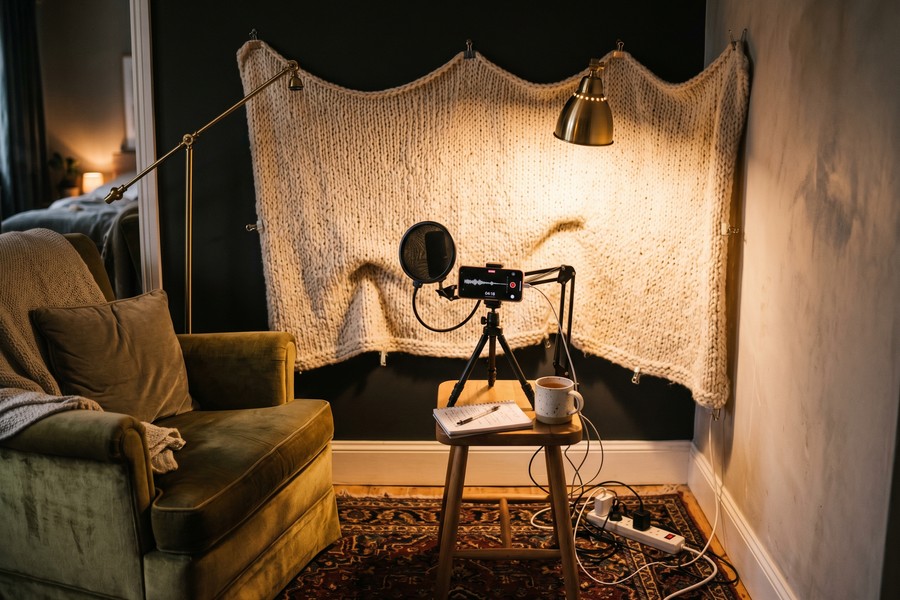
Never record in a room with hard, flat walls and no soft furnishings — the resulting reverb makes even good microphones sound hollow. Hang a blanket on the wall behind the camera or record in a walk-in closet lined with clothes if you do not have acoustic panels.
Podcasts with poor audio quality see listener drop-off rates of over 60% within the first 60 seconds, compared to under 20% for episodes with clean, professionally recorded sound, according to listener behavior data analyzed by Buzzsprout’s podcast statistics report.
Step 3: How Do I Edit Podcast Video Footage on My Phone Without Losing Quality?
Edit your podcast footage in your chosen app by importing the raw clip, trimming silences and mistakes first, then layering audio tracks and b-roll second. Working in this order — cuts before additions — keeps the timeline manageable and prevents the app from slowing down under a heavy project load.
How to Do This
Open your podcast video editing app and create a new project. Import your raw video clip from your camera roll. Most apps display a horizontal timeline at the bottom — drag the yellow trim handles on each end of the clip to cut out the first and last few seconds, which typically contain setup noise and awkward pauses.
Next, use the app’s cut or split tool to remove internal mistakes. In Descript, this is as simple as highlighting filler words like “um” and “uh” in the auto-generated transcript and pressing delete — the corresponding video frames are removed automatically. In CapCut or Premiere Rush, tap “Split” at the playhead position, select the unwanted segment, and delete it.
For multi-track audio, import your separately recorded microphone audio (if you recorded it independently) as an additional audio layer. Mute the camera’s built-in audio track and use the cleaner external mic recording instead. This is a standard professional workflow even on mobile platforms.
What to Watch Out For
Avoid applying heavy color filters or video effects before you have finished cutting — effects increase render preview load and can make it harder to spot jump cuts. Finalize your edit timeline completely before applying any visual enhancements.
“The biggest mistake mobile podcast editors make is trying to color grade before they have locked their cut. Finish your story first. Every visual treatment is reversible — a sloppy edit structure is not.”
Editing large video files (over 2 GB) on phones with less than 6 GB of RAM frequently causes apps to crash mid-project. Save your project manually every 5–10 minutes. In CapCut and Descript, enable auto-save in Settings before starting any long session.
Step 4: How Do I Add Captions, Graphics, and Branding Inside a Mobile Editing App?
Add captions first, then lower-thirds and logo overlays, and finish with your intro and outro sequences — this layering order matches how the elements appear visually on screen and prevents misalignment. Captions are no longer optional: 85% of social media video is watched with the sound off, according to Facebook for Business research.
How to Do This
In CapCut, tap “Text” then “Auto Captions” — the app transcribes your dialogue and generates synced subtitle overlays in under two minutes. You can then style the font, color, and position to match your podcast brand. Descript generates captions automatically in the transcript view; export them as burned-in subtitles or as a separate SRT file for platforms that support external subtitle files.
For branding, use the app’s sticker or overlay layer to add your podcast logo. Set the opacity to around 70–80% so the logo is visible without obscuring the speaker’s face. Add a consistent lower-third text element with the speaker’s name and title — this builds credibility and helps new viewers understand who they are watching within the first few seconds.
Create a short intro animation using CapCut’s template library or import a pre-made animated logo from a tool like Canva or Adobe Express as an MP4 file. Prepend it to your timeline as the first clip. Keep intros under 10 seconds — viewer drop-off spikes sharply after 15 seconds of non-content material.
What to Watch Out For
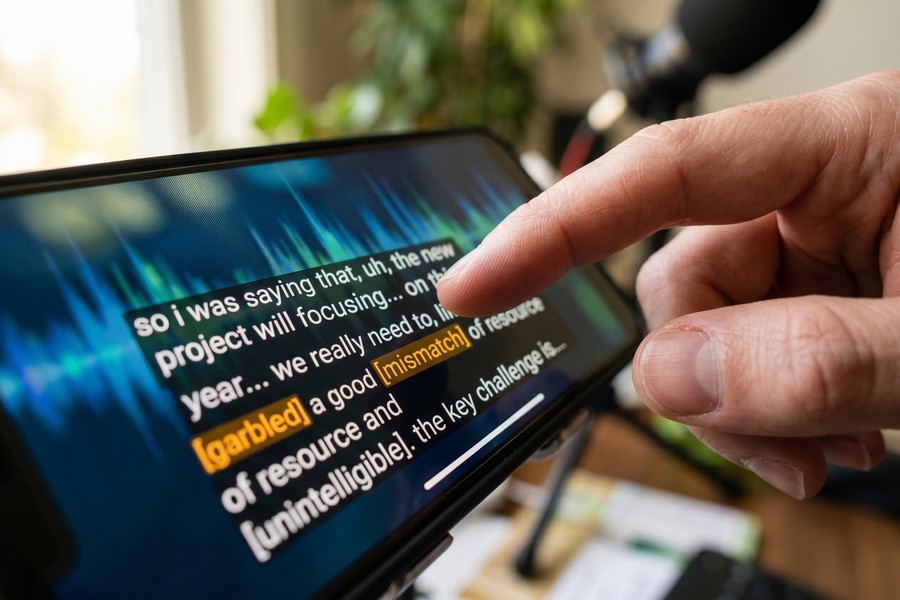
Check caption accuracy carefully if your episode contains technical jargon, proper nouns, or non-English words. Auto-captioning AI performs best on standard spoken English and can misfire on industry-specific vocabulary. Manually correct any errors before exporting.
YouTube’s algorithm actively prioritizes videos with accurate closed captions because they improve accessibility and indexability. Adding captions to your podcast video episodes can increase search visibility on YouTube by crawling the text as additional keyword content for the platform’s recommendation engine.
Step 5: How Do I Export and Publish a Video Podcast Episode Directly From My Phone?
Export your finished episode at 1080p H.264 format, then publish directly through the app’s built-in sharing tools or upload manually to your podcast hosting platform. Most major apps now support one-tap publishing to YouTube, Spotify, and social media without requiring a computer at any point in the process.
How to Do This
In CapCut, tap the export arrow in the top right corner. Select 1080p resolution and 30fps. The file will save to your camera roll, and from there you can upload directly to YouTube Studio’s mobile app, which supports full episode uploads including titles, descriptions, thumbnails, and playlist assignment. For Spotify Video podcasts, use the Spotify for Podcasters app — it accepts MP4 video files up to 200 MB per episode as of mid-2025.
In Descript, use the “Publish” button to send directly to YouTube or download the finished MP4. Adobe Premiere Rush offers direct YouTube publishing from within the app, letting you fill in your episode title, description, and tags without switching platforms.
For podcast-specific hosting platforms, Buzzsprout, Anchor (now Spotify for Podcasters), and Podbean all accept video episode uploads via their mobile apps. Upload the MP4 file, add your episode metadata (title, show notes, chapter markers), and schedule or publish immediately.
What to Watch Out For
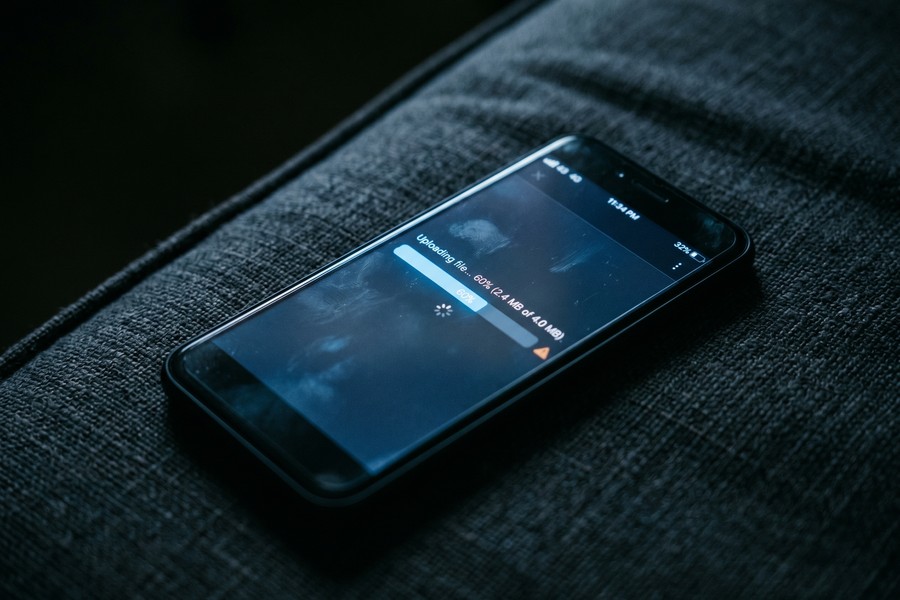
Never publish directly from a mobile data connection if your episode is longer than 20 minutes — file sizes typically exceed 500 MB at 1080p, and interrupted uploads corrupt the file on most platforms. Wait for a stable Wi-Fi connection before initiating any episode upload.
Create a custom thumbnail in Canva’s mobile app before uploading. Episodes with custom thumbnails receive on average 38% more clicks than those using auto-generated frame grabs, according to YouTube’s internal creator research. Export the thumbnail as a 1280×720 JPEG and upload it alongside your video file.
“Publishing consistency beats production perfection. A good-enough video uploaded weekly will always outperform a polished episode uploaded once a month. Mobile tools have eliminated every technical excuse for irregular publishing schedules.”
If you are evaluating whether the hardware on your current phone or laptop meets the demands of consistent video editing, our breakdown of the best laptops for remote workers covers processing power benchmarks that apply equally to video editing workloads. For creators curious about how AI tools are reshaping content creation workflows more broadly, our explainer on how AI is changing the way we search the internet is worth reading alongside this guide.
Frequently Asked Questions
What is the best free podcast video editing app for beginners with no editing experience?
CapCut is the best free podcast video editing app for beginners because its interface requires no prior editing knowledge — auto-captions, pre-built templates, and one-tap transitions handle most of the technical work automatically. The free tier is fully functional for basic episodes, though exports include a watermark that you can remove with a paid plan starting at $7.99 per month.
Can I edit a full hour-long podcast video on my phone without it crashing?
Yes, but you need a phone with at least 6 GB of RAM and 64 GB of free storage to handle hour-long projects without frequent crashes. iPhones from the iPhone 13 series onward and Android flagships like the Samsung Galaxy S22 series handle long-form projects reliably in apps like LumaFusion and Descript. Splitting the project into two halves and joining them at export is a reliable workaround on older or mid-range devices.
Should I use Descript or CapCut for editing a podcast video with two remote guests?
Use Descript if your priority is clean audio editing and removing filler words from a multi-speaker conversation — its transcript-based editing handles multiple speakers with individual speaker labels. Use CapCut if your priority is creating short social clips from the conversation quickly, since its timeline editing and template engine are faster for producing highlight reels and promotional content.
How do I sync separate audio and video tracks recorded on different devices in a mobile editing app?
Import both the video file and the separate audio file into your editing app as individual tracks. Manually align them by matching the waveform peaks — look for a loud clap or “three-two-one” countdown you recorded at the start of your session, which creates a visible spike in both audio waveforms. In LumaFusion and Premiere Rush, you can zoom into the waveform view for precise alignment down to individual frames.
What video format should I export my podcast in for YouTube and Spotify?
Export in MP4 format with H.264 encoding at 1080p and 30fps — this is the universally accepted format for YouTube, Spotify Video, and every major podcast platform as of 2025. Avoid ProRes or HEVC formats when uploading directly from mobile, as some platforms transcode these formats incorrectly and introduce visual artifacts. Keep your bitrate between 8 and 15 Mbps for 1080p video to balance quality and upload speed.
How do I add chapter markers to a podcast video episode from my phone?
YouTube chapter markers are added via the episode description, not inside the video file itself. In YouTube Studio’s mobile app, type your chapter timestamps in the format “0:00 Intro” on separate lines in the description field — YouTube automatically converts these into clickable chapters on the video timeline. For Spotify, chapter markers are added through the Spotify for Podcasters app under the “Chapters” section when uploading or editing an episode.
Is there a podcast video editing app that publishes directly to multiple platforms at once?
Descript’s publishing workflow allows you to push a finished episode to YouTube and download an MP4 simultaneously, but true multi-platform simultaneous publishing from a single mobile app is not yet a mainstream feature. The closest alternative is to export your finished video, then use a social media scheduler like Buffer or Hootsuite, which accept video file uploads and let you schedule posts across YouTube, Instagram, TikTok, and LinkedIn from their mobile apps.
How much storage do I need on my phone to edit a 45-minute podcast video episode?
A raw 45-minute video recorded at 1080p/30fps takes approximately 4 to 8 GB of storage space depending on your phone’s compression codec. Add another 1 to 2 GB for the exported finished file and temporary project cache. Plan for at least 15 GB of free storage before starting any editing session to prevent the app from freezing mid-project. Offload completed raw footage to cloud storage or an external drive regularly to keep your phone’s storage clear. Understanding which type of storage solution works best for your workflow is covered in our SSD vs. HDD comparison guide.
What phone specs do I actually need to run a podcast video editing app smoothly?
For smooth performance in any podcast video editing app, look for a phone with a minimum of 6 GB RAM, a recent processor (Apple A15 or newer, Snapdragon 8 Gen 1 or newer), and at least 128 GB of internal storage. Phones that meet these specifications handle 1080p timeline editing, real-time preview, and export rendering without dropping frames or crashing. Budget phones with 4 GB RAM or older chipsets can run editing apps but will struggle with projects longer than 15 minutes.
Sources
- Statista — Global Podcast Market Size and Revenue Forecast
- Pew Research Center — Podcasting Fact Sheet 2023
- YouTube Official Blog — YouTube Podcasts Announcement and Creator Data
- Descript — AI-Powered Podcast and Video Editing Platform
- Nieman Lab — Audio Quality and Podcast Listener Retention Research
- Buzzsprout — Podcast Statistics and Listener Behavior Report
- Facebook for Business — Video Viewing Behavior and Sound-Off Statistics
- Adobe — Premiere Rush Mobile Video Editing App Features
- YouTube Creator Academy — Custom Thumbnails and Click-Through Rate Data
- Spotify for Podcasters — Video Podcast Upload Requirements and Specifications






