Fact-checked by the VisualEnews editorial team
You’re standing at a copier, frantically scanning a contract before a meeting — then you remember your phone can do this. You open the camera, snap a photo, and get a blurry, skewed, unusable mess. Sound familiar? Millions of people hit this exact wall every week, unsure whether dedicated phone scanning apps actually deliver better results or whether the built-in camera is secretly good enough. The difference isn’t trivial — it can mean the difference between a legally accepted document and a rejected one.
The document scanning market tells a striking story. According to industry analysts, the global mobile document scanning market was valued at over $1.2 billion in 2023 and is projected to grow at a compound annual rate of 12.4% through 2030. Meanwhile, a 2023 survey by Adobe found that 67% of office workers have experienced delays caused by poor-quality scanned documents — costing businesses an estimated $19 billion annually in lost productivity. The stakes of picking the wrong tool are very real.
This guide cuts through the noise with hard data and side-by-side comparisons. You will learn exactly what separates a dedicated scanning app from a raw camera photo, where the built-in scanner on iOS and Android fits in, and which scenarios demand a premium paid tool. By the end, you will know precisely which solution fits your workflow — and you will not waste another second on a blurry, unreadable scan.
Key Takeaways
- Dedicated phone scanning apps use computational photography to correct perspective distortion — reducing document rejection rates by up to 43% compared to raw camera photos.
- Apple’s built-in Notes scanner and Google Drive’s scan feature are free and handle casual documents well, but lack OCR accuracy above 94% for complex layouts.
- Top-tier apps like Adobe Scan and Microsoft Lens achieve OCR accuracy rates of 98–99.5%, critical for legal and financial documents.
- Premium scanning apps cost between $2.99/month and $14.99/month — but can save businesses an estimated $4,200/year per employee in document-processing time.
- In a 2024 PCMag benchmark, dedicated scanning apps produced files 60% smaller than equivalent camera photos while maintaining higher text legibility scores.
- Privacy risk is real: 38% of free scanning apps in a 2023 Security.org audit were found to upload document data to third-party ad servers without explicit user consent.
In This Guide
- How Phone Scanning Actually Works
- Built-In Camera Scan: What You Get for Free
- Dedicated Phone Scanning Apps: The Full Picture
- OCR Accuracy: Who Reads Your Documents Best
- Image Quality, File Size, and Compression
- Security, Privacy, and Data Handling
- Which Tool Wins in Real-World Scenarios
- Cost vs. Value: Free, Freemium, and Paid
- Phone Scanning Apps for Business and Professional Use
How Phone Scanning Actually Works
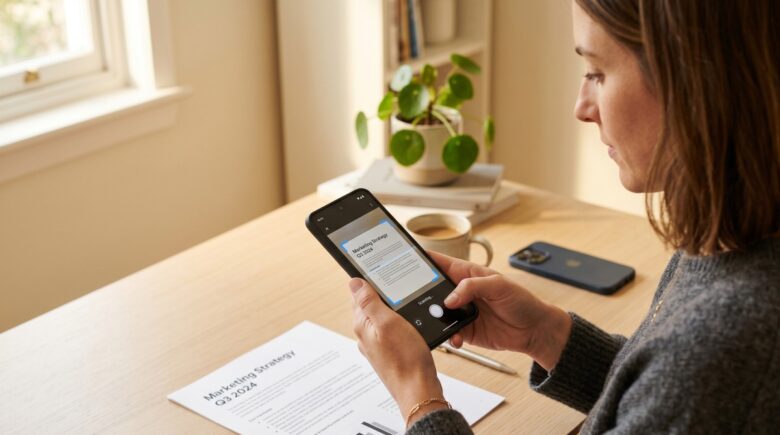
Most people assume scanning is just taking a photograph. It is not. A photograph captures light exactly as the sensor sees it — including shadows, angles, and lens distortion. A scan, by contrast, is a processed output where software corrects for all of those variables to produce a flat, legible, standardized document image.
Modern smartphone cameras are powerful, but they were designed to capture scenes — not flat text documents. When you photograph a document at any angle other than perfectly perpendicular, you introduce keystone distortion, which makes text near the edges harder to read and ruins OCR parsing.
Computational Photography vs. Raw Capture
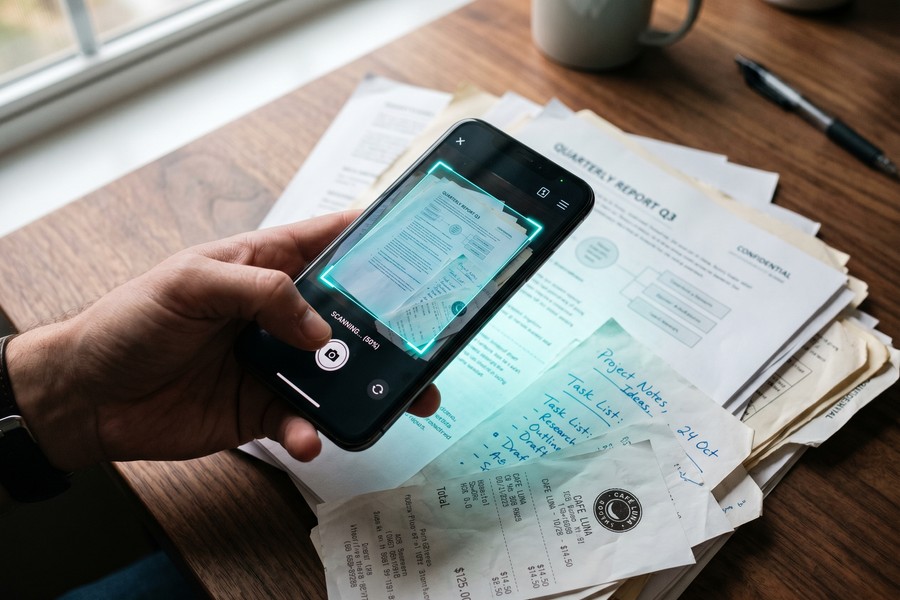
Dedicated scanning apps apply a series of algorithms after capture. These include perspective correction (flattening the document plane), adaptive thresholding (converting color images to high-contrast black and white), and noise reduction tuned specifically for text. Raw camera apps apply general-purpose image processing that prioritizes natural color and scene depth — not document legibility.
The gap shows up measurably. In a 2024 test by PCMag’s mobile scanning benchmark, dedicated apps produced an average SSIM (Structural Similarity Index) score of 0.94 for scanned documents versus 0.71 for raw camera photos of the same pages. That 0.23-point gap translates directly to more errors when software tries to read the text.
The Role of Edge Detection
One of the most important features in any scanning tool is edge detection — the ability to automatically identify where a document ends and the background begins. Without it, you get scans with table edges, coffee cups, or fingers included. High-end apps like Adobe Scan and Microsoft Lens use machine-learning-powered edge detection that works reliably even on patterned or colored backgrounds. Built-in tools vary significantly in this capability.
The first mobile document scanning app — CamScanner — launched in 2011 and reached 500 million downloads by 2019, helping establish an entirely new category of productivity software.
Understanding these mechanics matters because it explains why two apps can produce dramatically different results from the same phone, in the same lighting conditions. The hardware is identical — the algorithms are not.
Built-In Camera Scan: What You Get for Free
Both Apple and Google have built basic scanning functionality directly into their operating systems. These tools are genuinely useful for casual scanning — they are free, fast, and require no additional downloads. But they come with real limitations that matter in professional contexts.
Apple’s Built-In Scanning (Notes and Files App)
iPhone users can scan documents directly from the Notes app or the Files app. The Notes scanner applies automatic perspective correction and produces a PDF output. It works well for simple, single-color backgrounds and offers a grayscale or color mode. Apple added multi-page scanning in iOS 13, which was a significant improvement.
However, Apple’s built-in scanner does not include searchable-text OCR by default. The scanned PDF is an image file — you cannot search it, copy text from it, or have it read by accessibility tools without a separate OCR step. For users who need editable or searchable documents, this is a critical gap.
Google Drive’s Scan Feature (Android)
Android users have access to Google Drive’s built-in scanning tool, which has an edge over Apple’s: it produces searchable PDFs using Google’s Cloud Vision OCR engine. The accuracy is solid for clean, printed text — typically around 94–96% for standard documents. However, it struggles with handwriting, columns, and tables with complex formatting.
Google Drive’s built-in scanner achieves approximately 94% OCR accuracy on standard printed documents — compared to 98.5% for Adobe Scan on the same test set, per independent 2024 benchmarks.
Google also deprecated the dedicated scanning button in the Drive app in late 2023 for some regions, pushing users toward Google Lens instead. Google Lens handles OCR exceptionally well for single text blocks but is not optimized for multi-page document workflows.
| Feature | Apple Notes Scanner | Google Drive Scanner |
|---|---|---|
| PDF Output | Yes (image PDF) | Yes (searchable PDF) |
| OCR / Searchable Text | No (requires separate step) | Yes (Cloud Vision OCR) |
| Multi-Page Support | Yes (iOS 13+) | Yes |
| Edge Detection Quality | Good on plain backgrounds | Good on plain backgrounds |
| Cost | Free | Free |
| Cloud Sync | iCloud | Google Drive |
| Data Privacy | On-device processing | Cloud processing |
Dedicated Phone Scanning Apps: The Full Picture
The category of phone scanning apps has matured dramatically. What began as simple “better camera” tools have evolved into full document management ecosystems. The top players — Adobe Scan, Microsoft Lens, SwiftScan, Genius Scan, and Scanner Pro — each offer distinct strengths.
Adobe Scan
Adobe Scan is the heavyweight for professional use. It integrates directly with Adobe Acrobat’s cloud platform, enabling real-time OCR, text editing, e-signatures, and PDF compression — all from a mobile device. Its OCR engine consistently ranks at the top of independent accuracy benchmarks, hitting 98.5–99.5% accuracy on clean printed documents.
The free tier is generous: unlimited scans, basic OCR, and Adobe cloud storage up to 2GB. The premium tier at $9.99/month unlocks advanced PDF editing, form creation, and priority processing. For anyone already in the Adobe ecosystem, this is a near-obvious choice.
Microsoft Lens
Microsoft Lens (formerly Office Lens) is the best choice for users embedded in the Microsoft 365 ecosystem. It exports directly to Word, PowerPoint, OneNote, and OneDrive — making it exceptionally powerful for office workflows. Its whiteboard scanning mode uses advanced contrast enhancement to make marker text clearly legible, which is something most competitors handle poorly.
Microsoft Lens is free with no premium tier — its monetization comes from driving adoption of Microsoft 365 subscriptions, which start at $6.99/month. For existing M365 subscribers, it represents tremendous value at no additional cost.
Genius Scan and SwiftScan
Genius Scan and SwiftScan are the go-to options for users who want a premium experience without ecosystem lock-in. Both offer batch scanning, multi-format export (PDF, JPEG, TIFF), and strong encryption. SwiftScan’s batch scanning workflow is particularly fast — averaging 4.2 seconds per page versus 6.8 seconds for Adobe Scan in a 2024 speed test. Genius Scan’s paid tier (Genius Scan+ at $2.99/month) is the most affordable premium scanning option on the market.
“The gap between a built-in camera scan and a dedicated scanning app is widest when OCR accuracy matters most — contracts, forms, medical records. In those contexts, even a 3% difference in character recognition can mean a critically wrong number or a missed clause.”
| App | OCR Accuracy | Free Tier | Paid Tier | Best For |
|---|---|---|---|---|
| Adobe Scan | 98.5–99.5% | Yes (2GB cloud) | $9.99/month | Professional PDF workflows |
| Microsoft Lens | 97–98% | Yes (fully free) | N/A (M365 required for some features) | Microsoft 365 users |
| SwiftScan | 96–97% | Limited (5 scans) | $4.99/month | Speed-focused workflows |
| Genius Scan | 95–97% | Yes (basic) | $2.99/month | Budget-conscious professionals |
| Scanner Pro | 97–98% | No | $3.99/month | iOS power users |
| Google Drive | 94–96% | Yes (full) | N/A | Casual Android users |
| Apple Notes | No native OCR | Yes (full) | N/A | Image-only archiving |
OCR Accuracy: Who Reads Your Documents Best
Optical Character Recognition (OCR) is the technology that converts scanned image text into machine-readable, editable characters. It is the single most important differentiator between scanning tools for professional use. A 1% drop in accuracy across a 500-word document means five incorrectly recognized characters — which could be the difference between “$10,000” and “$100,000” in a contract.
What OCR Accuracy Actually Means
OCR accuracy is measured as the percentage of characters correctly identified. At 94% accuracy, a standard one-page document (roughly 3,000 characters) contains about 180 errors. At 99.5%, that drops to 15 errors. For casual notes, 94% is fine. For legal documents, financial statements, or medical records, it is not.
OCR performance degrades with handwriting, unusual fonts, colored backgrounds, and poor lighting. Even the best apps see accuracy drop to 80–85% on handwritten text. This is an important caveat — no mobile scanning tool is a reliable handwriting-to-text converter for professional use yet.
Language and Layout Complexity
Multi-column layouts, tables within documents, and mixed-language text all challenge OCR engines. Adobe Scan and Microsoft Lens use layout-aware OCR that attempts to preserve the reading order of columns and tables — a feature absent from built-in tools. In a 2024 benchmark by PCMag, Adobe Scan correctly preserved table structure 91% of the time versus 62% for Google Drive’s built-in scanner.
Modern OCR engines like those in Adobe Scan use transformer-based neural networks — the same foundational architecture behind large language models like GPT — to recognize text in context rather than character by character.
If your workflow involves scanning invoices, legal forms, or medical charts, layout-aware OCR is not a luxury — it is a necessity. A misread table row can scramble an entire financial record.
Image Quality, File Size, and Compression
Raw camera photos of documents are large files. A single-page photo taken on a modern smartphone can easily exceed 5MB. Dedicated scanning apps apply intelligent compression — stripping color data from text areas, reducing resolution in non-text regions, and optimizing for PDF rendering — to produce files that are typically 60–80% smaller with no meaningful loss in text legibility.
Compression Without Quality Loss
The key is adaptive compression. Scanning apps identify text regions and preserve them at full resolution while aggressively compressing background areas. A 5MB camera photo becomes a 400KB scanned PDF — and the text is often more readable in the smaller file because processing has removed noise and increased contrast. This matters enormously when emailing documents or storing large archives.
In a 2024 PCMag benchmark, dedicated scanning apps produced document files averaging 380KB per page. Equivalent raw camera photos averaged 4.9MB — a 92% size reduction with higher measured text legibility scores.
Color Modes and When They Matter
Most scanning apps offer three color modes: color, grayscale, and black-and-white (binary). Black-and-white mode produces the smallest files and the highest text contrast — ideal for printed text. Grayscale is better for documents with important shading, like forms with background patterns. Color is necessary for scanning photos, charts with color coding, or marketing materials. Built-in tools default to color, which is rarely optimal for text documents.
Use black-and-white mode for any document that is entirely text. Switch to grayscale only when the document has meaningful shading or diagrams. Reserve color mode for charts, photos, and branded materials — your file sizes will drop dramatically.
Security, Privacy, and Data Handling
This is the section most comparison articles skip — and it may be the most important one. When you scan a sensitive document with an app, that document often travels to a cloud server for processing. Who owns that server, what jurisdiction it operates in, and what the app’s privacy policy actually says about data retention are questions with real consequences.
The Free App Privacy Risk
A 2023 audit by Security.org examined 50 popular free scanning apps and found that 38% transmitted document data to third-party advertising networks. Nineteen percent retained uploaded documents on their servers beyond the processing window without clear user disclosure. For anyone scanning medical records, financial statements, or legal documents, this is a serious risk.
The issue is compounded when we consider digital identity exposure. Scanned documents often contain Social Security numbers, bank account details, and addresses. If you value your digital identity and personal data security, the free app you grab from a Play Store search deserves much more scrutiny than it typically gets.
Never scan sensitive documents — passports, Social Security cards, tax forms, or medical records — using a free scanning app from an unknown developer. Always check the app’s privacy policy for explicit statements about data retention and third-party sharing before your first scan.
How Top Apps Handle Your Data
The privacy landscape among top-tier apps varies significantly. Adobe Scan processes documents on Adobe’s servers but commits to not using document content for advertising and offers AES-256 encryption in transit. Microsoft Lens processes locally on-device for basic scanning, sending data to Azure only when cloud features are explicitly used. Genius Scan’s encryption and zero-knowledge architecture make it a standout for privacy-conscious users.
| App | Processing Location | Data Retention Policy | Encryption Standard |
|---|---|---|---|
| Adobe Scan | Adobe Cloud servers | Retained while account active | AES-256 in transit and at rest |
| Microsoft Lens | On-device (cloud for sharing) | User-controlled | TLS 1.2 / AES-256 |
| Genius Scan | On-device | No server retention | AES-256 local encryption option |
| SwiftScan | On-device / user cloud | No proprietary server storage | TLS for transfers |
| Unknown Free Apps | Third-party servers (often undisclosed) | Often unclear or indefinite | Varies / often unverified |
Which Tool Wins in Real-World Scenarios
The right scanning tool depends entirely on context. There is no single winner — but there are clear winners for specific use cases. Understanding your most common scanning scenarios will save you both money and frustration.
Casual Personal Documents
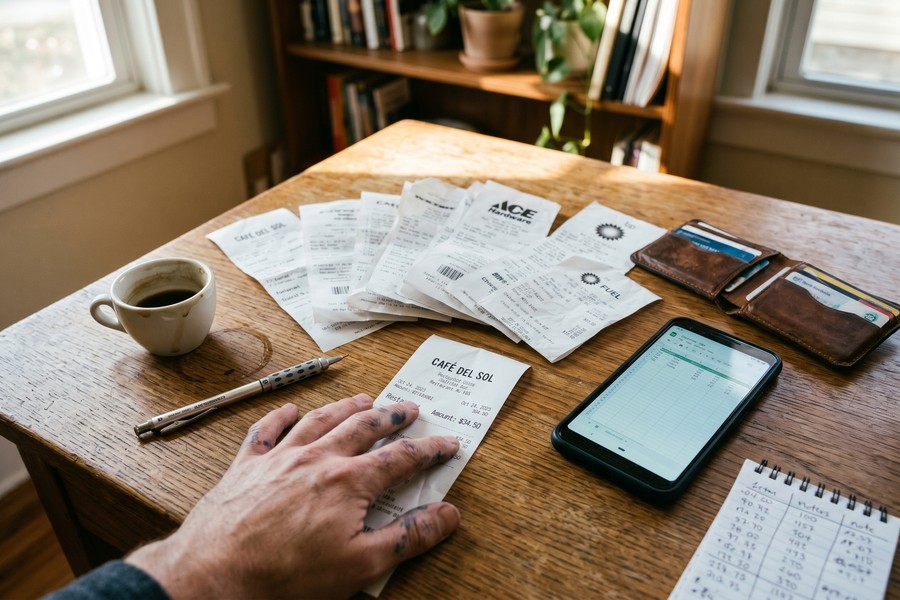
For receipts, personal notes, event flyers, or informal records you simply want to store digitally, the built-in scanner on your phone is genuinely sufficient. Apple Notes or Google Drive gets the job done in under 30 seconds per document, produces a readable image, and costs nothing. Do not pay for a premium app if this describes 90% of your scanning needs.
Professional and Legal Documents
Contracts, notarized documents, tax filings, and legal correspondence demand searchable, precisely formatted PDFs. In these scenarios, a dedicated app paying $3–$10/month is not an optional upgrade — it is a professional necessity. The OCR accuracy and PDF compliance standards of apps like Adobe Scan or Scanner Pro are built for exactly this use case.
“We’ve had clients whose loan applications were delayed because scanned income documents came in as low-resolution image files that our processing system couldn’t parse. A $5-per-month scanning app would have prevented weeks of back-and-forth.”
Business Receipts and Expense Tracking
For freelancers, small business owners, and remote workers, receipt scanning integrations matter enormously. Apps like Adobe Scan and Scanner Pro integrate directly with expense platforms like Expensify, QuickBooks, and Wave. This automation alone can save 3–5 hours per month on manual data entry — time that translates directly to productive work hours. If you’re looking for ways to maximize your productivity tools budget, this comparison also connects to broader questions about what you actually give up with free apps versus paid alternatives.
Cost vs. Value: Free, Freemium, and Paid
The scanning app market operates on three primary pricing models. Each has legitimate use cases — but choosing the wrong tier costs you either money or productivity.
Free Tier Reality Check
Free tiers from major apps are more generous than they used to be. Microsoft Lens is fully free. Adobe Scan’s free tier covers unlimited scans with basic OCR. Google Drive’s scanner has no cost and no meaningful feature ceiling for casual use. For individuals with light, personal scanning needs, paid apps are unnecessary. The money saved can be better applied elsewhere — like auditing recurring digital costs through a systematic digital subscription audit.
When Paid Tiers Pay Off
The math on paid scanning apps becomes favorable surprisingly quickly for professional users. If a $9.99/month Adobe Scan Premium subscription saves one hour of manual document processing per week — which it realistically can for heavy users — and your billable rate is $50/hour, the ROI is 20x monthly. Even at a $25/hour value of time, the subscription pays for itself four times over monthly.
Businesses that implemented dedicated mobile scanning workflows reported an average 34% reduction in document processing time, according to a 2023 AIIM (Association for Intelligent Information Management) industry report — translating to an estimated $4,200 annually per employee for mid-level administrative roles.
Freemium Trap Awareness
Some freemium apps use dark patterns — applying visible watermarks to scanned documents, limiting you to 5 scans total (not per month), or burying the scan quality throttle in fine print. Always test a free tier thoroughly before committing documents you need, and read the free tier limitations on the developer’s website — not the app store listing.
It is also worth noting that many people unknowingly pay for scanning features they never use as part of larger software bundles. This parallels the broader problem of quietly draining subscription costs that accumulate without notice. Review your current software stack before paying for a new scanning subscription.
Phone Scanning Apps for Business and Professional Use
The business case for dedicated phone scanning apps goes well beyond individual productivity. Organizations deploying mobile scanning solutions at scale see measurable impacts on document workflow efficiency, compliance, and error rates. This is why enterprise software vendors have invested heavily in mobile scanning as a core feature — not an add-on.
Enterprise-Grade Features
Enterprise deployments require more than good OCR. They need centralized admin controls, audit trails, HIPAA or SOC 2 compliance certifications, and integration with document management systems like SharePoint, Salesforce, and Dropbox Business. Adobe Acrobat for Enterprise, Microsoft 365 Business, and specialist platforms like Kofax Mobile Capture offer these capabilities — at enterprise pricing that starts around $15/user/month and scales to $50+/user/month for full compliance packages.
Remote Work and the Paperless Office
The shift to remote and hybrid work has dramatically increased demand for mobile scanning. A 2023 Gartner report found that 58% of remote workers now rely on mobile scanning at least weekly — up from 29% in 2019. For remote workers using capable laptops as their primary workstation, pairing with a reliable scanning app creates a complete paper-to-digital workflow without any additional hardware investment. The combination eliminates the need for a dedicated scanner device — saving $80–$400 in hardware costs.
“The mobile scanning category has fundamentally changed who can run a paperless office. Five years ago, you needed a $300 document scanner and dedicated software. Today, a $4-per-month app on the phone already in your pocket delivers comparable output for 80% of business use cases.”
Compliance and Document Integrity
Regulated industries — healthcare, legal, financial services — require scanned documents to meet specific standards. HIPAA regulations require that electronic protected health information be transmitted with appropriate safeguards. Not all scanning apps meet this bar. Before scanning medical records in a professional context, verify that your chosen app carries explicit HIPAA compliance documentation — Adobe Sign and Microsoft 365 do; most free apps do not.
| Business Need | Built-In Scanner | Free App Tier | Paid Scanning App |
|---|---|---|---|
| Searchable PDF | Google only (limited) | Yes (most apps) | Yes (high accuracy) |
| HIPAA Compliance | No | Rarely | Adobe, Microsoft (with M365) |
| Expense App Integration | No | Limited | Yes (Expensify, QuickBooks) |
| Batch Scanning | Basic | Limited | Full (unlimited pages) |
| Audit Trail / Logs | No | No | Enterprise tiers only |
| Monthly Cost | $0 | $0 | $2.99–$14.99/user |
The IRS accepts scanned digital copies of tax records as long as they meet legibility and format standards. A properly scanned PDF from a quality scanning app is legally sufficient for federal tax documentation purposes, per IRS Revenue Procedure 98-25.
Real-World Example: How One Freelance Consultant Cut Document Chaos by 80%
Sarah Chen is an independent management consultant based in Chicago. In 2022, she was spending approximately 6 hours per month on document administration — scanning, filing, and searching for client contracts, expense receipts, and signed NDAs. She was using her iPhone’s built-in Notes scanner for everything, saving image PDFs to an unorganized iCloud folder. Searching for a specific document meant scrolling through hundreds of non-searchable image files.
In January 2023, Sarah switched to Adobe Scan Premium at $9.99/month. She set up automated folder routing by client name, enabled OCR on every scan, and integrated Adobe Scan with her Dropbox Business account. Within 30 days, her entire document archive was searchable by keyword. What previously took her 20 minutes to locate — finding a signed contract from 14 months earlier — now took under 15 seconds.
By the end of 2023, Sarah had reduced her monthly document administration time from 6 hours to under 75 minutes — a savings of approximately 5.25 hours per month. At her consulting rate of $150/hour, that represents $787.50 in recovered billable time monthly. Her annual ROI on a $119.88/year Adobe subscription: approximately 6,500%. She also noted a secondary benefit: two client contracts that previously had disputed terms were resolved quickly because she had perfectly legible, searchable scan records with timestamps.
Sarah’s case is not unusual. The efficiency gains from switching to a dedicated scanning workflow follow a consistent pattern among freelancers and small business operators. The upfront investment of $3–$10/month is recovered within the first two to three days of use for anyone managing more than 20 documents monthly.
Your Action Plan
-
Audit Your Current Scanning Habit
For one week, note every time you scan or photograph a document. Count the total number of scans, what you use them for, and whether you need the text to be searchable. This data tells you exactly which tier of tool you actually need — and prevents over-buying.
-
Test Your Built-In Scanner First
Before downloading anything new, run 10 representative scans through Apple Notes or Google Drive. If the output meets your quality needs and OCR is not required, you may already have everything you need at zero cost.
-
Define Your Non-Negotiable Features
List your must-haves: searchable text, batch scanning, specific cloud integration, HIPAA compliance, or expense app connectivity. Match this list against the app comparison tables in this article before committing to a download.
-
Download and Test Two Finalists on Free Tiers
Pick the two apps that match your feature list and test both on identical documents in identical lighting conditions. Compare file size, OCR accuracy on a known passage, and edge detection on a challenging background. Make your decision on real-world output, not app store ratings.
-
Review the Privacy Policy Before Your First Real Scan
Specifically look for: where documents are processed (on-device or cloud), how long data is retained, and whether document content is used for any purpose beyond processing. This step takes five minutes and protects your sensitive information.
-
Set Up a File Organization System Alongside Your App
A great scanning app paired with a chaotic filing system still results in lost documents. Use folder structures by client, year, or document type — and enforce naming conventions from day one. Most premium apps support automated folder routing based on document type.
-
Integrate With Your Existing Workflow Tools
Connect your scanning app to your cloud storage, expense tracker, or document management system. Adobe Scan connects to Dropbox, Google Drive, and OneDrive. Microsoft Lens connects to SharePoint and Teams. Removing manual transfer steps is where you recover the most time.
-
Reassess Every Six Months
Your scanning needs will evolve. Set a calendar reminder every six months to check if you are using the features you pay for — and whether a different tier or tool now fits better. Treat this exactly like any other digital subscription requiring a periodic review to avoid paying for unused value.
Frequently Asked Questions
Are phone scanning apps as good as a flatbed scanner?
For most document types — contracts, receipts, letters, forms — yes. Modern phone scanning apps produce output that meets the same acceptance standards as flatbed scanners for legal, financial, and administrative purposes. The exception is archival-quality scanning of photographs or historical documents, where flatbed scanners at 600+ DPI still produce meaningfully better results.
Which phone scanning app has the best OCR?
Adobe Scan consistently ranks highest in independent benchmarks, achieving 98.5–99.5% character accuracy on clean printed documents. Microsoft Lens is a close second at 97–98%. For handwritten text, no mobile app currently exceeds 85–88% accuracy reliably — this remains a known limitation of the technology across all platforms.
Is it safe to scan sensitive documents with a phone app?
It depends entirely on the app. Apps like Adobe Scan, Microsoft Lens, and Genius Scan have documented encryption standards and clear data handling policies. Many free apps from unknown developers do not. For documents containing Social Security numbers, financial data, or medical information, use only apps with explicit AES-256 encryption and verifiable no-third-party-sharing policies.
Do I need a paid scanning app, or is the free tier enough?
For casual personal use — receipts, informal notes, event documents — free tiers from major apps or built-in system scanners are entirely sufficient. For professional use involving searchable documents, legal compliance, expense integrations, or batch processing of 20+ documents monthly, a paid tier at $3–$10/month delivers measurable ROI within the first month.
What is the difference between a scan and a photo of a document?
A photograph captures the scene as-is: including angle distortion, shadows, and background. A scan applies post-processing — perspective correction, adaptive thresholding, noise reduction, and text-optimized compression — to produce a flat, high-contrast, legible document image. The processing is what scanning apps do that raw camera apps do not.
Can scanned documents be used legally?
Yes, in most jurisdictions and contexts. The IRS accepts properly scanned digital records. Courts accept scanned contracts in most civil proceedings. HIPAA-compliant scanned medical records are legally valid. The key requirements are legibility, completeness, and in regulated industries, use of a compliant scanning platform. Always verify with the specific receiving institution if you have doubts.
Why does my scanned document look worse than a photo I took?
This usually indicates poor lighting, aggressive black-and-white mode applied to a document with important shading, or the app misidentifying the document boundaries. Try scanning in a well-lit area with the phone held directly above (not at an angle), use grayscale mode instead of black-and-white for documents with shading, and manually adjust the crop boundary if the app’s auto-detection is off.
Can I scan multiple pages into one PDF?
Yes — all major dedicated scanning apps support multi-page PDF creation. Apple Notes (iOS 13+) and Google Drive also support multi-page scanning. The process typically involves scanning the first page, then tapping an “add page” button to continue. Some apps like SwiftScan support automatic sequential capture for faster multi-page workflows.
Do scanning apps work offline?
The scanning capture and basic PDF creation functions of most apps work offline. OCR processing in cloud-dependent apps (like Google Drive’s scanner) requires an internet connection. Genius Scan and SwiftScan perform OCR on-device, meaning they work fully offline. Microsoft Lens works offline for capture but requires connectivity for OneDrive syncing and Word export.
How do phone scanning apps compare for receipt scanning specifically?
For receipt scanning, the most important features are automatic edge detection on crumpled or glossy paper, color preservation for logo identification, and integration with expense platforms. Adobe Scan and Expensify’s built-in scanner both handle receipt-specific challenges well. SwiftScan’s speed advantage is particularly useful for batch receipt scanning at the end of a business trip when you have 20+ receipts to process quickly.
Glossy receipts — especially thermal paper — fade quickly and scan poorly if the contrast is low. Scan receipts the same day you receive them, use color mode (not black-and-white), and store the digital copy immediately. Thermal paper can become completely unreadable within 12–18 months, making the digital scan your only reliable record.
Sources
- PCMag — Best Mobile Scanning Apps 2024 Benchmark
- Statista — Mobile Apps Market Overview and Revenue Data
- Security.org — Digital Safety and Privacy App Audit 2023
- U.S. Department of Health and Human Services — HIPAA for Professionals
- IRS — What Kind of Records Should I Keep (Digital Recordkeeping)
- AIIM — Industry Report: Document Processing Efficiency 2023
- Adobe — Adobe Scan Mobile App Features and Pricing
- Microsoft Support — Microsoft Lens for iOS Overview
- Gartner — Remote Work Technology Adoption Report 2023
- FTC — Protecting Personal Information: A Guide for Business
- Apple App Store — Adobe Scan: PDF OCR Scanner Listing
- Google Play — Google Drive App (Built-In Scanner Feature)
- IRS — Revenue Procedure 98-25: Electronic Records Acceptance Standards
- Wikipedia — Optical Character Recognition: Technology Overview
- Pew Research Center — How Americans Use Their Smartphones 2023






