Fact-checked by the VisualEnews editorial team
Quick Answer
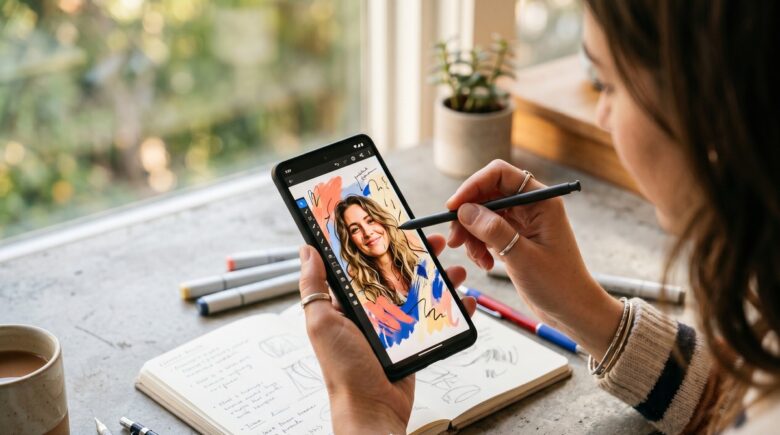
To sketch and draw over your photos on mobile, choose a draw over photos app that supports layer-based editing, import your image, and use brush or annotation tools to add artwork on top. As of July 2025, the top options include Sketchbook, Adobe Fresco, and Procreate Pocket — most let you export finished work in under 5 minutes.
Finding the right draw over photos app for your mobile device can transform ordinary snapshots into illustrated art, annotated references, or creative compositions — all from your phone or tablet. As of July 2025, the mobile creative app market is valued at over $673 billion globally according to Statista, with photo editing and drawing tools among the fastest-growing categories. Whether you’re an artist, educator, or social media creator, layering drawings over photos is now easier than ever on both iOS and Android.
The surge in short-form video and visual content platforms has pushed demand for annotation and illustration tools to new highs. Creators increasingly need to mark up product photos, add hand-drawn elements to portraits, or trace references directly over imported images — tasks that once required a desktop and expensive software. Apps like Procreate Pocket and Adobe Fresco have made professional-grade tools available on devices most people already own.
This guide is for hobbyist artists, content creators, teachers, and anyone who wants to add drawings, sketches, or annotations on top of their photos using a smartphone or tablet. By the end, you’ll know exactly which apps to use, how to set them up, and how to get the best results on any budget.
Key Takeaways
- The top-rated draw over photos app options in 2025 include Sketchbook (free), Adobe Fresco (free tier available), Procreate Pocket ($4.99 one-time), and ibis Paint X (free with in-app purchases), according to App Store rankings.
- Layer-based editing is the single most important feature — apps with unlimited layers let you draw over photos non-destructively, so your original image is never altered.
- Adobe Fresco has been downloaded over 10 million times on iOS and Android, making it one of the most widely used mobile illustration platforms, per Google Play data.
- Procreate Pocket is a one-time $4.99 purchase with no subscription — compared to Adobe Fresco’s premium plan at $9.99/month — making it one of the best-value options for iPhone users.
- Apps that support Apple Pencil or Stylus input produce significantly more precise results than finger-only drawing, especially for detailed tracing and annotation work.
- Exporting your finished artwork as a PNG with transparent background allows you to reuse drawn overlays across multiple photos without re-creating them each time.
In This Guide
- Which are the best apps for drawing over photos on mobile?
- How do I draw or sketch over a photo using a mobile app?
- Should I use a free or paid draw over photos app?
- Which draw over photos app works best on Android vs. iOS?
- What is the difference between annotation apps and illustration apps for photo drawing?
- How do I get the best drawing results when sketching over a photo?
- Frequently Asked Questions
Step 1: Which Are the Best Apps for Drawing Over Photos on Mobile?
The best draw over photos apps for mobile in 2025 are Sketchbook, Adobe Fresco, Procreate Pocket, ibis Paint X, and Tayasui Sketches — each offering photo import and layer-based drawing tools. Your best choice depends on your platform, budget, and skill level.
The Top Apps Reviewed
Autodesk Sketchbook is completely free on both iOS and Android, with no in-app purchases required for core features. It supports photo import, unlimited layers, and a professional brush library, making it one of the most accessible options for beginners and professionals alike.
Adobe Fresco offers a generous free tier with live brushes and vector tools, plus deep integration with Adobe Creative Cloud. It’s ideal for creators who already use Photoshop or Lightroom on desktop and want a seamless mobile-to-desktop workflow.
Procreate Pocket (iPhone-only) is a one-time $4.99 purchase with access to over 200 customizable brushes according to Procreate’s official site and a timeline-based animation feature. The iPad version, simply called Procreate, costs $12.99 as a one-time purchase and is widely considered the industry standard for mobile illustration.
ibis Paint X is a popular choice for anime-style artists and beginners, with over 400 million downloads worldwide as of 2024 per the developer’s own figures. Its free version is ad-supported but fully functional for photo layering and drawing.
What to Watch Out For
Some apps label themselves as “photo editors” but lack true layer support, meaning your drawing is permanently merged with the photo after each stroke. Always confirm an app supports non-destructive layers before committing to it for serious work.
Before downloading multiple apps, test Autodesk Sketchbook first — it’s completely free, works on both iOS and Android, and covers 90% of what most users need for drawing over photos. Only upgrade to a paid app if you hit a specific limitation.
Step 2: How Do I Draw or Sketch Over a Photo Using a Mobile App?
To draw over a photo in a mobile app, import your image as the bottom layer, reduce its opacity to use it as a reference or keep it at full opacity as the background, then add a new transparent layer on top and draw freely without altering the original photo.
How to Do This
Here is the standard workflow that applies to most draw over photos apps, including Sketchbook, Procreate Pocket, and ibis Paint X:
- Open the app and create a new canvas at your desired resolution (2048×2048 pixels is a good general-purpose size).
- Import your photo using the “Insert Image” or “Add Photo” option — this places the image on its own layer.
- Lock the photo layer to prevent accidental edits by tapping the lock icon in the layers panel.
- Add a new blank layer above the photo layer — this is where all your drawing will go.
- Select a brush, adjust its size and opacity, and begin sketching directly on the new layer over your photo.
- When finished, export the image as a PNG or JPEG from the Share or Export menu.
In Adobe Fresco, the process is nearly identical but uses the term “Add Photo” from the layers panel sidebar. In Procreate Pocket, you tap the wrench icon, select “Add,” then “Insert a Photo” to bring your image in as a base layer.
What to Watch Out For
Do not draw directly on the photo layer itself — once you paint on it and flatten the image, the original is gone. Always create a separate drawing layer. If you plan to remove the photo later and keep only the sketch, make sure you export with the photo layer hidden or deleted.
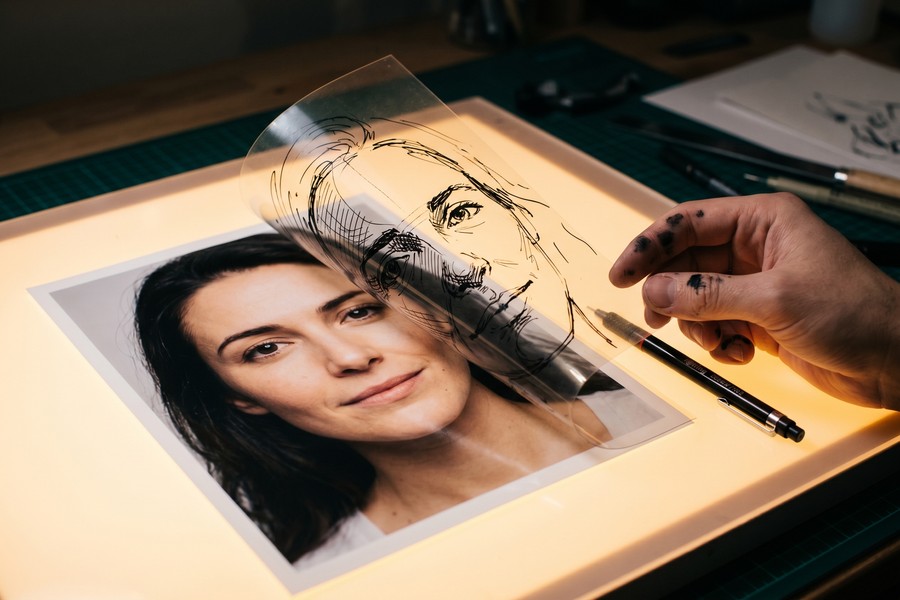
Reducing a photo’s opacity to around 30–50% and drawing over it is a technique called “photo tracing” — it’s used by professional illustrators to quickly build accurate anatomical sketches, architectural drawings, and product concept art directly on mobile devices.
Step 3: Should I Use a Free or Paid Draw Over Photos App?
For most casual users, a free draw over photos app like Sketchbook or the free tier of Adobe Fresco is entirely sufficient. You only need to pay if you require advanced features like custom brush creation, animation timelines, or unlimited cloud storage for your projects.
How to Do This
Evaluate your needs against these three categories before spending money on a premium app:
- Casual annotation and markup: Free apps like Sketchbook or even Google’s Markup tool (built into Android) are more than adequate.
- Hobbyist illustration: Procreate Pocket at a one-time $4.99 fee delivers exceptional value — there are no recurring charges, unlike Adobe Fresco’s $9.99/month premium plan.
- Professional or commercial use: Adobe Fresco’s paid tier or the full Procreate for iPad ($12.99 one-time) gives you the brush fidelity, color management, and export options needed for client work.
It’s worth understanding the tradeoffs between free and paid tools in detail — our guide on free vs. paid apps and what you actually give up breaks down the hidden costs and feature gaps common across mobile software categories.
What to Watch Out For
Free apps often monetize through ads that appear while you’re drawing, which can be disruptive. ibis Paint X, for example, shows a 30-second ad when you open certain brush packs in the free version. A one-time in-app purchase of around $8.99 removes ads permanently — which may be worth it for frequent users.
Also watch for “freemium traps” where essential features like exporting at full resolution are locked behind a subscription. Always check the export options before investing hours into a drawing on a free app tier.
According to Business of Apps 2024 data, the average mobile user spends $3.60 per month on in-app purchases for creative tools — making a one-time app purchase like Procreate Pocket a better long-term value for regular users.
| App | Platform | Price | Layers | Best For | Export Quality |
|---|---|---|---|---|---|
| Autodesk Sketchbook | iOS + Android | Free | Unlimited | Beginners, general use | Up to 4096×4096 px |
| Adobe Fresco | iOS + Android | Free / $9.99 mo | Unlimited (paid) | Creative Cloud users | Up to 10,000×10,000 px |
| Procreate Pocket | iOS only | $4.99 one-time | Up to 70 | iPhone illustrators | Up to 4096×4096 px |
| ibis Paint X | iOS + Android | Free / $8.99 one-time | Unlimited | Anime/manga artists | Up to 8192×8192 px |
| Tayasui Sketches | iOS + Android | Free / $4.99 mo | 5 (free), unlimited (paid) | Watercolor-style art | Up to 3840×2160 px |
Step 4: Which Draw Over Photos App Works Best on Android vs. iOS?
iOS has a wider selection of high-quality draw over photos apps, largely because of Apple Pencil support on iPad — but Android users have strong options in Sketchbook, ibis Paint X, and Adobe Fresco that work excellently on Samsung Galaxy Tab devices with S Pen input.
How to Do This
For iOS users (iPhone and iPad), Procreate Pocket for iPhone and the full Procreate for iPad are the gold standard. The Apple Pencil’s pressure sensitivity and tilt recognition are natively supported by Apple’s hardware platform, giving iOS a meaningful edge for precision drawing over photos.
For Android users, Autodesk Sketchbook and ibis Paint X are the strongest choices. Samsung devices running One UI with an S Pen stylus are particularly well-suited — the S Pen supports up to 4,096 levels of pressure sensitivity, matching many professional drawing tablets.
Adobe Fresco performs well on both platforms and is a strong cross-platform choice if you switch devices or share files between an iPhone and an Android tablet.
What to Watch Out For
Some apps receive iOS updates significantly earlier than their Android versions. Procreate is iOS-exclusive and has no Android equivalent from the same developer. If you’re heavily invested in the Android ecosystem, plan around Sketchbook or Fresco rather than waiting for Procreate to expand platforms.
“For mobile artists who want to draw over reference photos, the platform matters less than the input device. A mid-range Android tablet with a good stylus will outperform a flagship iPhone used with a finger every single time. Invest in the stylus before you invest in the app.”
Step 5: What Is the Difference Between Annotation Apps and Illustration Apps for Photo Drawing?
Annotation apps are designed for quick markup — adding arrows, text, and simple shapes to photos for communication purposes — while illustration apps are built for layered, expressive drawing where artistic quality and brush fidelity are the priority. Choosing the wrong type wastes time.
How to Do This
Use an annotation app when your goal is functional, not artistic. Examples include:
- Skitch (by Evernote) — ideal for labeling screenshots, adding arrows, and marking up documents on iOS and Android.
- Markup Hero — a web-based tool with a mobile-friendly interface for annotating photos and PDFs.
- Google Keep — allows basic drawing over images on Android for quick note-taking purposes.
Use an illustration app when your goal is artistic. Examples include Procreate Pocket, Adobe Fresco, Sketchbook, and ibis Paint X — all covered earlier in this guide.
The key technical difference is brush engine quality. Illustration apps simulate real media (oil, watercolor, pencil) using advanced algorithms, while annotation apps use simple vector lines with no pressure simulation.
What to Watch Out For
Annotation apps typically cannot export layered files (like PSD or TIFF), so if you later want to edit your markup separately from the photo, you’ll find yourself stuck with a flattened image. If there’s any chance you’ll want to revise your drawings, always use an illustration app that supports multi-layer export.
Do not confuse “photo filter” apps like Prisma or DeepArt with draw over photos apps. Filter apps apply automated AI transformations to your image — they do not let you manually draw or sketch over photos. They serve a completely different creative purpose.
Step 6: How Do I Get the Best Drawing Results When Sketching Over a Photo?
To get the best results when sketching over a photo, use a stylus instead of a finger, set your canvas resolution to at least 2000 pixels on the shortest side, and reduce the photo layer’s opacity to 40–60% while drawing to prevent it from visually competing with your linework.
How to Do This
Follow these professional practices to improve the quality of your photo drawings immediately:
- Use a stylus: Even a budget capacitive stylus (available for under $15 on Amazon) dramatically improves line accuracy compared to a finger. Apple Pencil or Samsung S Pen users will see the greatest improvement.
- Work in high resolution: Always import your photo at its original resolution. Downsizing the canvas early leads to pixelated output when printing or sharing at large sizes.
- Adjust photo opacity: Lower the photo layer to 40–60% opacity so your drawing lines stand out clearly while you work. Return it to 100% when you want to preview the final composition.
- Use a stabilized brush: Most illustration apps offer stroke stabilization (called “Streamline” in Procreate, “Stroke Stabilizer” in Sketchbook). Set it to 40–60% to smooth out hand tremors without losing natural line variation.
- Save your work frequently: Mobile apps can crash or run out of RAM on complex files. Enable auto-save in app settings if available, or manually save every 10–15 minutes.
If you’re interested in how mobile hardware improvements are enabling better creative tools, the way wearable technology is reshaping personal tracking offers a parallel look at how miniaturized tech is redefining what’s possible on small devices.
What to Watch Out For
Working on very large canvas files (above 6000×6000 pixels) can cause significant lag or crashes on older devices. If your phone or tablet has less than 4GB of RAM, keep canvas sizes below 3000×3000 pixels for smooth performance.
“The biggest mistake beginners make when drawing over photos on mobile is working at too low a resolution. You can always downscale a high-res file later, but you can never recover detail from a low-res starting point. Treat resolution like insurance — you only regret not having enough of it after the fact.”
Understanding the full range of app costs and subscriptions also matters for creative tool users. If you find yourself accumulating multiple drawing apps, it’s worth running a digital subscription audit to identify any tools quietly draining your budget.
When you finish a drawing, export two versions: one with the photo layer visible (showing the full composition) and one with only the drawing layer (transparent background PNG). The transparent PNG can be reused as a watermark, sticker, or overlay on other photos without redrawing from scratch.
As mobile apps continue to evolve, AI-powered features like automatic line correction, smart selection, and style transfer are being integrated into drawing tools at a rapid pace. The same AI transformation discussed in how AI is changing the way we search the internet is actively reshaping how creative mobile apps process and enhance user drawings in real time.
Frequently Asked Questions
What is the best free app to draw over photos on iPhone?
Autodesk Sketchbook is the best free draw over photos app for iPhone — it’s entirely free with no in-app purchases, supports unlimited layers, and allows full-resolution photo import and export. Adobe Fresco’s free tier is also excellent if you want live watercolor and oil brush effects alongside your photo layers.
Can I draw over photos on Android without paying for an app?
Yes — both Autodesk Sketchbook and ibis Paint X are free on Android and fully support drawing over imported photos. Sketchbook has no ads or paywalls for core features, while ibis Paint X is free with optional ad removal for $8.99. Both apps allow layered drawing over photos at high resolution.
How do I trace over a photo in Procreate Pocket on iPhone?
To trace over a photo in Procreate Pocket, create a new canvas, tap the wrench icon, select “Add,” then “Insert a Photo” to import your image as the base layer. Reduce the photo layer’s opacity to around 40% in the layers panel, add a new blank layer above it, and draw your trace on the new layer using any brush. When done, delete or hide the photo layer to reveal your standalone sketch.
Is there a draw over photos app that works without an internet connection?
Yes — Procreate Pocket, Autodesk Sketchbook, and ibis Paint X all work fully offline once downloaded and installed. You do not need an internet connection to import photos, draw, or save your work locally. An internet connection is only needed for cloud sync features or downloading additional brush packs within these apps.
What is the difference between Procreate and Procreate Pocket for drawing over photos?
Procreate is the iPad-only version priced at $12.99 as a one-time purchase, while Procreate Pocket is the iPhone-specific version at $4.99. Both support photo import and layer-based drawing over photos, but Procreate for iPad supports more simultaneous layers (up to 250 on a 12.9-inch iPad Pro versus up to 70 on Procreate Pocket) and benefits from the larger screen and Apple Pencil precision. For iPhone-only users, Procreate Pocket is the clear choice.
Can I draw over photos and then remove the photo to keep just the sketch?
Yes — this is one of the core advantages of layer-based drawing apps. After you finish sketching over your photo, simply hide or delete the photo layer in the layers panel, then export your drawing as a PNG with a transparent background. The resulting file contains only your artwork with no photo background, which you can then place over any image or use as a standalone drawing.
Which draw over photos app is best for adding text and arrows to photos for work presentations?
For annotation-style markup — adding text labels, arrows, and callout boxes to photos for professional presentations — Skitch by Evernote or Microsoft’s built-in Photos app markup tool are better suited than illustration apps. If you need more advanced annotation combined with drawing, Adobe Fresco supports both free-form brush drawing and text layers in a single file, making it a strong hybrid option for work use.
Does drawing over photos on mobile use a lot of storage space?
Large canvas files in illustration apps can consume significant storage. A single Procreate file with 20 layers at 4096×4096 pixels can reach 80–150 MB, while a finished flat JPEG export of the same image is typically under 5 MB. Manage storage by exporting completed projects as compressed files and deleting the original high-resolution project files once you no longer need to edit them. Our overview of SSD vs. HDD storage comparisons can help you understand storage tradeoffs if you’re backing up large creative files to a computer.
How do I share my photo drawing to Instagram or TikTok directly from a drawing app?
Most draw over photos apps include a direct share button in their export menu. In Procreate Pocket, tap the wrench icon, select “Share,” choose JPEG or PNG, and your device’s standard share sheet opens — from there you can post directly to Instagram, TikTok, or any social app. For video platforms, Procreate Pocket’s built-in Timelapse Replay feature exports a speed-recorded video of your entire drawing process, which is ideal for social content creation.
What drawing app do professional illustrators use on mobile?
Professional illustrators most commonly use Procreate on iPad as their primary mobile drawing tool, followed by Adobe Fresco for those embedded in the Adobe ecosystem. A 2023 survey by Creative Bloq found Procreate was the preferred app for over 60% of surveyed professional illustrators who work on tablets, citing its one-time pricing, brush quality, and performance as key reasons.
Sources
- Statista — Mobile App Market Revenue Worldwide
- Procreate — Procreate Pocket Official Feature List
- Google Play Store — Adobe Fresco App Listing
- Apple App Store — Top Creative Apps Rankings
- Apple Support — Apple Pencil Compatibility and Features
- Business of Apps — Mobile App Revenue and In-App Purchase Data 2024
- Creative Bloq — Procreate vs Adobe Fresco: Professional Illustrator Survey
- Autodesk — Sketchbook App Official Overview
- ibis Paint X — Official Download Statistics Page
- Adobe Help Center — Importing and Exporting Files in Adobe Fresco






