Fact-checked by the VisualEnews editorial team
Quick Answer
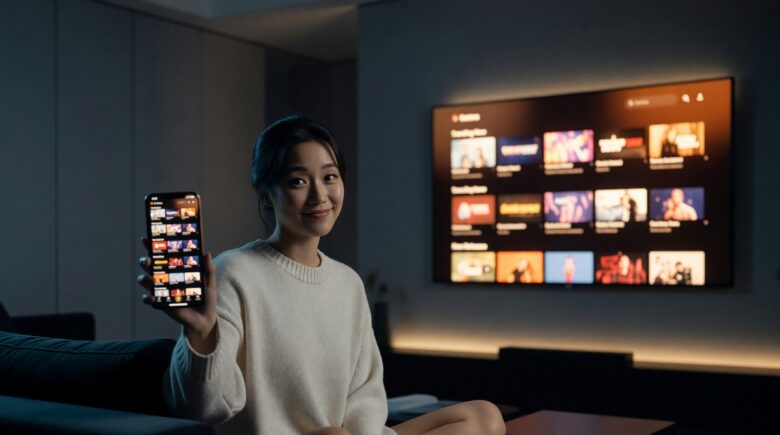
To mirror your phone screen to a TV without a streaming stick, use apps like LetsView, AirScreen, or your phone’s built-in cast feature — all of which work over a shared Wi-Fi network. As of July 2025, 5 reliable methods exist across Android and iOS, most requiring zero additional hardware.
The fastest way to mirror phone screen to TV is through a shared Wi-Fi connection using either a built-in protocol or a third-party app — no Chromecast, Fire Stick, or Roku required. According to Statista’s 2024 connected TV report, over 1.1 billion smart TV units are now active globally, the vast majority supporting at least one wireless casting protocol natively.
This matters because streaming sticks cost between $30 and $55 and add clutter. If your TV already supports Miracast, AirPlay 2, or Google Cast, you may already have everything you need.
Which Apps Can Mirror Your Phone Screen to a TV Without a Streaming Stick?
The best apps to mirror phone screen to TV without a streaming stick are LetsView, AirScreen, ApowerMirror, Google Home, and iOS’s native AirPlay. Each works over Wi-Fi and supports most modern smart TV platforms.
LetsView is a fully free cross-platform option that runs on Android, iOS, Windows, and macOS. It uses a QR code or PIN to pair your phone with a TV app, making setup under two minutes. ApowerMirror supports USB connections as a fallback — useful in areas with weak Wi-Fi.
Android vs. iOS App Availability
Android users have broader choice. Google Home enables Chromecast-style casting to any Google TV or Android TV natively. Samsung devices include Smart View, which mirrors directly to Samsung TVs without any additional app. iOS users are largely limited to AirPlay 2-compatible TVs — including those from LG, Samsung, Sony, and Vizio — or must rely on third-party apps like AirServer installed on the TV side.
Key Takeaway: Apps like LetsView and AirScreen let you mirror phone screen to TV for free over Wi-Fi — no streaming stick needed. According to Statista, over 1.1 billion active smart TVs already support at least one wireless casting protocol natively.
Do Smart TVs Already Support Screen Mirroring Natively?
Most smart TVs released after 2019 support at least one native screen-mirroring protocol — meaning you may not need any app at all. The three dominant standards are Miracast (Android), AirPlay 2 (iOS/macOS), and Google Cast (Android/Chrome).
LG TVs running webOS 4.0 and above support both AirPlay 2 and Miracast. Samsung smart TVs from 2018 onward include AirPlay 2 support alongside their proprietary SmartThings protocol. Sony Bravia TVs running Google TV or Android TV support Google Cast natively, making them the most versatile option for Android users.
How to Check What Your TV Supports
Go to your TV’s Settings menu and look for “Screen Mirroring,” “Screen Share,” “AirPlay,” or “Wireless Display.” If none appear, check your TV’s model number against the manufacturer’s support page — Samsung’s official AirPlay compatibility list is one of the most complete available.
Key Takeaway: Smart TVs from LG, Samsung, and Sony released after 2019 typically support Miracast, AirPlay 2, or Google Cast natively — meaning 0 additional hardware is needed to mirror phone screen to TV on these models.
How Do the Top Screen-Mirroring Apps Compare?
Performance, platform support, and cost vary significantly between apps. The table below compares the five strongest options as of July 2025.
| App | Platform | Cost | Max Resolution | USB Backup |
|---|---|---|---|---|
| LetsView | Android, iOS | Free | 1080p | No |
| AirScreen | Android, iOS | Free / $9.99 Pro | 4K | No |
| ApowerMirror | Android, iOS | Free / $29.95/yr | 1080p | Yes |
| Google Home | Android | Free | 1080p | No |
| Samsung Smart View | Android (Samsung) | Free | 4K | No |
AirScreen stands out for 4K support at the free tier on most TVs. Its Pro version at $9.99 removes ads and unlocks priority connection speed. If you want a deeper look at whether paid app tiers are worth it, see our analysis of what you’re actually giving up with free apps.
“Wireless screen mirroring latency has dropped from an average of 200ms in 2020 to under 70ms on modern Wi-Fi 6 networks — making it genuinely viable for video playback and even casual gaming without a dedicated streaming device.”
Key Takeaway: AirScreen and Samsung Smart View support up to 4K resolution at no cost, making them the strongest free options to mirror phone screen to TV — outperforming most sub-$50 streaming sticks on raw output quality. See the free vs. paid app breakdown for context on upgrade value.
Does Wi-Fi Speed Affect Screen-Mirroring Quality?
Yes — your Wi-Fi connection is the single biggest variable in screen-mirroring performance. Both your phone and TV should be on the same 5 GHz band for lowest latency. A 2.4 GHz connection works, but introduces noticeable lag at 1080p.
For smooth 1080p mirroring, a minimum of 10 Mbps of available bandwidth is recommended. For 4K, you need at least 25 Mbps, consistent, between your phone and router. According to the FCC Broadband Speed Guide, 4K streaming alone requires a minimum of 25 Mbps — mirroring adds device-to-device processing overhead on top of that.
Wi-Fi 6 and Its Impact on Mirroring
Routers running Wi-Fi 6 (802.11ax) dramatically reduce congestion in multi-device households. If you’re mirroring in a home with multiple simultaneous streams, upgrading your router may deliver more improvement than switching apps. Our comparison of 5G vs. Wi-Fi 7 covers the next-generation standards that will further close the gap for wireless casting.
Key Takeaway: To mirror phone screen to TV at 1080p without lag, maintain at least 10 Mbps of available Wi-Fi bandwidth on the 5 GHz band. The FCC recommends 25 Mbps minimum for 4K, and screen mirroring adds overhead beyond that baseline.
Are There Security or Privacy Risks When Mirroring Your Phone Screen?
Screen mirroring over a trusted home network carries minimal risk. The primary concern is using mirroring apps on public or shared Wi-Fi networks, where an attacker on the same network could theoretically intercept unencrypted traffic.
Apps like LetsView and ApowerMirror transmit data locally between devices — they do not route your screen content through a cloud server in real time. However, free versions of some apps, including AirDroid Cast, do route through external servers for remote access features. Review app permissions before installing. For a broader look at protecting your digital footprint, see our guide on what digital identity means and how to protect it.
One practical risk: if your TV shows notifications or personal content while mirroring in a shared space, sensitive information becomes visible. Disable notification previews before starting a session.
Key Takeaway: Mirroring over a private home network is low-risk, but free apps that route through external servers — like some features in AirDroid Cast — introduce data exposure risk. The digital identity protection guide outlines best practices for minimizing app-level privacy exposure.
Frequently Asked Questions
Can I mirror my phone screen to a TV without Wi-Fi?
Yes, in limited scenarios. ApowerMirror supports USB mirroring from Android phones to a TV-connected device. Some Android phones also support Miracast peer-to-peer connections, which create a direct wireless link without a router. iOS has no built-in equivalent for Wi-Fi-free mirroring.
Does mirroring drain my phone battery faster?
Yes — screen mirroring uses the processor, Wi-Fi radio, and display simultaneously. Most users report 20–40% faster battery drain during active mirroring sessions. Plugging your phone in while casting is strongly recommended for sessions over 30 minutes.
Which free app is best to mirror an Android phone to a non-smart TV?
A non-smart TV requires an HDMI input and a separate adapter. Use a USB-C to HDMI cable for a wired connection — it is the most reliable option and requires no app. If you must go wireless, you need at least a Chromecast dongle; no app can cast to a TV with no smart platform.
Can I mirror my iPhone to a Samsung TV without Apple TV?
Yes. Samsung TVs from 2018 onward support AirPlay 2 natively. Open Control Center on your iPhone, tap Screen Mirroring, and select your Samsung TV. No Apple TV or third-party app is required. Both devices must be on the same Wi-Fi network.
Does screen mirroring work with Netflix and other streaming apps?
It depends on the method. True screen mirroring (like Miracast) shows your full screen, so Netflix plays. However, apps like Google Home’s Cast function stream Netflix’s own protocol — DRM-protected apps may block mirroring on some configurations. Testing your specific app and TV combination is the only reliable way to confirm.
What is the difference between screen mirroring and casting?
Screen mirroring duplicates your phone display in real time — everything on your screen shows on the TV. Casting sends only a specific stream (like a YouTube video) to the TV; your phone screen stays independent. Casting is more battery-efficient and handles DRM content more reliably. If you’re curious how app ecosystems increasingly influence these choices, the piece on auditing your digital subscriptions is a relevant read.
Sources
- Statista — Connected TV Usage Worldwide
- FCC — Broadband Speed Guide for Consumers
- Samsung Support — AirPlay 2 Compatible TV Models
- AirServer — Screen Mirroring Receiver App
- Google Support — Cast from Android Using Google Home
- Apple Support — Use AirPlay to Stream Video to Apple TV or a Smart TV
- Wi-Fi Alliance — Wi-Fi Certified Miracast Overview






