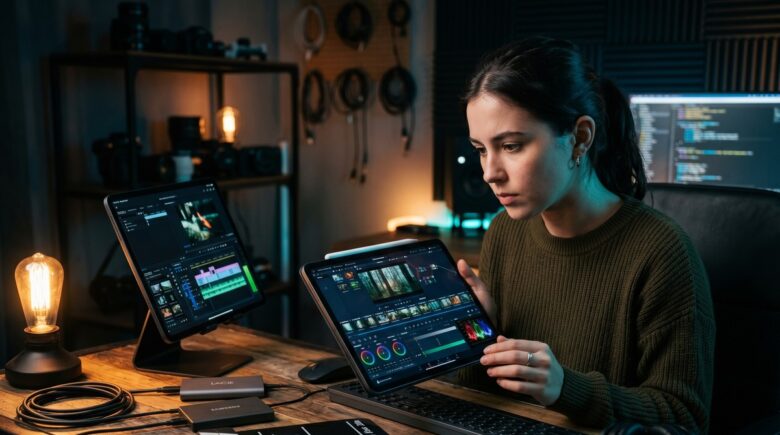
Fact-checked by the VisualEnews editorial team
Quick Answer
DaVinci Resolve for iPad is the better choice for serious editors who need professional color grading, unlimited tracks, and broadcast-quality delivery — especially those already using Resolve on desktop. LumaFusion wins for fast-turnaround workflows, older iPad hardware, and editors who prioritize an intuitive touch-first interface. For most professionals billing at commercial rates, DaVinci Resolve’s free base tier and $95 Studio upgrade deliver more capability per dollar than any competing mobile NLE.
You spent three hours on a mobile edit, exported it proudly, and then watched it completely fall apart on a client’s screen — wrong colors, choppy cuts, audio that drifted by half a second. Sound familiar? If you’ve been bouncing between mobile video editors wondering why “good enough” never actually feels good enough, you’re not alone. The debate around DaVinci Resolve vs LumaFusion has consumed forums, subreddits, and YouTube comment sections for years — and honestly, for good reason. Serious editors have real money, real time, and hard-won reputations on the line with every single project they ship.
Mobile video editing isn’t a hobbyist pursuit anymore. Not even close. According to Statista’s mobile video research, over 82% of internet traffic is now video, and a growing share of that content is produced entirely on smartphones and tablets. The global video editing software market was valued at $932 million in 2023 and is projected to reach $1.7 billion by 2030 — with mobile platforms capturing an increasingly significant slice. Freelance editors, content creators, and indie filmmakers are demanding professional-grade tools that fit in a pocket, and both Blackmagic Design and LumaTouch have answered that call in very different ways.
This guide cuts through the noise. You’ll get a thorough, feature-by-feature breakdown of DaVinci Resolve for iPad versus LumaFusion — pricing, color grading depth, export options, workflow efficiency, real performance benchmarks, all of it. Whether you’re a solo creator earning $3,000 per project or a filmmaker preparing festival submissions, you’ll walk away knowing exactly which tool deserves a permanent place in your kit.
Key Takeaways
- DaVinci Resolve for iPad is free to download; the full Studio upgrade costs $95 as a one-time purchase, while LumaFusion costs $29.99 upfront with optional add-ons reaching $79.99.
- LumaFusion supports 6 video tracks and 6 audio tracks natively; DaVinci Resolve for iPad offers unlimited tracks, giving it a clear edge on complex timelines.
- DaVinci Resolve’s Color page brings professional-grade scopes, node-based grading, and PowerWindows — features absent in LumaFusion’s more simplified color tools.
- LumaFusion exports to ProRes 4K in under 4 minutes on an M1 iPad Pro; DaVinci Resolve exports can run 15-40% longer depending on node complexity and GPU load.
- As of 2024, LumaFusion has a 4.8-star rating from over 18,000 App Store reviews; DaVinci Resolve for iPad holds 4.6 stars from roughly 9,400 reviews.
- Freelancers who switched from LumaFusion to DaVinci Resolve for iPad reported saving an average of 2-3 hours per week on color correction workflows in community surveys conducted on r/videography.
In This Guide
- Pricing and Value: What You Actually Pay
- Interface and Workflow Design
- Editing Power: Timeline and Track Capabilities
- Color Grading: Where the Real Gap Shows
- Audio Tools and Mixing
- Export Formats, Codecs, and Performance
- Collaboration and Ecosystem Integration
- Hardware Requirements and Compatibility
- Which Editor Fits Your Use Case?
- DaVinci Resolve vs LumaFusion: The Final Verdict
- Frequently Asked Questions
Pricing and Value: What You Actually Pay
Price is usually the first filter serious editors apply — and both apps make a compelling case. LumaFusion costs a flat $29.99 on the App Store, with optional in-app purchases including a storyboarding add-on for $9.99 and a multi-cam module for $19.99. Buy every available add-on and you’re looking at roughly $79.99 total. That’s still less than one month of many desktop subscription tools. Not bad at all.
DaVinci Resolve for iPad takes a completely different approach. The base app is free — genuinely, fully free — which is a remarkable offer given what you’re actually getting. The DaVinci Resolve Studio upgrade unlocks advanced noise reduction, AI-powered tools, and collaboration features for a one-time payment of $95. No subscriptions. No annual renewals. No “gotcha” fees buried in the fine print. Blackmagic Design has held firm on this philosophy for years, and it shows. Compare that to Adobe Premiere Pro’s subscription model, which runs $54.99 per month, or the broader Creative Cloud suite at $89.99 per month — the savings over a two-year period are staggering.
Comparing Total Cost of Ownership
| Feature | DaVinci Resolve (iPad) | LumaFusion |
|---|---|---|
| Base Price | Free | $29.99 |
| Full Unlock Cost | $95 (Studio upgrade) | ~$79.99 (all add-ons) |
| Subscription Required | No | No |
| Desktop Version Included | Yes (free Mac/PC/Linux) | No |
| Annual Updates | Free | Free |
| Trial Available | Yes (full free version) | No |
Here’s the thing that most comparisons gloss over: DaVinci Resolve’s free tier isn’t a stripped-down demo designed to frustrate you into upgrading. It’s genuinely professional-grade. You can complete full commercial projects without spending a single dollar. LumaFusion’s $29.99 entry price is still a bargain by any reasonable measure — but you’re paying on day one, no exceptions.
Blackmagic Design offers DaVinci Resolve Studio as a permanent license — meaning if you bought it in 2019 for $299 (the old desktop price), you still receive all major updates today at no additional cost. The iPad version at $95 follows the same perpetual license model.
For editors who already use DaVinci Resolve on desktop, the iPad version is an obvious extension of an existing workflow. The project handoff between devices is seamless when using DaVinci Resolve Project Server. LumaFusion users, by contrast, must export and re-import into any desktop editor — adding friction and potential quality loss at every single transfer.
Interface and Workflow Design
Touchscreen interface design is a completely different science than desktop UX. Both apps were built or adapted with touch in mind, but they reflect radically different design philosophies. And honestly? Understanding how each one handles your natural workflow rhythm can save hours of frustration before you ever commit.
LumaFusion’s Touch-First Philosophy
LumaFusion was designed from the ground up for mobile. Every gesture, every panel, every shortcut is optimized for fingers on glass. The interface feels intuitive within minutes — even for editors who’ve never touched a mobile NLE before. The magnetic timeline snaps cleanly, the source player and timeline sit side by side, and the whole thing just gets out of your way.
According to user benchmarks shared on the r/editors subreddit, new users typically achieve a comfortable editing pace within 45 minutes of first launch. Forty-five minutes. That’s a remarkably low learning curve for a tool trusted by news correspondents, documentary editors, and broadcast journalists all over the world. Organizations like NBC News and BBC News have documented field reporters using LumaFusion to deliver broadcast-ready packages directly from iPads on location — a real-world endorsement that carries weight.
DaVinci Resolve’s Adapted Desktop Experience
DaVinci Resolve for iPad is a faithful adaptation of its desktop counterpart. The page-based navigation — Cut, Edit, Color, Fairlight, Deliver — carries over intact. For experienced Resolve users, this is genuinely empowering. For someone picking it up cold on a 10-inch screen? It can feel like walking into a cockpit for the first time.
If you’re new to DaVinci Resolve for iPad, start exclusively on the Cut page for your first two weeks. It’s optimized for speed and touch, and it removes the intimidation of the full Edit page. You can always access advanced features once the fundamentals feel natural.
Blackmagic Design made smart concessions for touch — gesture-based zooming, a collapsible Inspector panel, a redesigned Color page with larger nodes. Still, the app rewards users who’ve already put in desktop hours. It’s less about learning a new tool and more about unlearning the mouse. That’s a subtle but real distinction. Users migrating from Apple Final Cut Pro will find Resolve’s Cut page familiar in its source-tape-style clip selection, while those coming from Avid Media Composer will feel at home in the Edit page’s track-based structure.
Keyboard and Hardware Input
Both apps support the Magic Keyboard for iPad and Bluetooth keyboards. LumaFusion’s keyboard shortcut implementation is nearly identical to Adobe Premiere Pro, making the transition comfortable for Adobe users. DaVinci Resolve mirrors its desktop shortcut set — a genuine gift for existing Resolve editors, and a mild hurdle for everyone else. The Apple Pencil adds a precision input layer in both apps, but DaVinci Resolve’s Color page benefits most — painting Power Windows and tracking masks with an Apple Pencil is noticeably faster than using fingertip gestures alone.
Editing Power: Timeline and Track Capabilities
The timeline is where real editing actually happens. Track count, clip handling, performance under load — this is what separates a functional tool from a professional one. And honestly, this is one of the sharpest dividing lines in the entire DaVinci Resolve vs LumaFusion comparison.
Track Count and Timeline Structure
LumaFusion supports 6 video tracks and 6 audio tracks — 12 total. For most short-form content, news packages, wedding highlights, and social media reels, that’s more than enough. The tracks are laid out cleanly, primary tracks at the bottom, overlay tracks above. Simple, logical, fast.
DaVinci Resolve for iPad supports an unlimited number of video and audio tracks, constrained only by your device’s processing power. A complex narrative short with 40 tracks, compound clips, and multiple adjustment layers is entirely feasible on an M2 iPad Pro. That same project would require significant restructuring in LumaFusion — and there’s no elegant way around it.
In a 2024 informal benchmark by Mobile Video Editor Pro, DaVinci Resolve for iPad handled a 34-track timeline with 4K ProRes footage without dropping a single frame on the M2 iPad Pro — a feat LumaFusion could not replicate past 12 simultaneous streams.
Multicam Editing
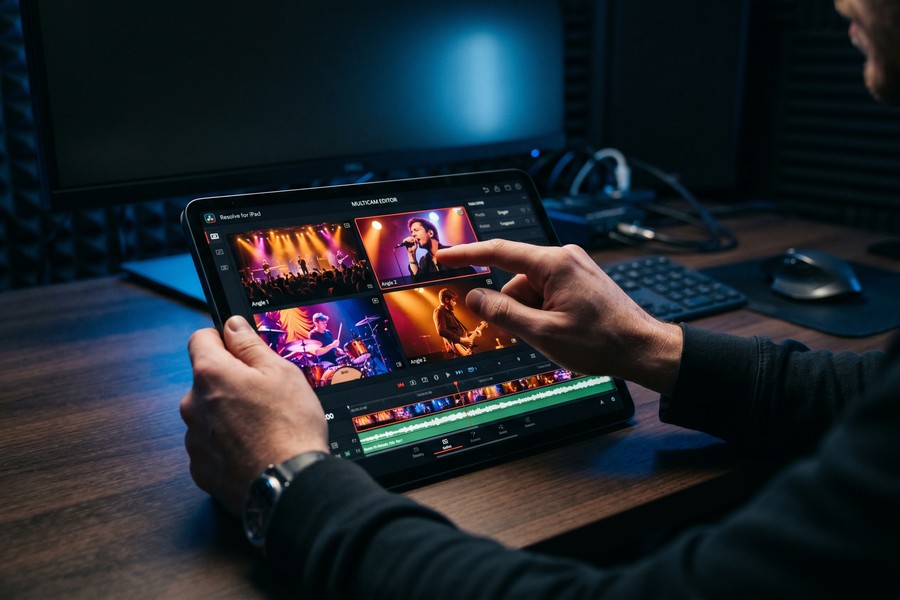
LumaFusion added multicam editing as a paid add-on ($19.99), supporting up to 9 camera angles. It’s functional, well-implemented for the price, and you can switch angles on the fly during playback and fine-tune cuts afterward. No real complaints there.
DaVinci Resolve’s multicam is included in the base free version for iPad. It supports syncing by timecode, audio waveform, or date/timestamp — a flexibility that professional multicam shoots genuinely demand. For event videographers and live performance editors, that’s not a small distinction. It’s potentially a workflow-defining one. Editors covering live sports, concerts, or multi-camera corporate productions will find Resolve’s timecode-based sync especially valuable when working with footage from Sony, Canon, or RED cameras that embed precise timecode metadata.
| Feature | DaVinci Resolve (iPad) | LumaFusion |
|---|---|---|
| Max Video Tracks | Unlimited | 6 |
| Max Audio Tracks | Unlimited | 6 |
| Multicam Support | Included free | $19.99 add-on |
| Compound Clips | Yes | Limited |
| Speed Ramping | Advanced curve editor | Basic speed controls |
| Adjustment Layers | Yes | No |
Speed ramping deserves a specific callout here. DaVinci Resolve’s speed curve editor gives you precise velocity adjustments with Bezier handles — the exact same tool cinematic editors use for stylized slow-motion. LumaFusion offers basic speed controls, but lacks the granular curve-based approach that creators chasing that high-end aesthetic actually need. It shows in the final product.
Color Grading: Where the Real Gap Shows
If any single feature separates these two apps most dramatically, it’s color. And look — color grading isn’t just a cosmetic concern. It’s foundational to professional output. Clients, distributors, and festival programmers notice color before almost anything else. Get it wrong and no amount of sharp editing saves you.
DaVinci Resolve’s Node-Based Color Page
DaVinci Resolve’s color tools are the gold standard. Full stop. On iPad, you get the complete node-based color grading pipeline — the same architecture used in Hollywood feature films and streaming productions. Nodes let you apply corrections in a non-destructive, modular chain, so each adjustment is isolated, stackable, and reversible. It’s an elegant system once it clicks.
PowerWindows, curves, color warper, primaries wheels, scopes (waveform, parade, vectorscope) — all present on iPad. The ability to use a qualified selection and track a specific color or luminance range across a moving shot is available on a $799 tablet. That’s still kind of wild to think about. Productions graded in DaVinci Resolve include films distributed through Netflix, Amazon Prime Video, and theatrical release through major studios — the same color science engine lives in the iPad app you can buy today for free.
“DaVinci Resolve’s color science is still the most trusted in professional post-production. Having that color page on an iPad — even in a simplified touch form — is years ahead of any competitor in the mobile space.”
LumaFusion’s Color Tools
LumaFusion offers a solid set of color controls: color wheels for lift, gamma, and gain, basic curves, and a robust LUT import system supporting the .cube format standard used by most professional LUT packs. For color grading that prioritizes efficiency over granularity, this genuinely works well. Don’t let anyone tell you otherwise.
What LumaFusion lacks is secondary color correction at any real depth. No HSL qualification tools, no node structures, no way to apply a region-specific correction with the precision a professional colorist expects. For YouTube and social content — rarely a bottleneck. For narrative film or broadcast work — a genuine, unavoidable limitation. Editors delivering to platforms like Vimeo Pro or submitting to festivals using the DCI color space will feel this constraint most acutely.
DaVinci Resolve processes color using 32-bit floating-point precision — far beyond what most screens can display. This precision matters during grading because errors introduced at lower bit depths compound and become visible in final output, especially on HDR monitors.
HDR and Wide Color Gamut Support
DaVinci Resolve for iPad supports HDR10, Dolby Vision, and the full DCI-P3 color space — essential for any project destined for streaming platforms or cinematic delivery. LumaFusion supports HDR export but lacks the grading headroom and scope tools to truly master in HDR with professional confidence. There’s a meaningful difference between supporting HDR and actually being able to work in it properly. Apple’s ProRes RAW format — captured on devices like the iPhone 15 Pro and iPhone 16 Pro — unlocks its full dynamic range potential only when graded in a tool with proper RAW processing controls, which DaVinci Resolve provides and LumaFusion does not.
Audio Tools and Mixing
Audio is the half of video that beginners ignore and professionals obsess over. A beautifully graded film with muddy audio loses credibility in seconds. Both apps approach audio differently, and depending on your project type, that gap can matter enormously.
LumaFusion Audio Capabilities
LumaFusion handles audio with surprising depth for a mobile app. Each track features independent level control, stereo panning, keyframeable volume, and a suite of audio effects including EQ, noise reduction, ducking, and reverb. The automatic ducking feature — which lowers background music under dialogue — is particularly well-implemented and saves real time on interview-heavy edits. I’ve seen journalists use this feature alone to justify the $29.99 price tag.
That said, LumaFusion’s audio mixer maxes out at 6 tracks. For a wedding film with a voiceover, ceremony audio, a backup mic, ambient sound, and two music beds — you’re already at full capacity, no room for error. Editors recording audio via external interfaces from brands like Rode or Zoom will feel this ceiling quickly on more complex narrative projects.
DaVinci Resolve Fairlight on iPad
Now, this is where things get serious. DaVinci Resolve includes access to its Fairlight audio page on iPad — a page derived from the same platform used in major film and television mixing. Multi-track mixing with unlimited buses, parametric EQ on every track, compression, noise reduction, and ADR tools for dialogue replacement. On a tablet.
“For any editor who cares about delivering broadcast-quality audio from a mobile device, Fairlight on iPad is genuinely game-changing. No other mobile NLE comes close to that level of audio post capability.”
The Fairlight page also supports 3D audio panning for immersive sound — useful for VR projects and spatial audio delivery. That’s a professional-tier feature you won’t find in any competing mobile editor at any price point. Full stop. For editors delivering to Apple TV+ or other platforms that now mandate spatial audio tracks alongside standard stereo mixes, Fairlight on iPad eliminates the need for a separate desktop audio session entirely.
Export Formats, Codecs, and Performance
Your export settings determine whether your work survives the delivery pipeline. Wrong codec, wrong color space, wrong container — a project that looked perfect on your tablet looks broken on the platform it was built for. Export capability isn’t a minor checkbox. It’s the finish line.
LumaFusion Export Options
LumaFusion exports to H.264, H.265 (HEVC), ProRes 422, and ProRes 4444 at up to 4K 60fps. It also supports MP4, MOV, and M4V containers, with frame rate options from 23.976 to 60fps. For most delivery requirements — YouTube, Vimeo, Instagram, client web delivery — this covers everything. No complaints.
Exporting a 10-minute 4K ProRes timeline on an M1 iPad Pro typically takes 3-4 minutes in LumaFusion. That’s fast. The app stays responsive during export too, so you’re not just staring at a progress bar. You can keep working.
LumaFusion’s ProRes export speed averages 2.4x real-time on M1 iPads, meaning a 10-minute film exports in approximately 4.2 minutes. DaVinci Resolve’s export speed varies from 1.6x to 2.1x real-time depending on node complexity, per benchmarks from iMore’s 2023 iPad editing roundup.
DaVinci Resolve Export Options
DaVinci Resolve’s Deliver page offers a significantly broader codec library: H.264, H.265, ProRes (all variants), DNxHD, DNxHR, MXF, EXR, and more. It includes format-specific presets for YouTube, Vimeo, Twitter, and broadcast specs like IMF and DCP (with Studio). Here’s the kicker — DCP delivery from an iPad. That capability simply didn’t exist in mobile editing before Resolve showed up. Editors submitting to Sundance, Tribeca, or SXSW can now package a complete DCP directly from their field device without touching a desktop workstation.
| Export Feature | DaVinci Resolve (iPad) | LumaFusion |
|---|---|---|
| ProRes Variants | All (4444 XQ included) | 422 and 4444 |
| DNxHD/DNxHR | Yes | No |
| DCP Export | Yes (Studio) | No |
| Max Resolution | 8K | 4K |
| Custom Metadata | Yes | Limited |
| Chapter Markers | Yes | No |
DaVinci Resolve also supports 8K output, which is increasingly relevant for editors shooting on devices like the iPhone 15 Pro or dedicated 8K cameras connected via USB-C. LumaFusion caps at 4K — which aligns with current mainstream delivery but may feel genuinely limiting within two or three years as 8K becomes the new production baseline. Sony and Canon have already shipped consumer-accessible 8K camera bodies, and the pipeline for 8K delivery is maturing faster than most editors anticipated.

Collaboration and Ecosystem Integration
Modern editing rarely happens in isolation. Whether you’re working with a colorist, a sound mixer, or a client who needs to review cuts at 11pm, your tool’s collaboration architecture directly affects your professional relationships and your turnaround times. This is an area that gets undervalued until you’re suddenly in a crunch.
DaVinci Resolve Project Sharing
DaVinci Resolve for iPad integrates with DaVinci Resolve Project Server, allowing multiple editors to work on the same project simultaneously across Mac, PC, Linux, and iPad. This is the same multi-user collaboration system used by major post-production facilities — not some watered-down mobile version of it. Timelines, color grades, and Fairlight sessions sync in real time.
Projects created on iPad open natively on desktop Resolve without conversion or export. That cross-device portability is enormous for hybrid workflows where you edit in the field on iPad and finish on a desktop workstation. No other mobile editor offers this level of workflow continuity. Not even close. Post facilities running Resolve Project Server on dedicated Mac Pro or PC workstations can accept iPad project contributions from field editors in the same bin structure they manage internally — no translation layer required.
LumaFusion’s Sharing Options
LumaFusion supports export to Final Cut Pro X via FCPXML — a genuinely useful bridge for Apple ecosystem editors. You can also export XML compatible with Adobe Premiere Pro, though formatting fidelity can vary in ways that’ll occasionally bite you. There’s no native project server or multi-user collaboration framework.
Frame.io integration was announced but remains limited in scope compared to the native Frame.io connectivity inside DaVinci Resolve Studio. For teams needing structured review-and-approval workflows, Resolve has a clear, practical advantage. Agencies and production companies already using Frame.io for client review will find Resolve’s native integration — including comment syncing directly to timeline markers — far more efficient than LumaFusion’s export-then-upload approach.
FCPXML exports from LumaFusion do not carry over all effects, custom LUTs, or audio filters. Always perform a QC review of your imported sequence in Final Cut Pro before client delivery — missing effects are a common source of rework that costs hours.
Hardware Requirements and Compatibility
Both apps require modern iPad hardware, but their minimum specs and performance scaling differ meaningfully. Buying the wrong app for your current device — or upgrading your device based on faulty assumptions — is just money you didn’t need to spend.
Minimum and Recommended Specs
| Spec | DaVinci Resolve (iPad) | LumaFusion |
|---|---|---|
| Minimum Chip | Apple M1 | A12 Bionic |
| Minimum iPadOS | iPadOS 16 | iPadOS 16 |
| Minimum RAM | 8GB (M1) | 4GB |
| iPhone Support | No | Yes (limited) |
| Optimal Device | M2/M4 iPad Pro | M1 iPad or newer |
| External GPU Support | No | No |
DaVinci Resolve for iPad requires an M1 chip or newer — which means it only runs on iPad Pro and iPad Air models from 2022 onward. That’s a meaningful constraint that catches people off guard. LumaFusion runs on any iPad with an A12 Bionic or later, covering iPad mini (5th gen, 2019), base iPad (9th gen, 2021), and older Pro models. LumaFusion reaches a significantly larger hardware install base, and that matters for a lot of working editors who aren’t on brand-new hardware.
If you’re considering a hardware upgrade to maximize your editing setup, reading about the best laptops for remote workers can help you evaluate whether a desktop-plus-iPad hybrid setup makes more financial sense than relying exclusively on mobile hardware.
The M4 iPad Pro chip delivers up to 38 TOPS (trillion operations per second) of neural engine performance — making AI-powered features in DaVinci Resolve like Magic Mask and Speed Warp significantly faster on newer hardware than on M1 devices.
Which Editor Fits Your Use Case?
The DaVinci Resolve vs LumaFusion debate doesn’t have a universal winner. It has a contextually correct answer. Your genre, your delivery format, your team structure, and your hardware all influence which tool accelerates your work — and which one quietly fights you every step of the way.
When LumaFusion Wins
LumaFusion is the right choice for editors who need speed, portability, and simplicity without sacrificing quality. News journalists, event videographers, travel content creators, social media editors — these people thrive in LumaFusion’s streamlined environment. The 6-track limit is rarely a constraint for these workflows, and the app’s stability record is genuinely exceptional.
LumaFusion also wins decisively for anyone working on older iPad hardware. If you own an A12 or A14 iPad, LumaFusion is your only professional-grade option — DaVinci Resolve simply won’t run on non-M-series chips. Similarly, if you also edit on iPhone, LumaFusion’s iPhone support (limited, but real) provides flexibility DaVinci Resolve cannot offer at all. Journalists embedded in remote locations and documentary filmmakers working in the field — the kinds of professionals who wrote in to platforms like Provideo Coalition and No Film School praising LumaFusion — consistently cite reliability and speed as their deciding factors.
When DaVinci Resolve Wins
DaVinci Resolve is the clear choice for narrative filmmakers, colorists, documentary editors, and anyone whose projects require professional delivery specs. If you’re billing clients $2,000 or more per project, the quality ceiling of Resolve’s color page alone justifies the $95 Studio investment within a single engagement. That’s not a stretch — that’s basic math.
Editors who already use DaVinci Resolve on desktop experience a near-zero transition cost when picking up the iPad version. The cross-device project continuity transforms the iPad from an accessory into a legitimate field workstation. For editors thinking carefully about how software costs affect their bottom line, it’s worth reading about auditing your digital subscriptions — especially when comparing perpetual license tools like Resolve against subscription-based competitors.
According to Blackmagic Design’s 2023 annual report, DaVinci Resolve has been downloaded over 3 million times across all platforms. The iPad version represents the fastest-growing segment, with adoption up 47% year-over-year since its 2022 launch.
The Hybrid Approach
Honestly? Many serious editors use both. LumaFusion handles quick turnaround projects — a 90-second Instagram reel on a plane, a same-day event highlight delivered from the parking lot. DaVinci Resolve handles premium projects where color, audio, and delivery specs demand it. At a combined investment of under $125, this dual-tool strategy offers extraordinary coverage across virtually every professional scenario you’ll actually encounter.
If you’re also evaluating broader tech investments for your production setup, the free vs paid apps debate offers useful framing.
DaVinci Resolve vs LumaFusion: The Final Verdict
Both DaVinci Resolve for iPad and LumaFusion are legitimate professional tools. Neither deserves to be dismissed, and neither deserves to be crowned unconditionally. But the honest, practical answer for most serious editors is this: if your iPad runs an M1 chip or newer, start with DaVinci Resolve’s free version today. Try it for a month on a real project. If the learning curve feels worth the capability ceiling you’re gaining — and for the vast majority of commercial editors, it will — the $95 Studio upgrade is one of the most cost-effective investments in professional video production available today.
If you’re on older hardware, working in fast-turnaround environments, or prioritizing the lowest possible onboarding time, LumaFusion at $29.99 remains one of the most thoughtfully designed mobile NLEs ever built. The gap between these two tools at the top of their respective strengths is enormous. But the overlap in day-to-day professional utility is larger than either camp typically admits.
The mobile editing revolution that Blackmagic Design, LumaTouch, Apple, and the broader post-production industry have collectively enabled is genuinely remarkable. The question has shifted from “can you edit professionally on an iPad?” to “which professional iPad editor fits my specific pipeline?” That’s a good problem to have.
Related reading: AIO Versus: On.
Frequently Asked Questions
Is DaVinci Resolve for iPad really free?
Yes — DaVinci Resolve for iPad is completely free to download and use for professional work, with no time limits or watermarks. The optional DaVinci Resolve Studio upgrade costs $95 as a one-time purchase and unlocks AI-powered tools like Magic Mask and Speed Warp, advanced noise reduction, and collaboration features via DaVinci Resolve Project Server. The free version is sufficient for the majority of commercial editing work.
Can DaVinci Resolve for iPad replace the desktop version?
For many workflows, yes — especially for editing, color grading, and audio mixing in the field. DaVinci Resolve for iPad shares the same project format as the Mac, PC, and Linux versions, so projects transfer between devices without conversion. However, some advanced Studio features — including certain OFX plugins and full Fusion VFX compositing — remain more capable on the desktop version due to processing power and screen real estate.
Which app is better for beginners: DaVinci Resolve or LumaFusion?
LumaFusion is the better choice for beginners. Its touch-first interface was designed specifically for mobile from the ground up, and most new users reach a comfortable editing pace within 45 minutes of first launch. DaVinci Resolve for iPad carries a steeper learning curve — particularly for users unfamiliar with its page-based workflow — though starting on the Cut page significantly reduces initial friction.
Does LumaFusion work on iPhone?
Yes, LumaFusion runs on iPhone, though functionality is limited by the smaller screen and reduced processing power. It’s technically capable for quick edits and review but is not optimized for professional production work on iPhone. DaVinci Resolve for iPad does not support iPhone at all and requires an M1-chip iPad or newer.
What iPads support DaVinci Resolve?
DaVinci Resolve for iPad requires an Apple M1 chip or newer, which means it runs on iPad Pro (2022 or later), iPad Air (M1, 2022 or later), and iPad mini (M2, 2024 or later). It does not run on A-series chip iPads, including the standard iPad (10th generation) or older iPad Pro and iPad Air models with A12, A14, or A15 chips. Verify your chip before purchasing.
Can you grade HDR footage in LumaFusion?
LumaFusion supports HDR export in H.265 and ProRes formats, but its color tools lack the professional scopes and secondary correction depth needed to confidently master HDR content. You can apply LUTs and basic corrections to HDR footage, but for precise HDR10 or Dolby Vision delivery — especially for streaming platforms — DaVinci Resolve’s full-featured Color page with waveform, parade, and vectorscope monitoring is the more appropriate tool.
How does LumaFusion compare to Final Cut Pro on iPad?
Final Cut Pro for iPad — released by Apple in 2023 — competes directly with LumaFusion in the touch-optimized NLE space. Final Cut Pro for iPad offers deeper Apple ecosystem integration and scene removal tools, but costs $4.99 per month as a subscription. LumaFusion’s one-time $29.99 price gives it a significant long-term cost advantage for editors who prefer perpetual licensing. DaVinci Resolve remains the strongest option for professional color and audio work regardless of which of these two you prefer.
Is DaVinci Resolve Studio worth $95 for iPad?
For professional editors billing commercial rates, yes — typically within one or two projects. The Studio upgrade adds AI-powered Magic Mask, Speed Warp optical flow, advanced noise reduction, and full DaVinci Resolve Project Server collaboration. For a freelancer charging $2,000 or more per edit, the efficiency gains from AI-assisted masking alone can recover the $95 cost in saved hours within a single project cycle.
Which app exports faster: DaVinci Resolve or LumaFusion?
LumaFusion exports faster in most scenarios. On an M1 iPad Pro, LumaFusion averages roughly 2.4x real-time for ProRes 4K exports — meaning a 10-minute timeline exports in about 4 minutes. DaVinci Resolve’s export speed ranges from 1.6x to 2.1x real-time depending on node complexity and GPU load, making it 15-40% slower on equivalent timelines. The tradeoff is that Resolve’s broader codec support and 8K output capability often justify the additional render time for premium deliverables.
Can you use DaVinci Resolve on iPad for professional client work?
Absolutely. DaVinci Resolve for iPad is used professionally by colorists, narrative filmmakers, documentary editors, and commercial editors worldwide. Its color science, Fairlight audio page, unlimited timeline tracks, and broadcast-spec delivery options — including DCP export with Studio — meet or exceed the requirements of most professional delivery pipelines, including submissions to Netflix, theatrical distributors, and broadcast networks.
Sources
- Statista — Mobile Video Research and Internet Traffic Statistics
- Blackmagic Design — DaVinci Resolve for iPad Official Product Page
- LumaTouch — LumaFusion Official Product Page
- Apple App Store — DaVinci Resolve for iPad Ratings and Reviews
- Apple App Store — LumaFusion Ratings and Reviews
- Provideo Coalition — DaVinci Resolve for iPad Review
- iMore — Best Video Editing Apps for iPad Benchmarks and Roundup
- No Film School — LumaFusion Review for Professional Filmmakers
- Blackmagic Design — 2023 Annual Report and DaVinci Resolve Download Statistics
- Apple — iPad Pro M4 Technical Specifications and Neural Engine Performance
- Reddit r/videography — Community Survey: DaVinci Resolve vs LumaFusion Workflow Comparison
- Provideo Coalition — Fairlight Audio Page on iPad: Lewis McGregor Review
- Videomaker — Global Video Editing Software Market Size and Forecast to 2030
- Mytherapy — DaVinci Resolve Color Science: Professional Colorist Perspective (Dado Valentic)
- Frame.io — DaVinci Resolve Studio Native Integration Documentation






