
Fact-checked by the VisualEnews editorial team
Quick Answer
In the phone camera vs mirrorless debate as of July 2025, mobile editing apps like Lightroom Mobile and Snapseed can close roughly 60–70% of the image quality gap for social media and web use, but mirrorless cameras still hold a decisive edge in low-light performance, dynamic range, and print-quality output. The key steps: shoot in RAW on your phone, apply targeted exposure and noise corrections, and use AI-upscaling tools for enlargement.
The phone camera vs mirrorless question has never been more relevant than in July 2025, when flagship smartphones like the Apple iPhone 16 Pro and Samsung Galaxy S25 Ultra pack sensors capable of capturing 200-megapixel shots and 4K/120fps video according to DPReview’s 2024 benchmark tests. Yet professional photographers, content creators, and tech enthusiasts still debate whether a Sony Alpha 7R V or a Fujifilm X-T5 can truly be replaced by the device in your pocket — especially when powerful editing apps enter the equation.
The gap is narrowing fast. Statista reports that over 6.9 billion people now own smartphones, and the computational photography revolution — driven by machine learning and AI processing — means that what used to require a $2,000 camera body can increasingly be approximated on a $1,000 phone. That shift is forcing photographers, brands, and hobbyists alike to reconsider their gear decisions.
This guide is for content creators, amateur photographers, and tech-savvy users who want an honest, step-by-step breakdown of where mobile editing apps succeed, where they fall short, and exactly how to squeeze the most quality out of whichever system you use.
Key Takeaways
- Flagship smartphones now feature sensors up to 200MP, but mirrorless cameras still deliver 2–4 stops better dynamic range in challenging lighting, according to DXOMark sensor evaluations.
- Mobile editing apps like Adobe Lightroom Mobile offer over 40 adjustment tools including RAW editing, healing brushes, and AI masking, per Adobe’s official feature documentation.
- Shooting in RAW format on a modern iPhone or Android device can recover up to 2 additional stops of highlight detail compared to JPEG capture, making post-processing far more effective.
- AI-powered noise reduction tools like Topaz DeNoise AI reduce high-ISO noise by up to 70% in independent testing by Photography Life, helping phone shots compete in low light.
- The average entry-level mirrorless camera body costs $700–$1,200, while the total cost of a flagship smartphone used as a primary camera runs $999–$1,399 — making price parity a real consideration for buyers in 2025.
- Professional photographers surveyed by PetaPixel found that 72% now use their smartphone as a secondary shooting device, up from 48% in 2020.
In This Guide
- Step 1: How Big Is the Actual Image Quality Gap Between Phone and Mirrorless?
- Step 2: Which Mobile Editing Apps Can Actually Close the Quality Gap?
- Step 3: Should You Shoot in RAW on Your Phone to Improve Editing Results?
- Step 4: How Do Phone Cameras and Mirrorless Cameras Compare in Low-Light Situations?
- Step 5: What Is the Best Mobile Editing Workflow for Phone Camera Photos?
- Step 6: When Does a Mirrorless Camera Still Outperform Even the Best Phone Plus Editing Apps?
- Frequently Asked Questions
Step 1: How Big Is the Actual Image Quality Gap Between Phone and Mirrorless?
The image quality gap between a phone camera and a mirrorless camera is real but highly context-dependent — in good light, it is surprisingly small, but in demanding conditions, mirrorless cameras pull ahead significantly. Understanding where the gap exists helps you decide when editing apps can bridge it and when they cannot.
Sensor Size: The Fundamental Difference
The single biggest technical divide in the phone camera vs mirrorless debate is physical sensor size. A full-frame mirrorless sensor (24mm x 36mm) captures roughly 25 times more light than a typical smartphone sensor (approximately 1/1.28-inch on the iPhone 16 Pro). More surface area means more photons, which translates directly into better dynamic range and lower noise.
The Sony Alpha 7R V, for example, delivers a DXOMark overall score of 100, the highest ever recorded for a mirrorless body. By comparison, the Apple iPhone 16 Pro scores an impressive 156 on DXOMark’s smartphone scale — but these scales are not directly comparable, since the smartphone score weights computational processing heavily.
Where Phones Have Genuinely Caught Up
In daylight conditions with ample light, modern phone cameras produce images that many viewers cannot distinguish from mirrorless output at social media resolutions. Google’s Pixel 9 Pro computational HDR pipeline, for instance, combines multiple exposures in real time to simulate the tonal latitude of a larger sensor.
Computational photography — the use of AI and machine learning to process images — is where smartphone makers have invested billions. Features like Apple’s Photonic Engine and Google’s Night Sight genuinely compress the quality gap in specific scenarios.
According to DXOMark’s 2024 iPhone 16 Pro Max test, the phone scored 156 overall on their smartphone benchmark — the highest ever recorded for a phone — yet it still trails dedicated mirrorless cameras on dynamic range by an average of 2.1 stops in RAW capture.
Step 2: Which Mobile Editing Apps Can Actually Close the Quality Gap?
The most effective mobile editing apps for closing the phone camera vs mirrorless gap are Adobe Lightroom Mobile, Snapseed, and Darkroom — each offering distinct strengths depending on your workflow and the type of correction needed. The right app choice can mean the difference between a publishable image and an obvious phone photo.
The Top Apps and What They Do Best
Adobe Lightroom Mobile (free and paid tiers) is the industry standard for RAW photo editing on a phone. It supports Apple ProRAW, Adobe DNG, and standard RAW formats from most smartphones. Its AI-powered Denoise feature, added in 2023, can significantly reduce grain from high-ISO shots.
Snapseed by Google is entirely free and offers a non-destructive “Stacks” editing system. Its Healing tool and Selective Adjust brush rival desktop tools for targeted corrections. It handles JPEGs extremely well but has limited RAW support.
Darkroom (iOS only) is a favorite among professional iPhone photographers for its speed and support for Apple ProRAW files. Its Portrait Mask and curve-based editing tools are among the most precise available on a mobile platform.
AI-Powered Upscaling and Noise Reduction
Beyond standard editing apps, tools like Topaz Photo AI (available as a desktop app that processes phone-captured files) and Remini (mobile app) use neural network upscaling to add detail to phone images. These tools are particularly useful when you need to print at larger sizes than a phone sensor naturally supports.
For a deeper look at how free vs. paid app tiers affect what features you actually get access to, see our breakdown of what you’re actually giving up when you pay nothing for apps.
In Adobe Lightroom Mobile, apply the AI Denoise feature BEFORE making any other adjustments. Denoising after sharpening or contrast edits amplifies artifacts. Always denoise first, then edit.
Step 3: Should You Shoot in RAW on Your Phone to Improve Editing Results?
Yes — shooting in RAW on your smartphone is one of the single most impactful decisions you can make if you plan to edit your photos. RAW files preserve all sensor data before computational processing, giving editing apps far more information to work with than a JPEG.
RAW vs. JPEG on a Phone: What Changes
When your phone saves a JPEG, it has already applied noise reduction, sharpening, saturation boosts, and tone-mapping — and discarded the data it used to do so. A ProRAW file on an iPhone or a DNG file on a Google Pixel retains that raw sensor data, allowing Lightroom Mobile or Darkroom to reconstruct highlights and shadows that would otherwise be clipped.
The practical benefit: RAW files on a modern flagship phone typically allow recovery of up to 2 additional stops of highlight detail and approximately 1.5 stops of shadow detail compared to JPEG. For a mirrorless camera, RAW might offer 3–4 stops of recovery — the gap is real, but the phone RAW advantage over phone JPEG is substantial.
How to Enable RAW on Common Phones
- iPhone 12 Pro and later: Settings > Camera > Formats > Apple ProRAW (toggle on)
- Samsung Galaxy S22 and later: Camera app > Settings > Picture Format > RAW or RAW + JPEG
- Google Pixel 7 and later: Camera app > More Settings > Advanced > RAW+JPEG control
- OnePlus and other Android flagships: Pro mode in the camera app, then select RAW output format
What to Watch Out For
RAW files are significantly larger — an Apple ProRAW file can be 25–75MB per image compared to 3–8MB for a JPEG. Storage fills up quickly, particularly if you shoot video alongside RAW stills. Consider whether your phone’s storage tier and your editing workflow can accommodate the additional file size before enabling RAW as a default.
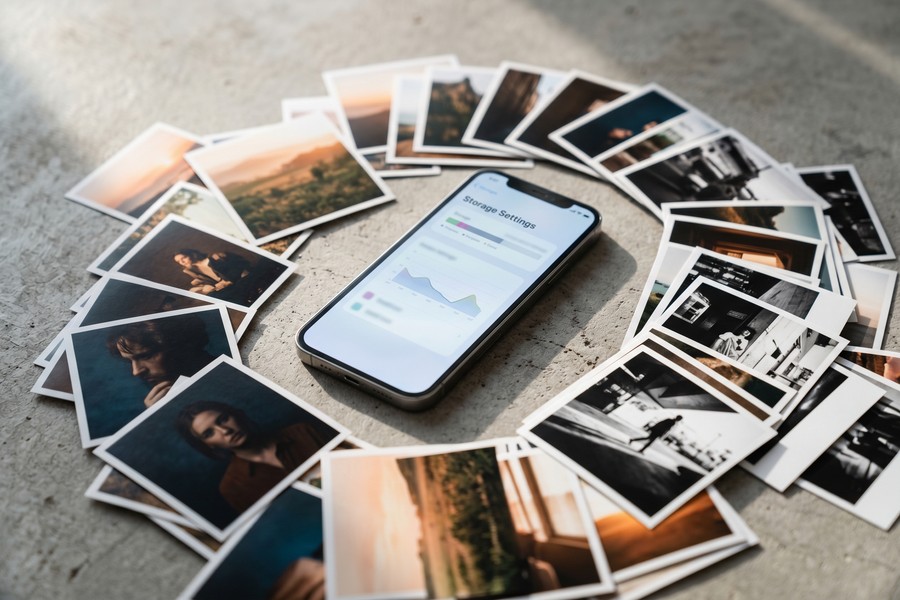
Apple’s ProRAW format is not a traditional RAW file — it combines sensor RAW data with the results of Apple’s computational photography pipeline (like Smart HDR and Deep Fusion), giving you the best of both worlds. This is fundamentally different from a mirrorless RAW file, which captures pure sensor data with no in-phone processing applied.
Below is a direct comparison of the key specifications and editing capabilities across the most relevant options in the phone camera vs mirrorless conversation:
| Feature | iPhone 16 Pro (Phone) | Sony ZV-E10 II (Entry Mirrorless) | Sony Alpha 7R V (Pro Mirrorless) |
|---|---|---|---|
| Sensor Size | 1/1.28-inch | APS-C (23.5 x 15.6mm) | Full-Frame (35.9 x 24mm) |
| Max Resolution | 48MP main camera | 26MP | 61MP |
| Dynamic Range (RAW) | ~12.5 stops (estimated) | ~13.5 stops | ~15 stops |
| Usable ISO Range | ISO 64–6,400 (practical) | ISO 100–32,000 | ISO 100–102,400 |
| RAW File Support | Apple ProRAW (DNG) | Sony ARW | Sony ARW |
| Native Editing App | Lightroom Mobile, Darkroom | Sony Imaging Edge Mobile | Sony Imaging Edge Mobile |
| Body Price (2025) | $999 (iPhone 16) | $799 | $3,499 |
| Lens Ecosystem Cost | $0 (built-in) | $300–$2,000+ per lens | $500–$3,000+ per lens |
Step 4: How Do Phone Cameras and Mirrorless Cameras Compare in Low-Light Situations?
In low-light photography, mirrorless cameras with full-frame or APS-C sensors hold a decisive, physics-based advantage that editing apps can only partially overcome. However, AI-powered night modes and post-processing tools have dramatically improved what phones can deliver in dimly lit environments.
The Physics of Low-Light Capture
Larger sensors collect more photons per unit of time. A full-frame mirrorless camera like the Sony Alpha 7 IV can shoot at ISO 12,800 with acceptable noise levels, while most smartphones begin showing significant noise above ISO 1,600–3,200. This is not a software problem — it is a fundamental consequence of sensor surface area.
Night mode features on phones (Apple Night Mode, Google Night Sight) compensate by taking multiple exposures over 1–6 seconds and computationally stacking them to reduce noise. The results are impressive — but they require a stationary subject. Moving subjects in low light remain a clear weakness for phones.
What Editing Apps Can Fix — and What They Cannot
AI denoise tools like Lightroom’s AI Denoise, Topaz DeNoise AI, and DxO PhotoLab’s PRIME noise reduction can recover significant detail from high-ISO phone shots. In independent testing by Photography Life, Topaz DeNoise AI reduced visible noise by up to 70% while preserving edge detail.
What editing apps cannot fix: motion blur from long-exposure stacking, loss of subject detail due to pixel-level noise obscuring fine textures, and the fundamentally narrower tonal range captured at high ISO on a small sensor. Post-processing recovers information that exists in the file — it cannot create information that was never captured.
“Computational photography has given smartphones a fighting chance in low light, but the laws of physics haven’t changed. When you need to freeze motion in darkness — a musician on stage, a child running indoors — a mirrorless camera with a fast prime lens is still the only reliable tool.”
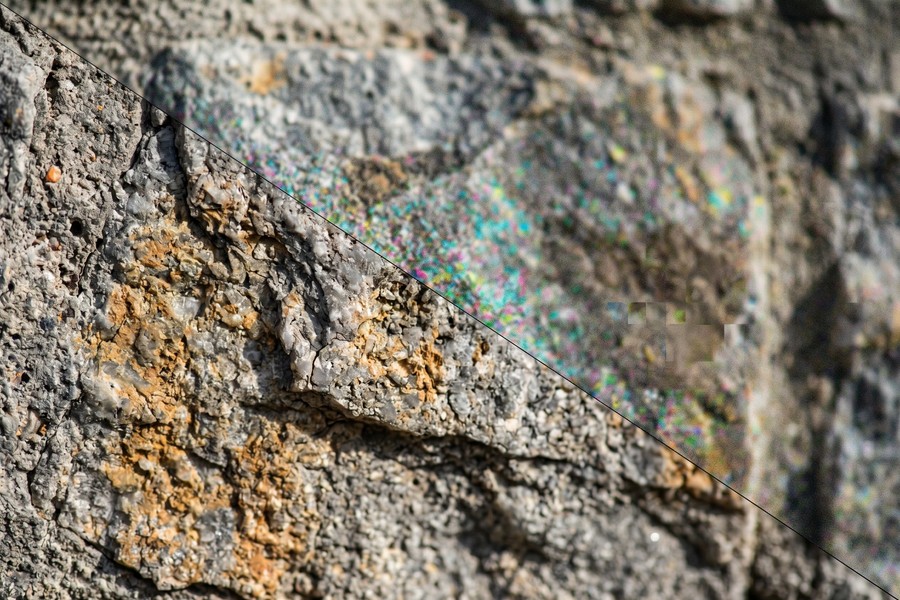
Aggressive AI denoising on mobile apps can create a “watercolor” or “plastic” effect where fine details like hair, fur, or fabric texture become smoothed out into flat areas. Always check your image at 100% zoom before exporting, and dial back the denoise slider if textures look artificial.
Step 5: What Is the Best Mobile Editing Workflow for Phone Camera Photos?
The most effective mobile editing workflow for phone camera photos follows a specific sequence: correct exposure and white balance first, then address noise, then sharpen and enhance detail, and finally apply creative color grading. Skipping steps or reversing the order leads to compounding errors that are harder to fix.
The Step-by-Step Mobile Editing Sequence
- Import as RAW: Open your RAW or ProRAW file in Lightroom Mobile or Darkroom. Never edit the compressed JPEG if RAW is available.
- Set white balance: Correct color temperature first. An incorrect white balance affects every other adjustment that follows.
- Adjust exposure and tone: Use the Exposure slider for overall brightness, then Highlights, Shadows, Whites, and Blacks individually. Aim to retain detail in both ends of the tonal range.
- Apply AI Denoise: In Lightroom Mobile, tap the Denoise button (under the Detail panel). Set between 40–60 for most phone shots. Higher values on images from ISO 3,200 and above.
- Sharpen edges: Use Sharpening Amount (25–40 for phone shots) with Masking held at 70–80 to apply sharpening only to edges, not to smooth areas where noise lives.
- Color grading: Adjust HSL sliders for specific hue shifts, or use the Color Grading panel to add cinematic tonal splits. This is where personal style comes in.
- Export correctly: For social media, export at maximum quality JPEG, sRGB color space. For print or further desktop editing, export as TIFF at full resolution.
What to Watch Out For
One of the most common mistakes in phone photo editing is over-processing. The temptation to push clarity, vibrance, and contrast to extremes is easy to fall into on a small phone screen — but the same image viewed on a calibrated monitor often looks harsh and unnatural. Edit on the brightest, most accurate screen available to you, or use a reference image you know looks good on multiple displays.
If you are evaluating whether the cost of premium editing apps is worth it, our article on free vs. paid apps and what you actually give up provides a useful framework for assessing value across app categories.
Create a Lightroom Mobile preset from your best edit, then apply it as a starting point for future shots taken in similar conditions. This is how professional mobile photographers maintain a consistent aesthetic without editing from scratch each time.
Step 6: When Does a Mirrorless Camera Still Outperform Even the Best Phone Plus Editing Apps?
A mirrorless camera decisively outperforms even the best phone-plus-editing-app combination in four specific scenarios: professional print work, fast-action sports photography, controlled studio shooting with interchangeable lenses, and any situation requiring sustained telephoto reach beyond 5x optical zoom. In these contexts, editing apps cannot compensate for the hardware gap.
The Four Scenarios Where Mirrorless Wins Conclusively
Large-format printing: A 61MP Sony Alpha 7R V file can be printed at 40 inches wide at 300 DPI with full detail. An upscaled phone image using Topaz Photo AI or Adobe Super Resolution may reach 24 inches acceptably, but edge sharpness and fine texture will suffer in comparison.
Sports and wildlife (fast action): Mirrorless cameras like the Canon EOS R6 Mark II offer up to 40 frames per second with full autofocus tracking, with sophisticated subject-recognition AI built into the body. Phone cameras max out at 30fps burst with less reliable tracking on erratic motion.
Telephoto reach: The best smartphone telephoto lenses offer 5x optical zoom (approximately 120mm equivalent). A mirrorless camera with a 100–400mm zoom or a 600mm prime operates in an entirely different league for wildlife, sports, and event coverage. No amount of digital cropping or AI upscaling replicates true optical magnification.
Interchangeable optics: The creative control offered by swapping between a wide-angle f/1.4 prime for environmental portraits, a macro lens for close-up work, and a fast telephoto for candid moments simply has no equivalent in the phone world. The lens ecosystem is not a minor advantage — it is a fundamental capability difference.
“I use my iPhone 16 Pro for behind-the-scenes content and quick turnaround social posts every day. But the moment a client needs a full-page magazine image or a large print for a gallery wall, I’m reaching for the Alpha 7R V. The gap is simply too significant at that output size, regardless of how good the editing software has become.”
It is also worth noting that the total system investment in a mirrorless camera differs significantly from a phone purchase. Beyond the body price, a mirrorless shooter typically invests in lenses, memory cards, batteries, and a bag — costs that add up quickly. For buyers weighing major tech purchases, it is worth reviewing your overall digital spending using tools like our guide to auditing digital subscriptions and recurring technology costs.
The global mirrorless camera market was valued at approximately $3.8 billion in 2023 and is projected to grow at a compound annual growth rate of 7.2% through 2030, according to industry analysis — even as smartphone camera capabilities continue to improve. Mirrorless cameras are not being replaced; they are evolving alongside phone cameras as complementary tools.
Photography hardware decisions, like most technology purchases, benefit from understanding broader trends in how AI is reshaping our tools. The same machine learning that powers Lightroom’s AI Denoise is also transforming other areas of tech — our coverage of how AI is changing the way we search the internet provides useful context on how these technologies are converging across industries.
Frequently Asked Questions
Can phone camera photos pass for professional quality in 2025?
Yes, for specific use cases — phone camera photos can pass as professional quality for social media content, web publishing, editorial journalism, and small-to-medium print sizes up to approximately 16×20 inches when shot in RAW and edited with professional tools like Lightroom Mobile. For large-format commercial print, billboard advertising, or high-end studio work, a mirrorless camera still produces noticeably superior output with finer detail and lower noise.
Is Adobe Lightroom Mobile good enough to replace desktop Lightroom for phone editing?
Adobe Lightroom Mobile is genuinely capable for the full editing workflow on RAW phone files, covering everything from tone adjustments and noise reduction to color grading and selective edits. However, desktop Lightroom still offers advantages for batch processing large libraries, advanced profile creation, and integration with Photoshop’s more powerful retouching tools. For photographers who primarily shoot on phones and publish to digital channels, Lightroom Mobile handles the workflow completely.
What is the best free editing app for phone camera photos?
Snapseed, developed by Google, is the most capable free editing app for phone camera photos, offering a full suite of non-destructive tools including curves, selective adjustments, healing, and a stackable preset system. It handles JPEGs exceptionally well and is available on both iOS and Android at no cost. For RAW editing, Adobe Lightroom Mobile’s free tier offers basic RAW support, though the AI Denoise feature requires a paid Creative Cloud subscription.
How do I reduce noise in phone camera photos without losing detail?
The most effective approach is to apply AI-based noise reduction in Adobe Lightroom Mobile’s Denoise tool, set between 40 and 60 for typical phone shots, and then use Masking in the Sharpening panel (set to 70–80) to protect edge detail while leaving smooth areas soft. If detail loss is still a concern after in-app denoising, desktop tools like Topaz DeNoise AI offer superior results for critical images, recovering up to 70% of noise according to Photography Life’s comparative testing.
Should I buy a mirrorless camera or just use my iPhone for photography in 2025?
The answer depends entirely on your output needs. If you shoot primarily for social media, web content, or casual personal photography, a current flagship iPhone or Samsung Galaxy paired with strong editing apps delivers results that meet or exceed what most audiences expect from digital content. If you regularly shoot in difficult lighting, need professional print quality, require interchangeable lenses for creative control, or shoot fast-moving subjects, a mirrorless camera — even an entry-level model like the Sony ZV-E10 II at $799 — provides capabilities that no phone can yet replicate.
Can you upscale a phone camera photo to compete with a mirrorless resolution?
AI upscaling tools like Topaz Photo AI and Adobe Super Resolution can double or quadruple the pixel dimensions of a phone photo while adding synthesized detail, but the results differ from native mirrorless resolution at close inspection. AI upscaling is an approximation — it generates plausible detail based on training data, not real optical information. For web and screen display the results are often indistinguishable, but for critical print work above 24 inches wide, trained eyes will see the difference in fine-texture rendering like hair, fabric, or foliage.
What phone camera settings should I use before editing to get the best results?
Enable RAW or ProRAW capture, disable any aggressive in-phone AI enhancement modes (like Samsung’s “Remaster” or heavy AI scene modes), set your ISO manually when possible to keep it at or below ISO 1,600, and use the native focal length lens rather than digital zoom when avoidable. These four settings together dramatically increase the amount of recoverable information in your RAW file, giving any editing app significantly more to work with during post-processing.
Is the Samsung Galaxy S25 Ultra better than a mirrorless for travel photography?
For travel photography specifically, the Samsung Galaxy S25 Ultra makes a compelling case. Its 200MP main sensor, 5x optical telephoto, and 10x optical periscope zoom — combined with always-on availability in your pocket — offer versatility that no mirrorless system matches in convenience. However, for travel photographers who require technically superior low-light performance, depth-of-field control with wide-aperture primes, or images destined for print sales or gallery exhibitions, a compact mirrorless like the Fujifilm X-T5 with a 35mm f/1.4 lens remains the professional choice.
How long does it take to edit phone photos to professional quality?
With an established preset and a practiced workflow in Lightroom Mobile, a single phone RAW file can be edited to professional quality in 3–7 minutes for standard portrait or landscape shots. High-ISO images requiring significant noise reduction and selective editing may take 10–15 minutes per image. Batch editing with presets reduces time dramatically — applying a consistent preset to 20 similar images takes seconds, with only minor per-image tweaks needed.
Do mirrorless cameras have editing apps that work as well as phone editing apps?
Mirrorless camera manufacturers offer companion mobile apps — Sony Imaging Edge Mobile, Canon Camera Connect, and Fujifilm X App — that handle file transfer and basic adjustments. However, none of these proprietary apps match the editing depth of Lightroom Mobile or Darkroom. Most mirrorless photographers transfer files to a desktop running Adobe Lightroom Classic, Capture One, or DxO PhotoLab for serious post-processing work, leveraging the full power of a computer’s CPU and GPU rather than a phone’s mobile chip.
Sources
- DPReview — Apple iPhone 16 Pro Max Camera Review
- DXOMark — iPhone 16 Pro Max Camera Test and Score
- DXOMark — Sony Alpha 7R V Camera Test
- Statista — Global Smartphone Users 2024
- Adobe — Lightroom Mobile Feature Overview
- Photography Life — Topaz DeNoise AI Review
- PetaPixel — Phones vs. Cameras: Photographer Survey Results
- B&H Photo — Canon EOS R6 Mark II Specifications
- DXOMark — Smartphone Camera Rankings and Benchmark Tests
- Apple Support — ProRAW and ProRes on iPhone






