Fact-checked by the VisualEnews editorial team
Quick Answer
To use phone location sharing apps to stay connected with elderly parents, choose a dedicated app (such as Life360, Google Family Sharing, or Apple’s Find My), set up mutual consent with your parent, and configure check-in alerts or geofencing zones. As of July 2025, over 50 million families use location-sharing tools regularly, and setup typically takes under 15 minutes.
In July 2025, phone location sharing apps have become one of the most practical tools adult children use to stay connected with aging parents — providing peace of mind without round-the-clock phone calls. According to Pew Research Center data on technology adoption among older adults, 61% of adults aged 65 and older now own a smartphone, making app-based location sharing more viable than ever before. The process involves choosing the right app, getting your parent’s consent and buy-in, setting up the app on both devices, and configuring alerts that work for your family’s lifestyle.
The urgency is real. The U.S. Census Bureau projects that 1 in 5 Americans will be 65 or older by 2030, and falls, wandering related to dementia, and medical emergencies at home are growing concerns. Phone location sharing apps offer a low-cost, low-friction layer of safety that complements — but does not replace — in-person care. They are also increasingly paired with wearable health tracking technology to create a fuller picture of an elderly parent’s daily wellbeing.
This guide is written for adult children, family caregivers, and aging parents who want to understand how these tools work, which apps are best suited for seniors, and how to set everything up without friction or privacy conflict. By the end, you will know exactly which app to choose, how to install it, and how to have the consent conversation in a way that respects your parent’s autonomy.
Key Takeaways
- 61% of adults 65 and older own a smartphone as of recent Pew Research data, making app-based location sharing widely accessible for elderly parents across the U.S.
- The top-rated phone location sharing apps for seniors — including Life360, Google Family Sharing, and Apple Find My — are free to use at a basic level, with premium plans ranging from $7.99 to $14.99 per month.
- Geofencing alerts, which notify you when a parent leaves or enters a defined zone, can be configured in under 5 minutes on most major apps, according to Google Family Link support documentation.
- Studies show that wandering affects up to 60% of people with dementia at some point, according to the Alzheimer’s Association, making real-time location awareness a critical safety tool.
- Privacy is the top barrier to adoption — 43% of older adults express concern about being tracked without clear control, per Pew Research, underscoring the importance of mutual consent and transparent setup.
- Families using location-sharing apps report a 30–40% reduction in “check-in” phone calls, freeing both parties from anxiety-driven interruptions throughout the day, based on Life360 internal usage surveys.
In This Guide
- Step 1: Why Should Families Use Phone Location Sharing Apps for Elderly Parents?
- Step 2: Which Phone Location Sharing Apps Work Best for Elderly Parents?
- Step 3: How Do You Talk to an Elderly Parent About Location Sharing Without Conflict?
- Step 4: How Do You Set Up a Phone Location Sharing App for an Elderly Parent?
- Step 5: How Do You Configure Geofencing and Alerts to Monitor an Elderly Parent?
- Step 6: How Do You Balance Safety and Privacy When Tracking an Elderly Parent’s Location?
- Frequently Asked Questions
Step 1: Why Should Families Use Phone Location Sharing Apps for Elderly Parents?
Phone location sharing apps give adult children a passive, always-available safety net for aging parents without requiring constant phone calls or in-person check-ins. The core value is simple: you can confirm your parent arrived safely at their doctor’s appointment, grocery store, or friend’s house without disrupting their day or yours.
The Real-World Safety Case
Falls are the leading cause of injury-related death among adults 65 and older, according to the CDC’s fall prevention data. While a location app does not prevent a fall, it can help a caregiver detect an anomaly — for example, a parent who has not moved from home for an unusual number of hours — and respond faster.
For parents with early-stage dementia or Alzheimer’s disease, location sharing becomes even more critical. Wandering affects up to 60% of people with dementia at some point in their illness, per the Alzheimer’s Association. Real-time GPS tracking through a phone location sharing app can reduce the time it takes to locate a wandering parent from hours to minutes.
The Emotional Case for Families
Beyond physical safety, these apps reduce anxiety for both generations. Adult children worry less when they can check their parent’s location with a single glance. Elderly parents, in turn, often feel less of a burden when they can independently confirm their own safety to family members without repeated phone calls.
According to Life360’s internal family usage data, families using shared location apps report a 30–40% reduction in daily check-in phone calls — a meaningful reduction in caregiver anxiety and parent interruption.
Step 2: Which Phone Location Sharing Apps Work Best for Elderly Parents?
The best phone location sharing apps for elderly parents are Life360, Apple Find My, Google Family Sharing, and Glympse — each with distinct strengths depending on the devices your family uses and the features you need. Choosing the wrong app leads to setup frustration and, often, abandonment of the tool entirely.
Key Features to Prioritize for Senior Users
- Large, simple interface that does not require tech-savviness to navigate
- Battery-efficient GPS that does not drain the phone quickly
- Cross-platform support (iOS and Android) for mixed-device families
- Geofencing alerts so caregivers are notified automatically
- Emergency SOS or crash detection as a bonus safety layer
For families where all members use Apple devices, Find My is the easiest option — it requires no separate app download, is built into every iPhone, and shares location with near-zero setup. For mixed Android/iPhone households, Life360 is the most cross-compatible and feature-rich solution.
Understanding the Cost Structure
Most apps offer a free tier sufficient for basic location sharing. Premium features — like location history, crash detection, and 24/7 roadside assistance — require a paid subscription. Understanding the cost upfront helps families avoid surprise charges. You can also learn more about evaluating what you actually give up with free versus paid apps before committing to a premium plan.
| App | Platform | Free Tier | Paid Plan | Best For | Geofencing |
|---|---|---|---|---|---|
| Life360 | iOS & Android | Yes (2 places, basic location) | $7.99/month | Mixed-device families | Yes |
| Apple Find My | iOS only | Yes (fully free) | No paid plan | All-Apple households | No (basic alerts only) |
| Google Family Sharing | Android primary | Yes (fully free) | No paid plan | Android households | Yes (via Family Link) |
| Glympse | iOS & Android | Yes (temporary sharing) | No paid tier | Short-term, trip-based sharing | No |
| Trusted Contacts | Android primary | Yes (fully free) | No paid plan | Emergency check-in requests | No |
If your elderly parent has an Android phone and you have an iPhone, Life360 is your best cross-platform option. Avoid relying on iMessage or Google Maps location sharing alone — they lack automatic alerts and geofencing, which are the features that matter most for caregiver peace of mind.
Step 3: How Do You Talk to an Elderly Parent About Location Sharing Without Conflict?
The consent conversation is the most important step in the entire process — without it, location sharing damages trust and is often abandoned. Frame the conversation around mutual benefit and your own peace of mind, not surveillance or control.
How to Do This
Start by sharing your concern honestly. A simple opener like, “Mom, I worry when I can’t reach you — would you be open to an app that lets me see you’re home safely without me calling every hour?” centers your need rather than implying your parent cannot be trusted. This framing is consistently recommended by geriatric care specialists.
“The key to getting an elderly parent on board with location sharing is making it feel like a tool they control, not a leash. When adult children frame it as ‘I can worry less and call you less,’ most parents become willing participants rather than reluctant subjects.”
Offer reciprocity where possible. Some adult children share their own location in return, which normalizes the app as a family safety tool rather than one-directional monitoring. This is a built-in feature of Life360 and Apple Find My — both show all family members’ locations to everyone in the circle.
What to Watch Out For
Never install a location tracking app on an elderly parent’s phone without their knowledge. Beyond the ethical problem, covert tracking is legally questionable in most U.S. states. Additionally, parents who discover secret tracking almost always disengage entirely — often turning off location services for all apps, which defeats the purpose.
Protect your parent’s broader digital footprint during this process. If you are setting up a new account for them, make sure their credentials are secure. Understanding what digital identity is and how to protect it is a useful primer before creating new app accounts on their behalf.
Installing a location tracking app without your parent’s explicit consent is not only a breach of trust — in several U.S. states, it may violate electronic surveillance statutes. Always get verbal or written agreement before proceeding, and document that consent if your parent has cognitive decline.
Step 4: How Do You Set Up a Phone Location Sharing App for an Elderly Parent?
Setting up a phone location sharing app for an elderly parent takes under 15 minutes when you follow a structured process. The steps below use Life360 as the example, since it is the most widely used cross-platform app, but the core process is similar for all major apps.
How to Do This
- Download the app on both phones. Install Life360 from the App Store or Google Play on your phone and your parent’s phone. The app is free to download on both platforms.
- Create the family circle. Open Life360 on your phone, tap “Create a Circle,” and give it your family name. You will receive a circle invite code.
- Add your parent to the circle. On your parent’s phone, open Life360, tap “Join a Circle,” and enter the invite code. Both phones now share location with each other.
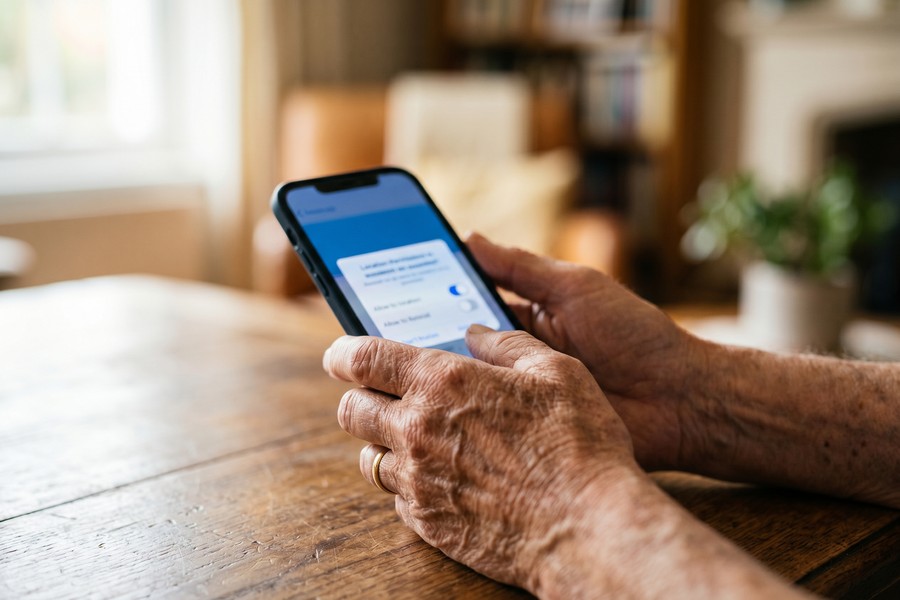
- Set location permissions to “Always Allow.” On your parent’s phone, go to Settings, find Life360, and set location access to “Always.” This ensures the app works in the background even when the phone screen is off.
- Test the connection. With both phones in hand, confirm that each phone shows the other’s location accurately on the map.
- Simplify your parent’s view. Show your parent how to open the app and find their family circle. For many seniors, knowing they can see your location too makes the tool feel reciprocal rather than one-sided.
For Apple Find My, the process is even simpler. Open the Find My app on your iPhone, tap “People,” then “Share My Location,” and enter your parent’s Apple ID or phone number. Your parent receives a prompt on their iPhone to accept. The entire process takes about 3 minutes for all-Apple households.
What to Watch Out For
The most common setup failure is incorrect location permissions. If the app is set to “While Using” rather than “Always Allow,” it will stop sharing location the moment your parent closes the app. Always verify the permission setting immediately after setup. Battery optimization settings on Android phones can also kill background location sharing — disable battery optimization for the app in Android settings to prevent this.
Life360 reports that over 50 million people across more than 195 countries use its platform for family location sharing, making it the most widely adopted dedicated family safety app globally as of 2025.
Step 5: How Do You Configure Geofencing and Alerts to Monitor an Elderly Parent?
Geofencing is the feature that transforms a passive location app into an active safety tool — it sends you an automatic notification when your parent leaves or arrives at a specific location, so you do not need to check the app manually throughout the day.
How to Do This
In Life360, tap “Places” from the bottom navigation bar and select “Add a Place.” Enter your parent’s home address, give it a name like “Mom’s House,” and set a radius — typically 100 to 500 feet depending on how precise you want the alert. Toggle on “Arrival” and “Departure” notifications. You will now receive a push notification every time your parent enters or leaves their home.
You can add multiple geofenced locations — for example, your parent’s doctor’s office, their regular grocery store, or a community center. This gives you a full picture of their daily routine without requiring real-time monitoring. Google Family Link’s geofencing setup guide walks through a similar process for Android-primary households.
For parents with dementia or cognitive decline, consider pairing the app with a wearable health device that also tracks movement and vital signs — this creates redundancy if the parent forgets or loses their phone.
What to Watch Out For
Geofence radius too small leads to false alerts — the GPS accuracy of a smartphone is typically 10 to 30 feet indoors, and small radii trigger spurious arrival/departure notifications. Set your home geofence to at least 150 feet to avoid alert fatigue. Alert fatigue is one of the top reasons families stop using location sharing apps within the first month.
“When families set up too many alerts or use too-tight geofences, the noise overwhelms them and they turn everything off. Start with two geofences — home and one other important location — then expand gradually as the family settles into the rhythm.”
Set a “check-in window” routine alongside your geofencing alerts. For example, if your parent has not arrived home by 6:00 PM on a weekday, that is your cue to call — not the absence of a notification. Combining passive alerts with a simple daily rhythm reduces anxiety and makes the system feel sustainable for years.
Step 6: How Do You Balance Safety and Privacy When Tracking an Elderly Parent’s Location?
Balancing safety and privacy means giving your elderly parent visible control over their own location data while maintaining the monitoring capability your family needs. The goal is a system that your parent feels they can pause, review, and adjust — which paradoxically increases long-term compliance.
How to Do This
Build a shared agreement about what the location data is and is not used for. Most families benefit from a simple verbal rule: “We check the app if we can’t reach you after two calls, not as a daily surveillance tool.” This rule keeps the app in its proper role as a safety backstop.
Show your parent how to pause their location sharing if they want privacy for a specific outing. Life360 allows users to temporarily go “off the grid” without leaving the circle permanently. Knowing this feature exists is enough to make most seniors feel comfortable with constant sharing — they know they have an opt-out at any time.
Managing multiple digital tools and subscriptions for aging parents can be complex. Consider auditing all the apps and services involved regularly, similar to how you might audit digital subscriptions to avoid unnecessary costs accumulating over time.
What to Watch Out For
Location data stored by third-party apps is subject to the app’s privacy policy — not yours. Before installing any app, review what data is collected, how long it is retained, and whether it is sold to third parties. Life360 came under scrutiny in 2021 for selling precise location data to third-party data brokers, according to The Verge — a practice it subsequently changed under public pressure. Always review the current privacy policy before committing to any app.
For families concerned about data privacy, Apple Find My is the strongest option — Apple’s privacy model does not monetize location data, and location information is end-to-end encrypted between devices.

Some phone location sharing apps retain historical location data indefinitely by default. Check the app’s data retention settings and limit history storage to 30 days or less if your parent is uncomfortable with long-term data records. This is configurable in Life360’s premium settings.
Related reading: aio quick authority: real estate.
Frequently Asked Questions
What is the best free phone location sharing app for elderly parents with an Android phone?
Google Family Sharing combined with Google Maps location sharing is the best free option for elderly parents on Android. It requires no third-party download, uses your parent’s existing Google account, and provides real-time location on a familiar map interface. For more structured geofencing, Google Family Link adds alert capabilities at no cost, as detailed in Google’s Family Link support documentation.
Can I track my elderly parent’s location without them knowing?
No — covert location tracking without consent is both unethical and potentially illegal. In many U.S. states, installing tracking software on someone’s device without their knowledge violates electronic surveillance laws, even for family members. Beyond the legal risk, secret tracking almost always damages family trust when discovered. Always have an open conversation and get explicit agreement before setting up any location sharing tool.
How do I get my elderly parent to agree to use a location sharing app?
Frame the app as a tool that reduces your worry and reduces the number of check-in calls your parent receives. Most elderly parents are more motivated by not wanting to be a burden than by their own safety concerns. Offer reciprocal location sharing — show them your location too — and emphasize that they can pause sharing anytime. According to geriatric care experts, giving seniors visible control is the single most effective way to gain long-term buy-in.
Will a location sharing app drain my elderly parent’s phone battery?
Yes, continuous GPS tracking does increase battery drain — typically by 10–20% per day on most modern smartphones. To minimize impact, choose an app with battery-efficient location updates (Life360 uses cell tower triangulation between GPS pings to conserve battery). Ensure your parent’s phone is charged overnight, and consider a portable charging case or keeping a charger in their car for longer outings.
Should I use Life360 or Apple Find My for my elderly parent?
Use Apple Find My if both you and your parent have iPhones; use Life360 if your devices are mixed Android and iOS. Find My is completely free, deeply integrated into Apple devices, and has a strong privacy record. Life360 offers more features — including geofencing, location history, and crash detection — but costs $7.99/month for the full feature set and has a more complex privacy history. For most all-Apple families, Find My is the simpler, more private choice.
What happens if my elderly parent loses their phone or turns off location sharing?
Most apps will show the last known location with a timestamp when a parent’s phone goes offline or location sharing is disabled. Life360 and Find My both display “last seen at [location] at [time]” when a phone loses connectivity. If your parent’s phone is frequently lost, consider pairing the location app with an Apple AirTag or Tile tracker attached to their wallet, keys, or bag as a redundant tracking method.
Are there location sharing apps designed specifically for seniors rather than general family use?
Yes — apps like AngelSense and Medical Guardian are built specifically for seniors and people with cognitive impairment. AngelSense offers real-time GPS tracking, caregiver voice monitoring, and wandering alerts specifically designed for dementia patients, starting at $39.99 per month. These specialized tools offer more granular safety features than general family apps but at a higher cost and complexity. General apps like Life360 are sufficient for most independent seniors; specialist apps are better suited for parents with diagnosed cognitive decline.
How do I set up geofencing alerts for an elderly parent who has dementia?
Set up geofencing in Life360 or AngelSense by adding your parent’s home as the primary safe zone, then enabling departure alerts so you are notified the moment they leave. Use a geofence radius of at least 150–300 feet to avoid false alerts from GPS drift. For parents with dementia, the Alzheimer’s Association recommends combining GPS tracking with a MedicAlert + Alzheimer’s Association Safe Return program enrollment as a backup layer of protection.
Can location sharing apps replace a medical alert system for elderly parents?
No — phone location sharing apps and medical alert systems serve different purposes and should not be treated as substitutes. Medical alert systems (like Life Alert or Medical Guardian) feature dedicated SOS buttons, 24/7 professional monitoring, and fall detection hardware. Location sharing apps provide GPS visibility and geofencing but do not connect to emergency services automatically. The most comprehensive safety setup combines both tools, particularly for parents who live alone or have mobility issues.
How do I know if the location shown in the app is accurate for my elderly parent?
Smartphone GPS accuracy is typically within 10–30 feet outdoors but can drift up to 100 feet indoors, according to GPS technology standards. Indoor accuracy depends on cell tower signal and Wi-Fi triangulation. If your parent’s location appears to be one or two houses away from their actual address, this is normal GPS drift rather than an error. The app’s reported location is reliable for confirming general whereabouts — such as whether your parent is at home, at the store, or traveling — even if the pin is not perfectly precise.
Sources
- Pew Research Center — Technology Adoption Among Older Adults
- Centers for Disease Control and Prevention — Fall Prevention Data and Statistics
- Alzheimer’s Association — Wandering and Dementia
- Google — Family Link Location Sharing and Geofencing Setup
- The Verge — Life360 Location Data Sold to Third-Party Brokers
- U.S. Census Bureau — Population Projections: Aging America
- Apple Support — Share Your Location with Find My
- Life360 — Press and Usage Statistics
- Alzheimer’s Association — MedicAlert + Safe Return Program
- Federal Trade Commission — Location Data Privacy and Consumer Protections






