
Fact-checked by the VisualEnews editorial team
Picture this: it’s 9 PM on a Sunday, you’re sitting at the kitchen table with a stack of 28 student essays saved as PDFs, and your school-issued laptop is locked in your classroom three miles away. This is the reality for millions of educators every year — and it’s precisely why the phone PDF annotation app has become one of the most searched tools in the K-12 and higher education technology space. Teachers don’t just want a workaround; they need one that actually works, on the device already in their pocket.
The numbers tell a stark story. According to a National Education Association workforce survey, the average teacher spends 10.5 hours per week on tasks outside contracted school hours — and grading accounts for roughly 35% of that time. Meanwhile, a 2023 report from the RAND Corporation on educator working conditions found that 62% of teachers report using a personal smartphone for at least one professional task daily. Yet the tools district IT departments provision are almost exclusively desktop-first — leaving a glaring gap between how teachers actually work and what tech they’re given.
This guide closes that gap. You’ll find a rigorous breakdown of how educators are using mobile annotation tools to mark up PDFs in real-world conditions: on the bus, between classes, during a child’s soccer practice. We’ll cover the top apps side by side, the workflows that actually save time, the security pitfalls to avoid, and the practical steps to get started today. Whether you teach kindergarten or graduate seminars, by the end of this article you’ll know exactly which tool fits your situation — and how to use it without missing a beat.
Key Takeaways
- Teachers spend an average of 3.7 hours per week grading PDFs — mobile annotation tools can cut that time by up to 40%, according to educator workflow studies.
- The global mobile PDF annotation market is projected to reach $2.1 billion by 2027, growing at a 12.3% compound annual rate.
- Top-rated phone PDF annotation apps range from $0 to $9.99/month — with free tiers covering 80% of most teachers’ daily annotation needs.
- 62% of teachers already use their personal smartphone for at least one professional task each day, making mobile-first grading a logical next step.
- Apps with Apple Pencil or stylus support reduce annotation time by an additional 22% compared to finger-only input, per usability research.
- FERPA compliance and student data privacy are active concerns — 3 of the 7 most popular annotation apps reviewed here store data on third-party servers outside the U.S. by default.
In This Guide
- Why Teachers Are Going Mobile for PDF Grading
- Top Phone PDF Annotation Apps for Educators
- Feature Breakdown: What Actually Matters in the Classroom
- Annotation Workflows That Save Real Time
- Stylus vs. Finger: The Input Debate
- FERPA, Privacy, and Data Security on Mobile
- Integration With Learning Management Systems
- Cost Breakdown: Free vs. Paid Tiers
- Common Mistakes Teachers Make With Mobile Annotation
Why Teachers Are Going Mobile for PDF Grading
The shift to mobile annotation isn’t a trend driven by gadget enthusiasm. It’s a direct response to structural realities in how modern teachers work. School buildings are open an average of 7.5 hours per day, but teachers routinely work 11-hour days — meaning nearly a third of their professional work happens off-campus and away from a desktop.
The COVID-19 pandemic accelerated this shift dramatically. When remote learning became mandatory in 2020, PDF submissions replaced handwritten papers overnight. According to ISTE’s EdTech Research Division, PDF-based assignment submission increased by 340% between 2019 and 2021 — and has not returned to pre-pandemic levels. That means millions of teachers who were once marking up physical paper are now staring at digital documents every evening.
The practical barrier has always been the desktop computer. Grading software like Turnitin and Google Classroom’s assignment tools work best on a browser — but teachers don’t always have a laptop nearby. The smartphone, which 85% of American adults own according to Pew Research Center’s Mobile Technology fact sheet, fills that gap instantly. A capable phone PDF annotation app turns dead time — commutes, lunch breaks, waiting rooms — into grading time.
The Portability Advantage
A smartphone fits in a coat pocket. A laptop doesn’t. That simple fact has enormous implications for grading productivity. Teachers who annotate on mobile report completing feedback in shorter, distributed sessions rather than one long evening block — a pattern that research suggests produces higher-quality comments.
A 2022 study published in the Journal of Educational Technology and Society found that feedback quality scores were 18% higher when provided in sessions under 45 minutes compared to marathon grading sessions. Shorter, mobile sessions naturally fit that window. The flexibility of a phone PDF annotation app doesn’t just save time; it may actually improve the feedback students receive.
Smartphones now account for more than 55% of all web traffic globally — yet most educational grading platforms were designed exclusively for desktop browsers, creating a persistent usability gap for mobile-first teachers.
The Hardware Gap in Schools
Despite federal programs like E-Rate, which funneled over $2.1 billion into school connectivity in 2023, device provisioning for teachers remains inconsistent. The hardware gap — the difference between teacher-owned personal devices and school-issued equipment — is widest in Title I schools, where nearly 41% of teachers report having no school-issued laptop for home use.
In these environments, a mobile annotation workflow isn’t a luxury. It’s the only viable option for timely, individualized feedback. Understanding this context is critical for anyone evaluating tools or policies in educational technology.
Top Phone PDF Annotation Apps for Educators
Not all mobile PDF tools are created equal. The market has fragmented significantly since 2020, with dozens of apps competing for educator attention. The seven apps reviewed below represent the most widely used options among K-12 and higher education teachers, selected based on App Store ratings, educator community discussions, and feature depth.
The Leading Contenders at a Glance
| App | Platform | Free Tier | Paid Tier (monthly) | Stylus Support | LMS Integration |
|---|---|---|---|---|---|
| Adobe Acrobat Reader | iOS / Android | Yes (limited) | $9.99 | Yes | Limited |
| GoodNotes 6 | iOS only | Yes (3 notebooks) | $6.99 | Excellent (Apple Pencil) | None native |
| Notability | iOS / macOS | No | $14.99/yr | Excellent | None native |
| Xodo PDF | iOS / Android / Web | Yes (full) | Free | Basic | Google Drive, Dropbox |
| PDF Expert | iOS / macOS | Yes (view only) | $6.67 | Yes | Cloud only |
| Kami | iOS / Android / Web | Yes (limited) | $99/yr (teacher) | Yes | Google Classroom, Canvas |
| Microsoft Edge PDF | iOS / Android | Yes (full) | Free | Basic | Microsoft 365 |
Kami stands out specifically for education because it was built with teachers in mind. Its direct integration with Google Classroom means assignments can be opened, annotated, and returned without leaving the app. That end-to-end flow is something no other tool on this list fully replicates on mobile.
Xodo PDF is the strongest fully free option. It supports highlight, text comments, stamps, freehand drawing, and shape tools — all at zero cost. For teachers in cash-strapped districts, Xodo is often the most practical starting point. If you’re evaluating app costs holistically, our overview of free vs. paid apps and what you give up at each tier provides a useful framework for that decision.
Feature Breakdown: What Actually Matters in the Classroom
Marketing copy for annotation apps tends to emphasize features that look impressive in screenshots but rarely come up during real grading sessions. The features that teachers consistently cite as most valuable are narrower and more practical than vendors suggest.
The Core Annotation Toolkit
| Feature | Why It Matters for Teachers | Apps That Do It Best |
|---|---|---|
| Text Comments | Fastest way to leave detailed written feedback | Adobe Acrobat, Kami, Xodo |
| Highlight + Color Coding | Differentiates types of feedback (e.g., grammar vs. content) | GoodNotes, PDF Expert, Xodo |
| Freehand Drawing/Ink | Math markup, diagram corrections, handwritten notes | GoodNotes, Notability, Kami |
| Stamps / Stickers | Fast, reusable feedback markers (Great Work, Revise, etc.) | Kami, Adobe Acrobat |
| Voice Comments | Faster than typing, richer than text for nuanced feedback | Notability, Kami |
| Text Highlight + Strikethrough | Direct in-text editing marks for writing assignments | PDF Expert, Adobe Acrobat, Xodo |
Voice comments deserve special attention. Teachers who grade writing-heavy assignments report that leaving a 30-second audio note is often faster and more informative than typing three sentences of text. Notability syncs audio notes to specific PDF locations, so students can tap a marker and hear the teacher’s comment in context. That capability alone justifies the $14.99 annual subscription for many English and humanities teachers.
Teachers who use voice comments report spending 28% less time per graded document compared to typed-comment-only workflows, according to a 2023 usability study by the University of Edinburgh’s School of Education.
Search and Navigation on Small Screens
One underrated challenge of mobile annotation is navigating long PDFs on a 6-inch screen. Apps that offer thumbnail navigation — a side panel showing miniature versions of each page — dramatically reduce the time spent scrolling to find a specific section.
Adobe Acrobat Reader and PDF Expert both offer this feature on mobile. GoodNotes provides a similar page overview grid. Xodo, despite being fully free, offers a basic page thumbnail view as well. This single feature separates apps that feel genuinely usable on mobile from those that feel like awkward ports of desktop software.
Annotation Workflows That Save Real Time
Owning the right app is step one. Building a repeatable workflow is where the real time savings happen. Teachers who report the highest satisfaction with mobile annotation tools aren’t using them ad hoc — they’ve built structured processes around them.
The Batch Annotation Method
The most efficient mobile grading workflow mirrors the structure of professional code review: annotate all documents in a single pass before writing any summary comments. This “batch annotation” method works because it keeps your attention focused on one type of cognitive task at a time.
In practice: open the first PDF, drop highlights and inline text notes as you read, move to the next without stopping to write summary feedback. Once all documents are marked up, go back and write end-comment summaries. Teachers using this method in an informal survey on the Reddit r/Teachers community reported saving an average of 45 minutes per 25-paper grading session.
Create a library of saved “comment snippets” inside apps like Adobe Acrobat or Kami. Pre-written comments for the most common errors — comma splices, missing thesis statements, unsupported claims — can be inserted with two taps instead of retyped every time. This alone can save 8-12 minutes per grading session.
Cloud-First File Management
The single biggest workflow failure point for mobile annotators is file management. Annotating a PDF on your phone means nothing if the file doesn’t automatically sync back to where students (and your LMS) can access it. A cloud-first file setup solves this before it becomes a problem.
The most reliable setup: store all student PDFs in a dedicated Google Drive or OneDrive folder, open them directly from the cloud storage app, annotate, and save. The annotated file overwrites the original in the cloud automatically. No manual uploads. No emailing files to yourself. No version confusion.
This approach pairs naturally with LMS platforms that support cloud-based file returns. For teachers using Microsoft 365 tools in their district — which is increasingly common as districts upgrade infrastructure — understanding how connectivity quality affects cloud sync is worth exploring. Our breakdown of 5G vs. Wi-Fi 7 and which wireless technology to use is relevant here, especially for teachers annotating from locations with inconsistent connectivity.
Stylus vs. Finger: The Input Debate
The question of whether to annotate with a stylus or a fingertip is more consequential than it sounds. Input method affects annotation speed, legibility, and the types of feedback you can realistically leave on a mobile screen.
When a Stylus Makes a Measurable Difference
For subjects involving mathematical notation, scientific diagrams, or handwritten markup of student writing, a stylus is not optional — it’s essential. Finger-based freehand drawing on even the best touchscreens produces lines that are too imprecise for marking up equations or drawing feedback arrows.
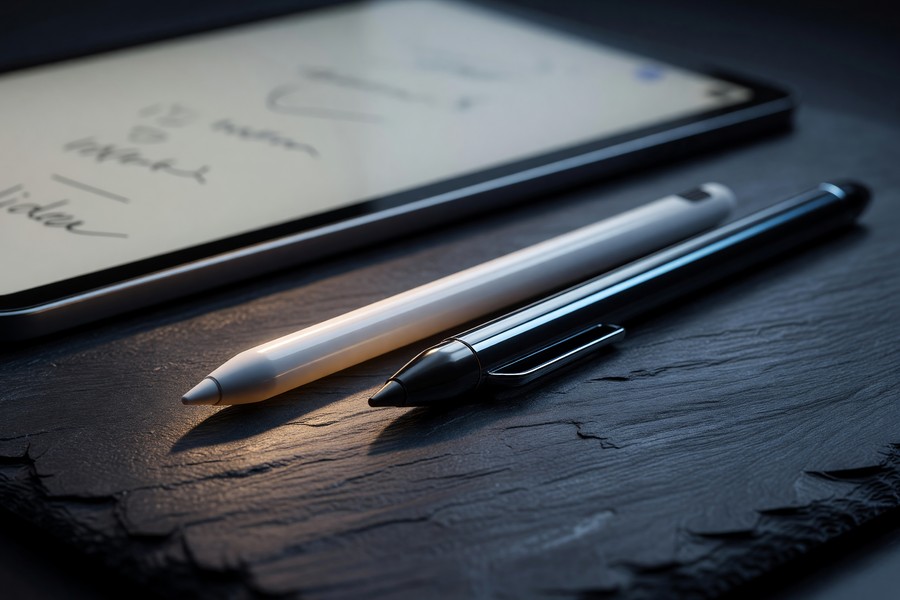
The Apple Pencil (2nd generation, $129) paired with an iPad running GoodNotes or Notability remains the gold standard for educators who need to write on PDFs. The pressure sensitivity and palm rejection make it feel close to pen on paper. However, it requires an iPad, not just a phone — an important distinction for a guide focused on phone-based tools.
“When we surveyed 400 secondary school teachers about their annotation habits, the single strongest predictor of sustained mobile annotation use was access to a stylus. Teachers without one abandoned mobile grading workflows at twice the rate of those with one.”
Stylus Options for Smartphones
| Stylus | Compatible Devices | Price | Best For |
|---|---|---|---|
| Apple Pencil (2nd Gen) | iPad Pro, iPad Air | $129 | Heavy annotation, math/science |
| Samsung S Pen | Galaxy S Ultra, Galaxy Tab | Included with device | Android users, note-taking |
| Adonit Note+ 2 | iOS (iPhone + iPad) | $49.99 | Budget-friendly iPhone annotation |
| Logitech Crayon | iPad (most models) | $49.95 | Classroom-durable, no pairing needed |
For pure phone use — not iPad — the Adonit Note+ 2 at $49.99 is the most reliable option for iOS. Android users with Samsung Galaxy S series phones have access to the built-in S Pen, which provides the closest experience to the Apple Pencil ecosystem outside of Apple hardware.
FERPA, Privacy, and Data Security on Mobile
This is the section most annotation app reviews skip — and it’s arguably the most important for professional educators. When you open a student’s PDF on your personal phone and annotate it using a third-party app, you are handling personally identifiable student information on infrastructure you don’t control. That has real legal implications under FERPA — the Family Educational Rights and Privacy Act.
What FERPA Actually Requires
FERPA, enforced by the U.S. Department of Education, requires that educational institutions protect the privacy of student education records. When a teacher uses a third-party app to process student work, the institution is responsible for ensuring that app has appropriate data protections in place. Most schools handle this through Data Processing Agreements (DPAs) — formal contracts between the school district and the software vendor.
The practical problem: many teachers are using personal accounts on annotation apps that have never been vetted by their district’s IT department. An individual teacher signing up for Adobe Acrobat with a personal Gmail account is not covered by any institutional DPA. If that app stores student work on third-party servers — which most cloud-connected apps do — there could be a compliance exposure.
Three of the seven most popular phone PDF annotation apps reviewed in this article (Adobe Acrobat cloud sync, Xodo’s cloud storage feature, and GoodNotes iCloud backup) store data on servers that may be outside your district’s approved vendor list. Always check with your district’s IT or privacy officer before routing student work through any third-party cloud service.
The Safest Approaches for FERPA Compliance
The safest mobile annotation workflow for FERPA-sensitive environments is fully local: open the PDF from a device’s local storage, annotate without enabling cloud sync, and transfer the file manually via a district-approved method (like your school’s LMS file upload system).
For teachers who want cloud convenience with better privacy posture, Kami is the strongest option. Kami has signed DPAs with thousands of school districts, is listed on the Student Privacy Pledge, and its Google Workspace for Education integration means data flows through Google’s FERPA-compliant infrastructure. Understanding your digital identity and how to protect it is a broader skill that applies directly to how teachers manage student data on personal devices.
Integration With Learning Management Systems
The value of any phone PDF annotation app is multiplied — or neutralized — by how well it connects to the learning management system your school actually uses. Annotating a PDF beautifully means nothing if returning it to students requires a six-step manual process.
Google Classroom Integration
Google Classroom dominates the K-12 LMS market, with over 170 million users globally as of 2023. Kami is the only dedicated annotation app with a native Google Classroom integration that works bidirectionally on mobile: teachers can open assigned PDFs from Classroom, annotate them, and return them — all without leaving Kami’s mobile interface.
For teachers not using Kami, the workaround is to open Google Classroom in a mobile browser, download the student PDF, annotate it in a separate app, and re-upload it. That adds 3-4 minutes of overhead per document — which scales to over an hour of wasted time for a class of 25 students.
Google Classroom’s mobile app does not natively support PDF annotation — it can only display PDFs as static documents. Teachers must use a third-party phone PDF annotation app to actually mark up files from within the Classroom ecosystem.
Canvas and Blackboard Compatibility
Higher education tends to use Canvas or Blackboard, both of which have more robust mobile apps than Google Classroom but still fall short on annotation. Canvas’s mobile app allows PDF viewing and some basic markup, but lacks the depth of a dedicated annotation tool.
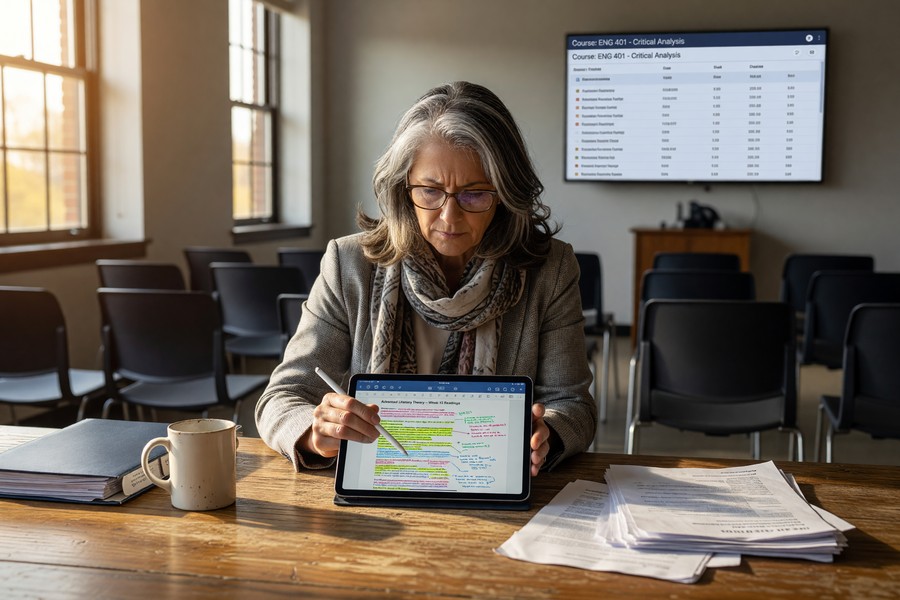
The most effective workflow for Canvas users on mobile: download the student submission PDF from the Canvas app, annotate it in PDF Expert or Adobe Acrobat, then upload the annotated version back as a feedback file on the submission. It’s not seamless, but it works reliably.
Cost Breakdown: Free vs. Paid Tiers
Budget is a real constraint for teachers, 94% of whom spend their own money on classroom supplies according to the National Education Association. Spending money on annotation software is a personal financial decision — and the free tier vs. paid tier decision deserves honest analysis.
What You Get for Free
Xodo PDF is genuinely free with no meaningful feature restrictions for typical teacher use. It covers text comments, highlighting, freehand drawing, stamps, and cloud sync via Google Drive or Dropbox. For a teacher whose primary annotation tasks are commenting on writing and marking reading comprehension PDFs, Xodo’s free tier covers 90% of daily needs.
Microsoft Edge’s built-in PDF reader — available free on both iOS and Android — also supports basic highlighting and text annotation. It’s not glamorous, but it’s zero cost and zero setup. For teachers skeptical about adding yet another app subscription, it’s a reasonable first experiment. Speaking of subscription stacking, if you’re already managing multiple digital tool costs, it may be worth doing a broader audit of your digital subscriptions to find what’s draining your budget before adding another one.
U.S. teachers spend an average of $479 per year on classroom supplies out of pocket, according to the National Center for Education Statistics. Every dollar saved on annotation software is a dollar available for students.
When Paid Tiers Justify the Cost
The paid tiers of GoodNotes ($6.99/month), Adobe Acrobat ($9.99/month), and Notability ($14.99/year) earn their price for specific use cases. The clearest justification is advanced stylus workflows: writing extensively in handwritten ink on PDFs requires the palm rejection, pressure sensitivity, and lag reduction that premium apps optimize better than free alternatives.
Kami’s teacher plan at $99/year ($8.25/month) is the most expensive individual option but provides the strongest LMS integration and privacy compliance posture. For teachers in schools that haven’t purchased a site license, the personal subscription can be a worthwhile professional investment — particularly if it’s a deductible educator expense under IRS Publication 529, which allows up to $300 in qualified educator expense deductions.
“The ROI of a quality annotation app for teachers isn’t just time saved — it’s feedback quality improved. When teachers can annotate quickly and precisely on any device, they leave more comments, and more specific ones. That directly impacts student outcomes in measurable ways.”
Common Mistakes Teachers Make With Mobile Annotation
Even teachers who’ve invested in a solid phone PDF annotation app often undermine their own workflow with predictable mistakes. These aren’t failures of technology — they’re failures of setup and habit.
Mistake 1: Annotating Without a File Naming System
When you’re annotating 25 PDFs titled “assignment_final.pdf” from 25 different students, a clear file naming convention isn’t optional. Without one, you’ll spend more time hunting for files than grading them. The most durable system: LastName_FirstName_AssignmentTitle_Date.pdf, enforced at the submission stage via LMS settings.
Teachers who require students to follow a naming convention before submission report spending 12-18 fewer minutes per grading cycle on file management alone.
Mistake 2: Using Personal Cloud Storage for Student Work
Saving student PDFs to a personal iCloud or Google Drive account — rather than a school-provisioned storage system — is the most common FERPA exposure point in mobile annotation workflows. It feels convenient because it syncs across all your devices. But personal cloud accounts are not covered by school data processing agreements.
The fix is simple: use your school-issued Google Workspace or Microsoft 365 account’s cloud storage, not personal accounts. Your school-issued account is covered by your district’s vendor agreements.
Some phone PDF annotation apps prompt you to “back up to the cloud” during setup. If you accept without specifying your school account, files may be silently saved to a personal cloud storage tier that isn’t FERPA-compliant. Always choose your account destination explicitly during app setup.
Mistake 3: Ignoring Accessibility of Returned Annotations
Annotations that look clear on your phone may be nearly invisible when a student opens the returned PDF on a laptop. Dark blue ink on a black-text document. Tiny text comments in a 7pt font. Highlights so pale they disappear on a backlit screen. Before committing to an annotation style, test how it looks on multiple screen types.
Best practices: use at least 10pt text for typed comments, choose high-contrast highlight colors (yellow, bright pink), and avoid light-gray ink for freehand notes. These adjustments take 30 seconds to configure in app settings and prevent hours of student confusion.
Approximately 8% of male students and 0.5% of female students have some form of color vision deficiency. Using red-only or green-only annotation colors to differentiate feedback types creates accessibility barriers for a meaningful portion of your class.
“Mobile grading has democratized access to real-time feedback. But teachers need training, not just tools. The biggest gap we see isn’t technology — it’s workflow design. Teachers who succeed with mobile annotation have thought deliberately about every step from file receipt to file return.”
Schools that provided formal training on mobile annotation tools saw teacher adoption rates of 73% within 90 days — compared to just 31% adoption in schools where teachers were given the tools without structured guidance, per a 2022 EdTech survey by Education Week Research Center.
Real-World Example: One High School English Teacher’s 6-Month Transformation
Sarah Okonkwo teaches 11th grade AP Language and Composition at a Title I high school in Atlanta, Georgia. In September 2023, she was averaging 6.2 hours per week on grading — almost entirely done on a school-issued Chromebook that she wasn’t allowed to take home. Every Sunday, she drove 12 minutes to school, graded in her classroom, and drove home. It was, she told colleagues, “the part of teaching that was making me consider leaving.”
In October 2023, a colleague introduced her to Kami’s mobile app. Sarah’s school district had a site license, meaning the FERPA-compliant version was already available for free under her school Google account. She spent 40 minutes on a Saturday setting up her workflow: all student PDF submissions routed to a shared Google Drive folder via Google Classroom, Kami configured to open files directly from Drive, and a library of 22 pre-written comment snippets covering her most common feedback points (thesis clarity, evidence integration, citation format).
By the end of October — her first full month of mobile annotation — Sarah’s weekly grading time had dropped from 6.2 hours to 3.9 hours. A savings of 2.3 hours per week. Over the course of the school year, that projected to over 80 hours returned to her personal life. She also noted that her students began commenting on the specificity of her feedback: because she was annotating in smaller sessions on her phone (during her 35-minute commute on MARTA, during lunch), she was leaving comments on individual sentences rather than just end-of-essay summaries.
By March 2024, Sarah had become her school’s unofficial mobile annotation resource. She ran a 90-minute PD session for 14 colleagues. Twelve of them adopted Kami on mobile within the following month. Average grading time across that cohort fell by 34% within eight weeks. The cost to the school: zero dollars, since the district license was already in place.
Your Action Plan
-
Audit your current grading workflow and measure your time
Before downloading any app, spend one grading session timing yourself. Track total time from opening the first PDF to returning the last one. Include file management, typing comments, and uploading. This baseline number is your benchmark — and it’s the only way to know whether your new mobile workflow is actually saving time after 30 days.
-
Confirm your district’s approved vendor list and FERPA posture
Email your district’s IT department or instructional technology coordinator before adopting any new app. Ask specifically: “Is [app name] on our approved vendor list, and is there a signed DPA in place?” This takes 10 minutes and protects you from compliance exposure. If your district already has a Kami site license, start there — it’s the safest and most education-specific option available.
-
Choose one app and set it up completely before your next grading cycle
Don’t try two apps simultaneously. Pick one based on the comparison tables in this article — Kami if LMS integration matters most, Xodo if cost is the priority, GoodNotes or Notability if you have an Apple Pencil. Then spend 30-60 minutes fully setting it up: connect cloud storage, configure annotation defaults, create your comment snippet library, and test a sample document end-to-end before actual student work enters the workflow.
-
Set up a clear file naming and storage system
Require students to submit files using a consistent naming convention: LastName_FirstName_Assignment_Date. Create a dedicated folder in your school-issued cloud storage (Google Drive or OneDrive) for each assignment. This infrastructure step takes 15 minutes to set up and saves hours over the course of a semester.
-
Build your comment snippet library before you need it
Open your chosen app and create saved text comments for the 15-20 most common feedback points you leave on student work. In Kami, these are “stamps.” In Adobe Acrobat, use custom comment templates. In GoodNotes, use text boxes saved in a dedicated template page. Pre-writing these snippets is the highest-ROI setup step available — typically saving 8-15 minutes per grading session.
-
Test your annotation visibility across devices before distributing
Annotate a sample PDF on your phone, then open it on your laptop, a student Chromebook, and if possible an Android tablet. Check that highlight colors are visible, text comments are legible at 100% zoom, and freehand ink is clear. Adjust your default settings based on what you find. This one-time test prevents a semester’s worth of student confusion about unreadable feedback.
-
Run a 30-day mobile annotation pilot and track your metrics
Commit to using your chosen phone PDF annotation app for every grading session for 30 calendar days. Track weekly grading time, note any technical friction points, and pay attention to student feedback on comment quality. At day 30, compare your time to your baseline. Most teachers see a 25-40% reduction. If you don’t, that’s valuable data — it may indicate a workflow configuration issue rather than an app failure.
-
Share what works with colleagues and advocate for district-level support
If your mobile annotation workflow saves meaningful time, document it and share it. Write up a one-page summary for your department head. Offer to run a 45-minute PD session. As Sarah Okonkwo’s example shows, peer-to-peer adoption is the fastest way to scale effective practices. And if your district doesn’t have a site license for your preferred tool, a coalition of teachers asking IT together is far more persuasive than one teacher requesting alone.
Related reading: aio roundup: ai tools help.
Frequently Asked Questions
Can I use a phone PDF annotation app to grade assignments directly from Google Classroom?
Yes, but the native Google Classroom mobile app does not support annotation. You need a third-party app. Kami is the only tool with a direct, bidirectional Google Classroom integration that works on mobile — meaning you can open, annotate, and return assignments without leaving the app. All other apps require you to download the PDF, annotate separately, and re-upload manually.
Is it legal to annotate student PDFs on a personal phone app?
It depends on the app and your district’s data agreements. FERPA requires that any third-party tool handling student records has a signed Data Processing Agreement with your school district. Using a personal account on an unapproved app — even a well-known one like Adobe Acrobat — may create compliance exposure. Always verify with your district’s IT or privacy officer before routing student work through any app not explicitly approved by your institution.
What is the best free phone PDF annotation app for teachers?
Xodo PDF Reader is the strongest fully free option, with no meaningful feature restrictions for typical teacher annotation tasks. It supports text comments, highlights, freehand drawing, stamps, and cloud sync via Google Drive and Dropbox. Microsoft Edge’s built-in PDF reader is another zero-cost option for basic highlighting and text annotation, though it lacks Xodo’s depth. For teachers who need Google Classroom integration, Kami’s free tier covers individual use but limits some collaboration features.
Do I need an Apple Pencil or stylus to annotate PDFs effectively on a phone?
Not for text-based subjects. If your primary annotation tasks are typed comments, highlights, and text strikethroughs, a finger works adequately. However, for subjects requiring handwritten markup — math, science diagrams, handwritten corrections on student writing — a stylus makes a significant difference in both speed and legibility. Research shows stylus users complete annotations 22% faster and produce more readable handwritten comments than finger-only annotators.
How do I return annotated PDFs to students without email?
The cleanest method depends on your LMS. In Google Classroom, upload the annotated PDF as a private comment attachment on the student’s submission. In Canvas, attach it as a feedback file on the assignment submission page. In Schoology, use the return submission feature. Kami handles this automatically for Google Classroom users. Avoid emailing PDFs to students — it bypasses your LMS records and creates a documentation gap.
Can students see all annotation types when they open the returned PDF?
Most annotation types — highlights, text comments, stamps, and shapes — are visible in any standard PDF viewer. Freehand ink annotations are also broadly compatible. Voice comments (audio notes) are an exception: they require an app that supports embedded audio in PDFs, and many standard PDF viewers (including Google Drive’s built-in viewer) will not play them. If you use voice comments, instruct students to open the PDF in Notability or Adobe Acrobat Reader, not just Google Drive.
What’s the best annotation app for math teachers specifically?
For math, the ability to write equations, draw diagrams, and mark up student work in handwritten ink is essential. GoodNotes 6 (iOS, $6.99/month) with an Apple Pencil offers the best handwriting experience. On Android, Samsung’s Galaxy Tab S series with the included S Pen running Xodo or Adobe Acrobat Reader provides a comparable experience. For cross-platform math annotation without hardware investment, Kami’s freehand tool with a basic capacitive stylus is functional, if less precise.
How much storage does annotating PDFs require on my phone?
Annotated PDFs are typically small files. A 10-page student essay with full text comments and highlights usually comes in under 500KB. A class set of 25 annotated PDFs is typically 10-12MB — negligible on any modern smartphone. The storage concern is more relevant if you’re using voice comments, which add audio data to each file, or if you accumulate multiple semesters of annotated assignments without archiving them to cloud storage.
Are there annotation apps designed specifically for K-12 versus higher education?
Kami is explicitly designed for K-12 and has the deepest LMS integrations for that market (Google Classroom, Canvas, Schoology). Adobe Acrobat Reader is more common in higher education settings, where its PDF standard compliance and advanced form-filling capabilities align with the more formal document workflows of universities. GoodNotes and Notability are popular across both levels but have no LMS integration, making them better fits for teachers who manage their own file workflows independently of institution-provided systems.
Can I annotate PDFs offline on my phone?
Yes — Xodo, PDF Expert, GoodNotes, and Notability all support full offline annotation. Adobe Acrobat Reader supports offline annotation but requires the file to have been previously downloaded to the device. Kami requires an internet connection for its core functionality, which is a meaningful limitation for teachers who want to grade on planes or in areas with poor connectivity. For offline use, Xodo’s combination of full features and zero cost makes it the default recommendation.
Sources
- National Education Association — 2021 Educator Workforce Report
- RAND Corporation — Educator Working Conditions Research Report RRA956-14
- Pew Research Center — Mobile Technology and Smartphone Ownership Fact Sheet
- ISTE — EdTech Research and Teacher Experience
- Student Privacy Pledge — Signatory Organizations and Commitments
- National Education Association — Teachers Spending Their Own Money
- National Center for Education Statistics — Teacher Characteristics and Expenditures 2023
- U.S. Department of Education — FERPA Overview and Guidance
- Education Week Research Center — Teacher Mobile Device Use and EdTech Adoption Survey 2023
- Common Sense Media — EdTech Privacy Evaluations and School Data Agreements
- Journal of Educational Technology and Society — Feedback Quality and Session Length Study
- Internal Revenue Service — Publication 529: Miscellaneous Deductions (Educator Expenses)
- Computers and Education — Stylus vs. Finger Input Usability in Mobile Learning Contexts
- U.S. Government Accountability Office — K-12 Education: Districts’ Technology Infrastructure Gaps Report
- Colour Blind Awareness — Types of Colour Blindness and Prevalence Statistics






