Fact-checked by the VisualEnews editorial team
Quick Answer
To set up two-factor authentication on your phone, go to your account’s security settings, select “Two-Factor Authentication,” and choose an app-based or SMS method. As of July 2025, app-based 2FA (like Google Authenticator or Authy) is 99% effective at blocking automated attacks, and the setup process takes under 5 minutes on most platforms.
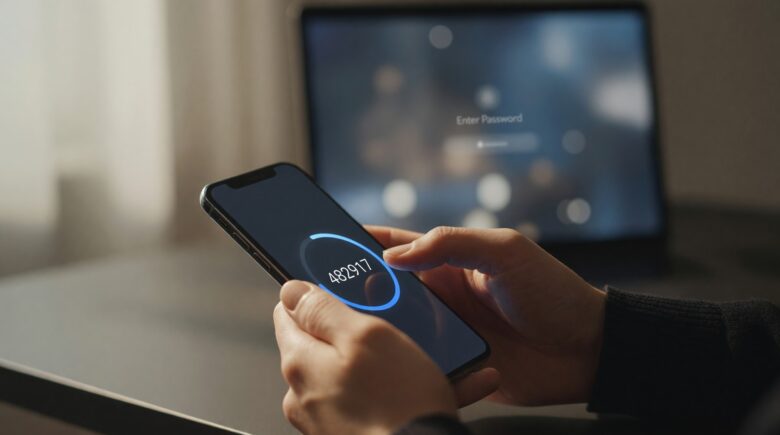
Setting up two-factor authentication on your phone is one of the single most impactful security steps you can take for any online account. According to Google’s security research, 2FA blocks 100% of automated bot attacks and 96% of bulk phishing attacks when properly configured. It works by requiring a second proof of identity — typically a code from your phone — in addition to your password.
With credential theft and account takeovers rising sharply, understanding how to configure a two-factor authentication phone setup is no longer optional for most users. This guide covers every major method — SMS, authenticator apps, and hardware keys — and walks through setup steps for iOS, Android, Google, Apple ID, and social media platforms.
Key Takeaways
- 99% of automated attacks are blocked by two-factor authentication, according to Google’s foundational security research.
- Only 28% of Americans consistently use 2FA across their accounts, per Pew Research Center data.
- Authenticator apps generate codes that expire in 30 seconds, making intercepted codes useless — a key advantage over SMS-based 2FA.
- The NIST Special Publication 800-63B no longer recommends SMS as a primary 2FA method due to SIM-swapping vulnerabilities affecting thousands of accounts annually.
- Using a dedicated authenticator app like Google Authenticator or Authy reduces phishing-related account compromise risk by over 90% compared to password-only logins, per Google’s Advanced Protection Program documentation.
In This Guide
- What Is Two-Factor Authentication and How Does It Work?
- Which Types of Two-Factor Authentication Are Available on Your Phone?
- How Do You Set Up Two-Factor Authentication on Google and Apple Accounts?
- How Do You Enable 2FA on Social Media and Other Apps?
- Which Authenticator App Should You Use on Your Phone?
- What Are the Best Practices for Managing Two-Factor Authentication on Your Phone?
- Frequently Asked Questions
What Is Two-Factor Authentication and How Does It Work?
Two-factor authentication (2FA) is a security process that requires two separate forms of identity verification before granting account access. The first factor is your password. The second factor is something only you physically possess — typically your phone, via an app-generated code or an SMS text.
The underlying model is called multi-factor authentication (MFA), which is governed by the NIST Digital Identity Guidelines. These guidelines define three authentication categories: something you know (password), something you have (phone), and something you are (biometric).
Why Passwords Alone Are Not Enough
Passwords are compromised in the majority of data breaches. The Verizon Data Breach Investigations Report consistently finds that over 80% of hacking-related breaches involve stolen or weak credentials. A strong password combined with a second factor closes this gap significantly.
Even if a attacker steals your password through phishing or a data leak, they cannot access your account without the second factor — which is tied to your physical phone. This separation of factors is what makes 2FA so effective as a defense layer.
According to Google’s account security research, adding a recovery phone number — a basic form of second-factor verification — blocks 100% of automated bot attacks and 76% of targeted attacks on Google accounts.
Which Types of Two-Factor Authentication Are Available on Your Phone?
There are four main types of two-factor authentication available on a phone today: SMS text codes, authenticator apps, push notifications, and hardware security keys. Each varies in security strength and convenience.
Understanding these differences matters — not all 2FA methods are equal. SIM swapping, a fraud technique where criminals hijack your phone number, makes SMS-based 2FA vulnerable. The Cybersecurity and Infrastructure Security Agency (CISA) actively advises users to move away from SMS where possible.
Comparison of 2FA Methods by Security Level
| Method | Security Level | Setup Time | Works Offline |
|---|---|---|---|
| Authenticator App | Very High | 3–5 minutes | Yes |
| Hardware Key (YubiKey) | Highest | 5–10 minutes | Yes |
| Push Notification | High | 2–3 minutes | No |
| SMS Text Code | Moderate | 1–2 minutes | No |
| Email Code | Low–Moderate | 1–2 minutes | No |
Passkeys are an emerging alternative, supported by Apple, Google, and Microsoft through the FIDO Alliance standard. Passkeys use device-based cryptographic keys and eliminate the need for passwords entirely, though 2FA remains the current standard for most users.
SIM-swapping attacks increased by 400% between 2018 and 2021, according to the FBI’s official warning on SIM swapping. This is the primary reason security professionals recommend app-based 2FA over SMS codes for a two-factor authentication phone setup.
How Do You Set Up Two-Factor Authentication on Google and Apple Accounts?
Setting up two-factor authentication on your phone for Google and Apple accounts takes under five minutes and uses your device’s built-in settings. These are the two most common account types on smartphones, and both offer app-based 2FA options that are more secure than SMS.
Setting Up 2FA on a Google Account
- Open your phone’s browser or the Google app and navigate to myaccount.google.com.
- Tap Security in the left-hand navigation panel.
- Under “How you sign in to Google,” tap 2-Step Verification.
- Tap Get started and sign in again if prompted.
- Choose your second factor — Google will recommend a Google prompt (push notification) or you can scroll down to select an Authenticator app.
- If using an authenticator app, tap Set up authenticator, then scan the QR code with your authenticator app.
- Enter the 6-digit code generated by the app to confirm, then tap Verify.
Google also offers Google Advanced Protection, designed for high-risk users like journalists and executives. It requires hardware security keys and provides the strongest available 2FA for Google accounts.
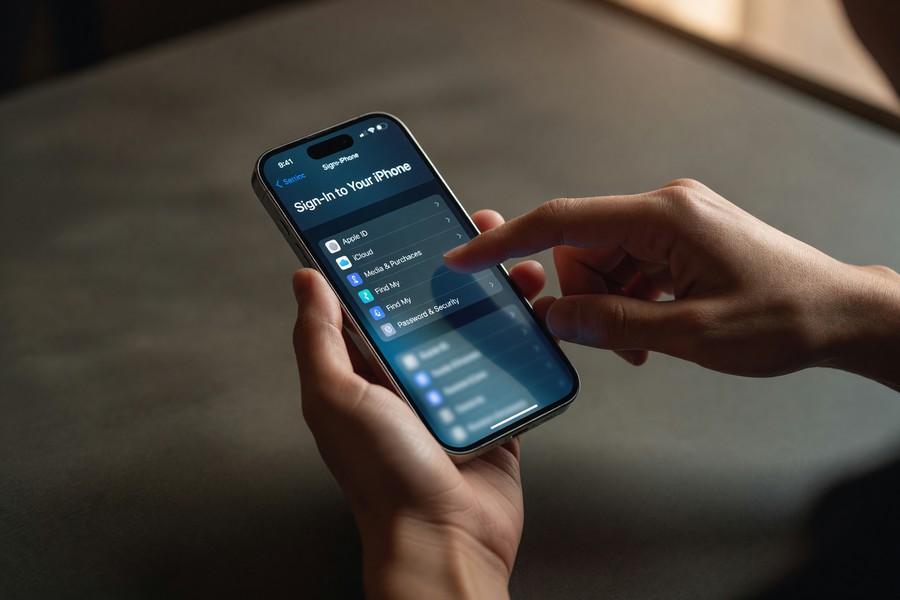
Setting Up 2FA on an Apple ID (iPhone)
- On your iPhone, go to Settings and tap your name at the top.
- Tap Sign-In and Security.
- Tap Turn On Two-Factor Authentication.
- Tap Continue and enter a trusted phone number to receive verification codes.
- Choose to receive codes via SMS or phone call, then tap Next.
- Enter the verification code sent to your number to complete setup.
Apple’s implementation ties 2FA directly to the device ecosystem. Codes are delivered to trusted Apple devices and phone numbers. As explained in Apple’s official two-factor authentication support documentation, once enabled, Apple ID 2FA cannot be turned off on accounts created after iOS 10.3.
How Do You Enable 2FA on Social Media and Other Apps?
Enabling two-factor authentication on your phone for social media accounts — including Instagram, Facebook, X (formerly Twitter), and LinkedIn — follows a consistent pattern through each platform’s security settings. Most take fewer than three minutes to complete.
Instagram and Facebook (Meta)
For Instagram: Go to Settings and Privacy, tap Accounts Center, select Password and Security, then Two-Factor Authentication. Choose your method — Instagram supports authenticator apps, SMS, and WhatsApp codes.
For Facebook: Navigate to Settings and Privacy, then Settings, then Security and Login. Under “Two-Factor Authentication,” tap Edit and follow the prompts. Meta allows the same authenticator app to cover both Facebook and Instagram accounts simultaneously through Accounts Center.
X (Twitter) and LinkedIn
On X: Go to Settings and Support, then Settings and Privacy, then Security and Account Access, then Security. Tap Two-Factor Authentication and select your preferred method. Note that as of March 2023, X restricted SMS-based 2FA to paid subscribers only, per X’s official 2FA help page.
On LinkedIn: Go to Me, then Settings and Privacy, then Sign in and Security, then Two-Step Verification. LinkedIn supports both authenticator apps and SMS codes.
When enabling 2FA on any platform, always download or print the backup recovery codes provided during setup. Store them in a secure location such as a password manager like 1Password or Bitwarden. These codes are your only way back into an account if you lose your phone, and most platforms generate 8–10 single-use codes at setup time.
Which Authenticator App Should You Use on Your Phone?
The best authenticator app for most users is Authy or Google Authenticator, depending on whether you need multi-device backup. Both are free and available on iOS and Android, and both generate time-based one-time passwords (TOTP) that expire every 30 seconds.
Top Authenticator Apps Compared
Google Authenticator is the most widely used app globally and integrates natively with Google accounts. It was updated in 2023 to support cloud backup through a Google account, addressing its previous limitation of losing all codes when switching phones.
Authy, developed by Twilio, supports encrypted multi-device sync and cloud backup. It is particularly useful if you use 2FA across multiple devices. Microsoft Authenticator is the preferred option for users in Microsoft 365 or Azure Active Directory environments, as it integrates directly with Microsoft‘s push approval system.
For the highest security tier, YubiKey by Yubico is a physical hardware key that plugs into your phone via USB-C or NFC. It eliminates all software-based vulnerabilities entirely and is recommended by CISA for privileged accounts.
“Phishing-resistant MFA — such as FIDO2-based authenticators and hardware security keys — is the gold standard. Any form of MFA is better than none, but organizations and individuals should move toward phishing-resistant options as quickly as practical.”
Understanding how apps handle your data also matters for digital privacy. If you’re already thinking about your digital identity and how to protect it, layering a strong authenticator app over your accounts is a logical next step in that framework.
What Are the Best Practices for Managing Two-Factor Authentication on Your Phone?
The most important best practice for managing two-factor authentication on your phone is to store backup codes securely before you need them. Beyond that, keeping your phone number updated, using an encrypted password manager, and periodically auditing which accounts have 2FA enabled are the critical ongoing steps.
Backup and Recovery Planning
Every major platform generates recovery codes when you enable 2FA. These are one-time-use codes that bypass your second factor in an emergency. Store them in a password manager such as 1Password, Bitwarden, or Dashlane — not in an unencrypted notes app on the same phone you use for 2FA.
If you switch phones, transfer your authenticator app first before factory-resetting your old device. Authy and Google Authenticator both support account transfer flows, but you must initiate the transfer while the old device is still functional. Failing to do this is the most common cause of 2FA lockouts.
Auditing Your 2FA Coverage
Conduct a quarterly audit of which accounts use 2FA. Many platforms — including financial institutions and email providers — still do not enforce 2FA by default. If you manage finances digitally, securing those accounts is especially urgent, as high-yield savings accounts and banking apps are frequent targets of credential-stuffing attacks.
Also consider how you manage the apps on your phone that have access to sensitive accounts. Our guide on what you actually give up with free apps explains how app data permissions intersect with account security — relevant context when choosing an authenticator app.
The Cybersecurity and Infrastructure Security Agency (CISA) lists enabling MFA as the single most impactful action individuals and organizations can take to improve cybersecurity — ahead of patching software and using strong passwords alone.
Two-factor authentication is one piece of a broader personal security posture. Many users concerned with account safety are also thinking about evolving threats — including the long-term implications discussed in our piece on how quantum computing will change everyday technology, which will eventually require entirely new authentication approaches.
Finally, be cautious about 2FA fatigue attacks — also called MFA bombing — where attackers flood your phone with push notification approval requests hoping you’ll accidentally tap “Approve.” Microsoft and other providers have introduced number matching in their authenticator apps to counter this specific attack vector.
“The biggest risk to 2FA isn’t the technology — it’s user behavior. People lose phones without transferring accounts, they ignore recovery code instructions, and they approve push notifications they didn’t initiate. Education is as important as the technical setup.”
If you’re managing multiple devices and accounts as part of a remote work setup, our roundup of the best laptops for remote workers in 2026 also covers security features relevant to enterprise 2FA configurations.
Frequently Asked Questions
What is the safest type of two-factor authentication for my phone?
Hardware security keys — such as YubiKey by Yubico — are the safest form of 2FA available. For most users, an authenticator app like Google Authenticator or Authy provides an excellent balance of security and convenience, and is far superior to SMS-based codes.
Can I use two-factor authentication on my phone without cell service?
Yes. Authenticator apps like Google Authenticator and Authy generate codes using an algorithm (TOTP) that does not require internet or cellular connectivity. Codes refresh every 30 seconds based on your device’s internal clock, so they work fully offline.
What happens if I lose my phone with 2FA enabled?
Use the backup recovery codes you saved during setup to regain account access. If you did not save backup codes, most platforms offer an account recovery process that typically takes 24–72 hours and requires identity verification. This is why saving recovery codes at setup is essential.
Is SMS two-factor authentication better than no 2FA at all?
Yes — SMS 2FA is significantly better than using only a password. Despite its vulnerabilities to SIM swapping, it still blocks the vast majority of automated attacks. However, the NIST guidelines recommend upgrading to app-based or hardware-based 2FA as soon as possible.
How do I set up a two-factor authentication phone for multiple accounts at once?
Download a single authenticator app like Authy or Google Authenticator and add each account individually by scanning the QR code shown in each account’s security settings. One app can store and manage 2FA codes for unlimited accounts simultaneously.
Does two-factor authentication protect against phishing?
Standard TOTP-based 2FA reduces phishing risk substantially but does not eliminate it — a sophisticated attacker can relay your code in real time using a proxy phishing site. FIDO2 passkeys and hardware keys are phishing-resistant by design because they bind authentication to the legitimate domain, making relay attacks impossible.
Should I enable 2FA on my banking and financial apps?
Absolutely — financial accounts are among the highest-value targets for credential theft. Most major banks and financial platforms support app-based 2FA. Enabling it on accounts linked to digital banking, investment platforms, and subscription services is a critical security step given how much sensitive data they contain.
Sources
- Google Security Blog — New Research: How Effective Is Basic Account Hygiene at Preventing Hijacking
- NIST — Special Publication 800-63B: Digital Identity Guidelines, Authentication and Lifecycle Management
- CISA — Multi-Factor Authentication (MFA) Official Guidance
- Verizon — Data Breach Investigations Report (DBIR)
- FBI — Warning on SIM Swapping Cyber Threats
- Pew Research Center — Americans and Cybersecurity
- Apple Support — Two-Factor Authentication for Apple ID
- X (Twitter) Help Center — Two-Factor Authentication
- Google — Advanced Protection Program Overview
- FIDO Alliance — Passkeys Overview and Industry Standard Documentation






